





How Specialty Subcontractors Manage Documents and Project Data Across Multiple GCs
A specialty subcontractor's guide to managing documents and project data across multiple GCs: a home system, intake routine, and kickoff checklist.


TL;DR
- A subcontractor can't standardize its general contractors' platforms, so it should standardize its own side with one home system of record.
- Treat each GC's platform as the contractual exchange point, and keep working copies, history, and field sheets in your own system.
- Run the same intake routine for every GC drawing drop; eg, download, upload as a new version, keep the GC's revision mark, and notify crews.
- Reconcile your current set against each GC's platform weekly, so a missed reissue surfaces before a crew builds from it.
- CUBE gives subcontractors one project Space per GC job, Microsoft® Excel® bulk import, QR sheet checks, and Project Management for schedules and costs.
How does a specialty subcontractor keep drawings, schedules, and costs straight when every GC runs a different platform?
The way to manage documents and project data across multiple GCs as a specialty subcontractor is to keep one home system for your own documents, schedules, and costs. Each general contractor's (GC's) platform then becomes the exchange point, and the same routine moves files between the two on every drawing drop.
A mechanical subcontractor with six live jobs may log into four GC platforms. Each one has its own naming, revision marks, and notification habits. The GC's system records what the GC issued and received. Your detailing history, crew schedule, and change-order pricing still need a home.
This guide covers the home-base model, a six-step intake routine, what project data to keep in your own system, and a kickoff checklist for each new GC.
Why Multi-GC Work Breaks a Subcontractor's Document Control
Multi-GC work breaks document control because each GC sets its own rules on its own platform, and a subcontractor has to follow them all at once. The failures come from four places:
Separate platforms and logins: One job's drawings sit in one GC's system, and the next job's sit in another, so nobody sees your whole workload in one place.
Different naming and revision marks: One GC issues "Rev C" and another issues "IFC-03", and both reach the same detailer in the same week.
Notification noise: A reissue on one job arrives among dozens of routine alerts from three others.
Records that stop at the GC's edge: The GC's project shows what the GC issued and received, and your internal drafts, reviews, and costs stay outside it.
None of this is the GC's fault. Each GC picked a system for its own portfolio, and your firm is one of many trade contractors on it.
The Home-Base Model for Subcontractors
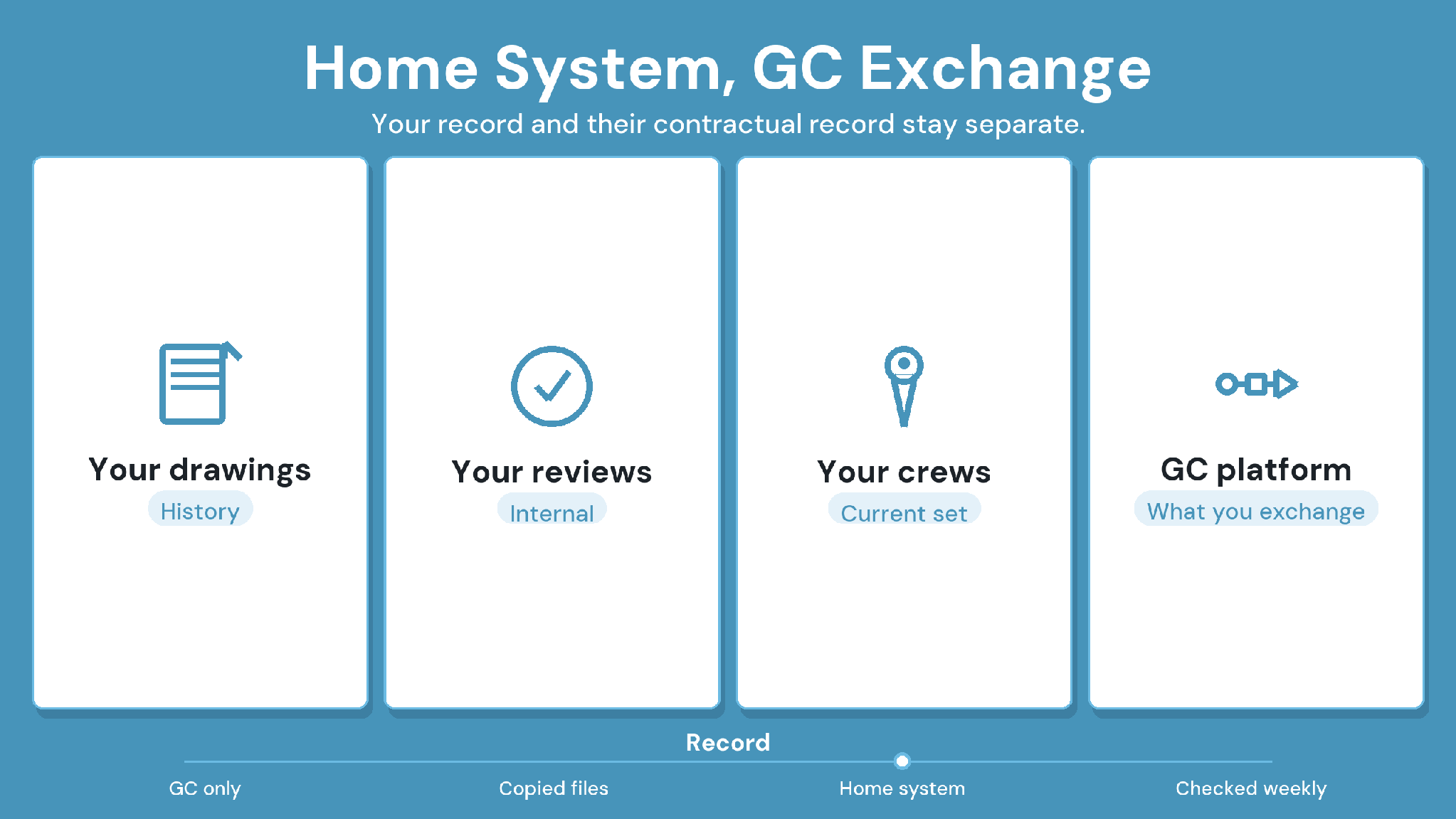
In the home-base model, your own system holds everything your team produces and acts on. Each GC's platform holds what you formally exchange with that GC.
The GC's platform stays the record for anything contractual. Your home system makes sure your own people work from the same set, across every job.
How to Manage Documents Across Multiple GCs
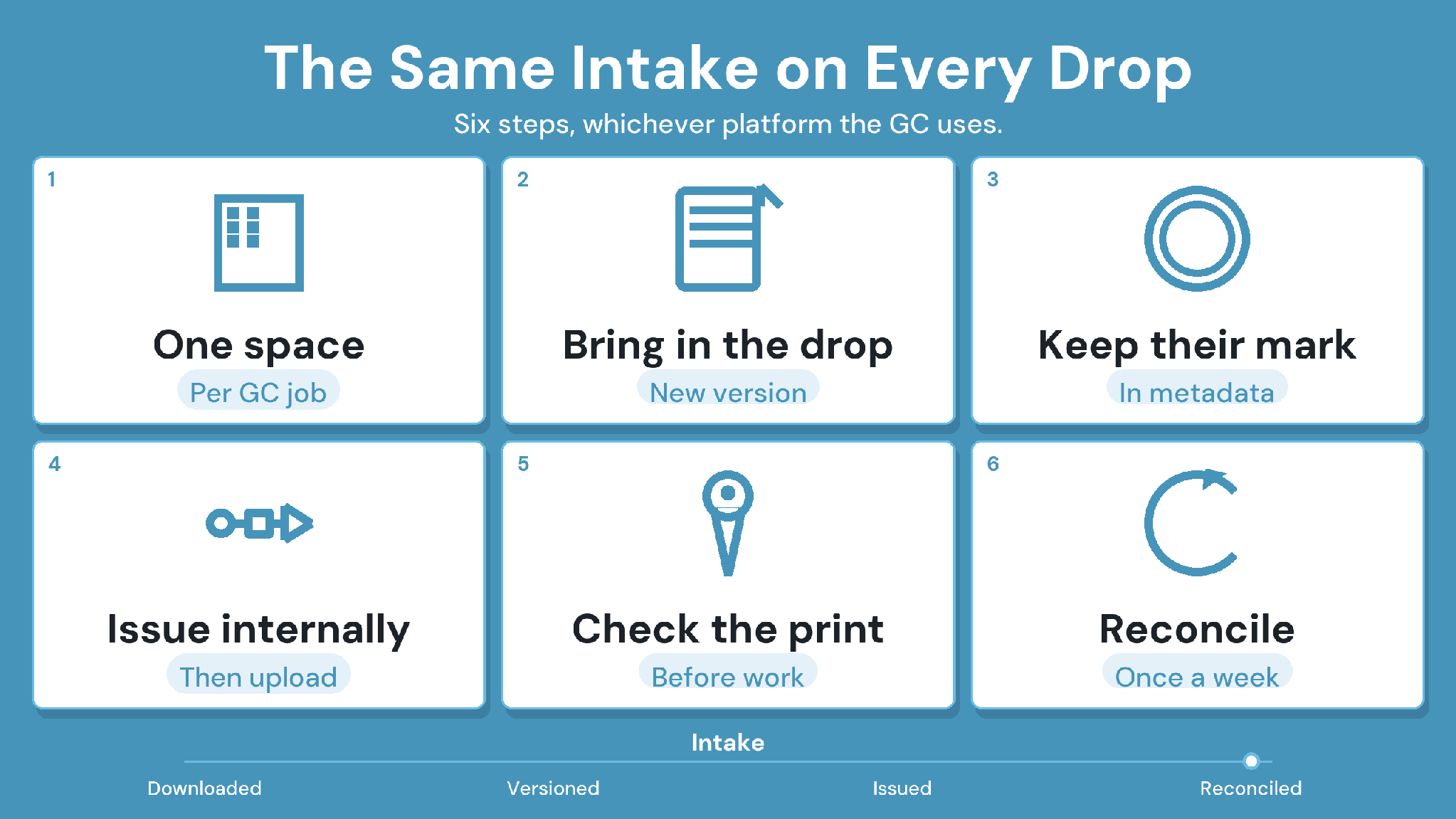
The routine starts with one project space per GC job, then repeats the same six steps for every drawing drop and outgoing package. Running it the same way each time keeps four GC platforms from turning into four sets of rules for your team.
1. Create one project space per GC job
Use your own folder standard on every job, whatever the GC's structure looks like. With the GC's name, project number, and platform recorded on the project, anyone on your team can trace a file back to its source.
2. Bring in every GC drop the same way
Download the issued set from the GC's platform. Each sheet then goes into your space as a new version of the same file, so its history stays in one place.
3. Keep the GC's revision mark next to your own
Store the GC's revision label in a metadata field on each file. Your own version history stays intact, and anyone can match your sheet to the GC's log.
4. Issue outgoing packages on your own record first
Before a submittal package goes into a GC's platform, issue it internally with a record of what went out and when. The upload to the GC follows, and the GC's confirmation sits with your internal record. Our guide to shop drawing revisions and approvals for specialty subcontractors covers the review side in depth.
5. Give crews a way to check printed sheets
Printed sets outlive reissues. Put a revision check on every printed sheet so a foreman can confirm it's current before work starts. The field guide to outdated drawings lays out the full revision control process.
6. Reconcile weekly against each GC's current set
Once a week, compare your current sheets with each GC's latest drawing log. Any sheet where the GC shows a newer revision than you hold gets flagged and pulled in that day, before a crew builds from the old one.
Keep Project Data in Your Own System
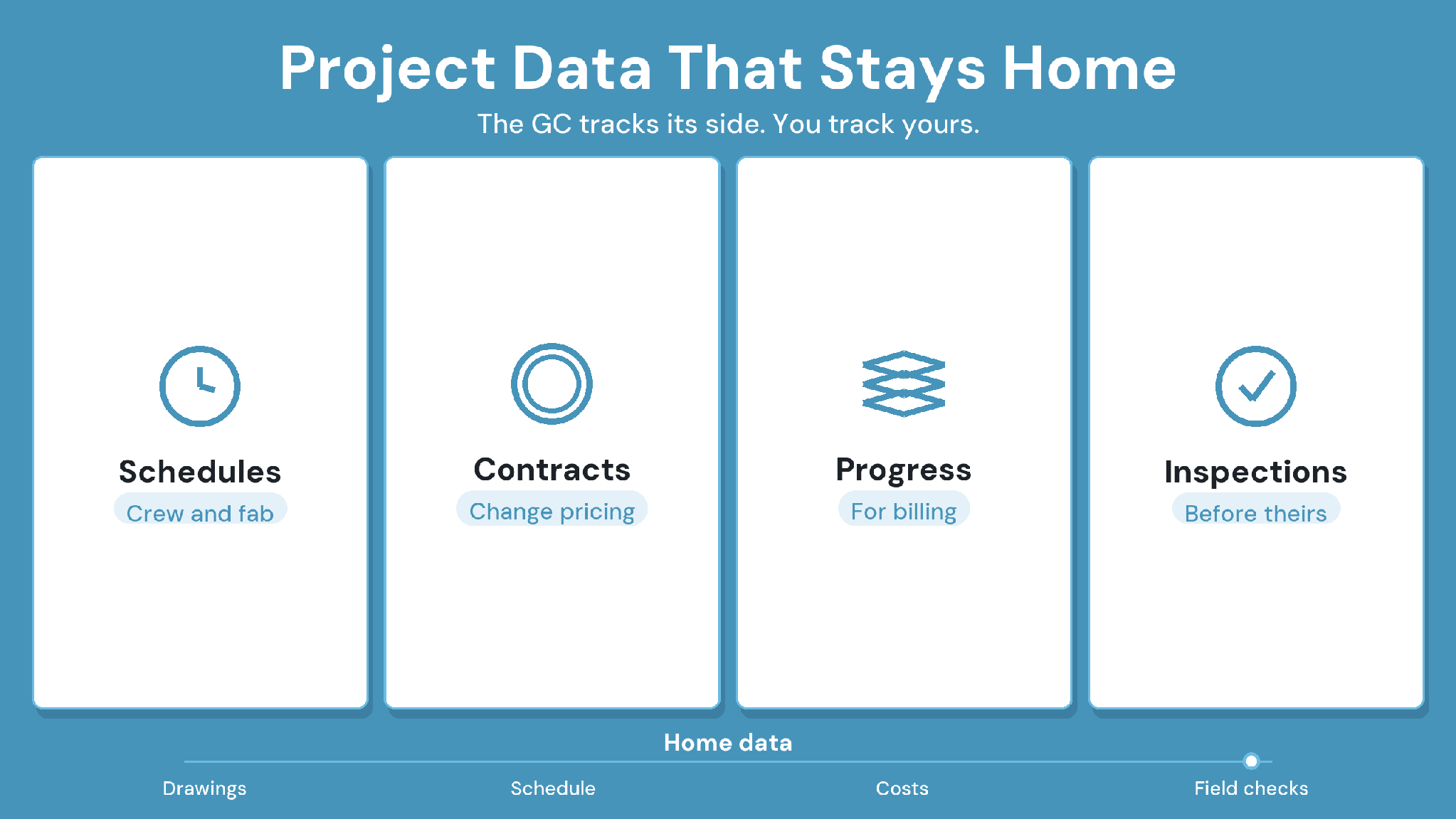
Your schedule, costs, and field records belong in your own system too, because a GC's platform tracks them from the GC's side. Four kinds of project data are worth keeping at home:
Schedules: crew loading and fabrication dates, set against each GC's milestones.
Estimates and contracts: the contract value for each GC job, plus change-order pricing before you submit it.
Progress: installed quantities that feed your billing and forecast.
Inspections: your own quality checks, completed before the GC's inspection.
Keeping these next to your documents means a reissued sheet, its cost impact, and the crew it affects sit in one place.
What to Ask Each GC at Kickoff
Subcontractors who ask every GC the same questions at kickoff, and record the answers on the project, start each job with fewer surprises. Six questions cover the usual trouble spots:
- Which platform hosts the project, and how many of your people get logins?
- How will reissued drawings be announced, and who on your team receives the notice?
- What naming and revision convention does the GC use?
- How are submittal packages sent and returned?
- Which field records must you upload, and how often?
- How are access and files handled at closeout?
How CUBE Supports Subcontractors Working Across GCs
CUBE suits mid-market and enterprise specialty contractors, giving them one home system across every GC job, with documents in its common data environment (CDE) and schedules and costs in Project Management.
Documents: Each GC job gets its own Space inside the Folders module. A Nomenclature template makes every new subfolder follow your standard. Custom Fields templates on folders give each file a field for the GC's revision label and project number.
You can import files and their later versions with metadata from a Microsoft® Excel® sheet. Every upload creates a version automatically, and a revision series marks the versions you issue. et one revision series for the whole portal, override it on a folder, and override it again on an individual file when needed.
Reviews and issue: In the Reviews module, you select the exact file version under review and set the order of reviewers. Each reviewer records a decision against that version. The approved package then goes out as a formally tracked transmittal, and CUBE keeps a complete record of sender, recipients, timestamps, and files.
Field: Before printing, the team inserts a QR code on the PDF. A crew member scans it with the CUBE mobile app to see whether the sheet is current or superseded, and downloads the latest version if not. Drawings and models open in the File Viewer in any browser, including on tablets and phones.
Project data: Schedules carry Gantt charts, and Contracts budgets draw on published Estimates updates that feed the timeline and budget, and inspections record your own quality checks. Every 10 paid Project Management seats add 10 free Field seats, which crews use in the mobile app for forms.
Case in point: a real estate developer
The developer ran more than 15 projects on fragmented local servers. CUBE's centralized CDE brought consistent nomenclature across every project and a three-level review and approval workflow. Read the full case study →
Manage Documents Across Multiple GCs With CUBE
Managing documents and project data across multiple GCs comes down to standardizing your own side. One home system, the same intake routine on every GC drop, and a weekly check against each GC's current set keep your team on the right revision.
CUBE gives specialty subcontractors that home system, from versioned drawings and QR-checked prints to schedules, estimates, and contracts. Your next GC job is a good place to run the six-step routine from day one. SIGN UP
Frequently Asked Questions
1. Do subcontractors need their own Procore® account if the GC uses Procore?
Usually not for that project, because the GC invites your team into its own project. Your own system still matters, since the GC's project holds the GC's record and stops at that job.
2. Who owns the official record on a subcontract?
The GC's platform holds the contractual record of what was issued, submitted, and approved. Your firm owns its internal record: drafts, reviews, pricing, and field checks. Both records matter, and the GC's revision label is the link between them.
3. How should a specialty subcontractor manage documents across multiple GCs with different naming conventions?
The simplest approach is one naming standard of your own on every job, with each GC's sheet number and revision label stored in metadata fields. Your team searches one standard, and every file still maps back to the GC's log.
4. How does CUBE handle drawing sets that arrive from several GCs?
Each GC job gets its own Space in CUBE. Files and later versions are imported from Excel with metadata. Every upload becomes a new version of the same file, with the GC's revision label stored in a custom field.
5. Can CUBE track a subcontractor's schedule and costs as well as documents?
Yes. CUBE's Project Management product covers schedules with Gantt charts, estimates, and contracts whose budgets draw on published estimates. Progress updates feed the timeline and budget, alongside the documents in CUBE's common data environment.