.svg)


.png)
.png)


.svg)





.png)


.png)

How to Stop Building From Outdated Construction Drawings: 2026 Field Guide
Prevent crews from using outdated construction drawings with a seven-step revision control process covering IFC sets, transmittals, acknowledgments, and field checks.


Rework caused by inaccurate or inaccessible project information remains a costly construction problem. An analysis of actual contractor project data published by the American Society of Civil Engineers found that field reworks typically sit at 2-5% of the project value.
For a project of $100M value with a 3% margin, it would cost $760K in rework after post-project corrections. This impact could be understood from the fact that this $760K rework cost would amount to 25% of the project’s entire profit.
The researchers also report that rework costs have often been underreported by roughly 300%. If we were to consider the underreporting-adjusted figure, it would exceed the total profit in several cases.
What construction teams must understand is that outdated drawings are one way the information gap reaches the jobsite and leads to data mismanagement.
Avoiding it requires more than approving a revised drawing. Teams must control the current construction set, remove superseded copies, track distribution, record acknowledgment, and verify drawing status before work starts. This step-by-step guide explains how to build that process across the office and the field.
Key takeaways
- Keep the current construction set and drawing register in one governed common data environment, with transmittals and audit records connected to the same source.
- Manage each revision through a defined workflow that covers approval, logging, issue, supersession, notification, acknowledgment, field verification, and archiving.
- Drawing approval does not authorize construction by itself. Crews should work only from the current set explicitly designated for construction under the project’s document-control requirements.
- Mark superseded drawings clearly and then remove them from active use. Store retained copies in a controlled archive with restricted access.
- CUBE connects current drawings with revision histories, transmittals, approvals, and audit trails, giving office and field teams a traceable source for construction documents.
- CUBE lets teams generate QR codes for printed drawings and site notices, directing field users to the current controlled project record.
Why Crews Still Build from The Wrong Drawing
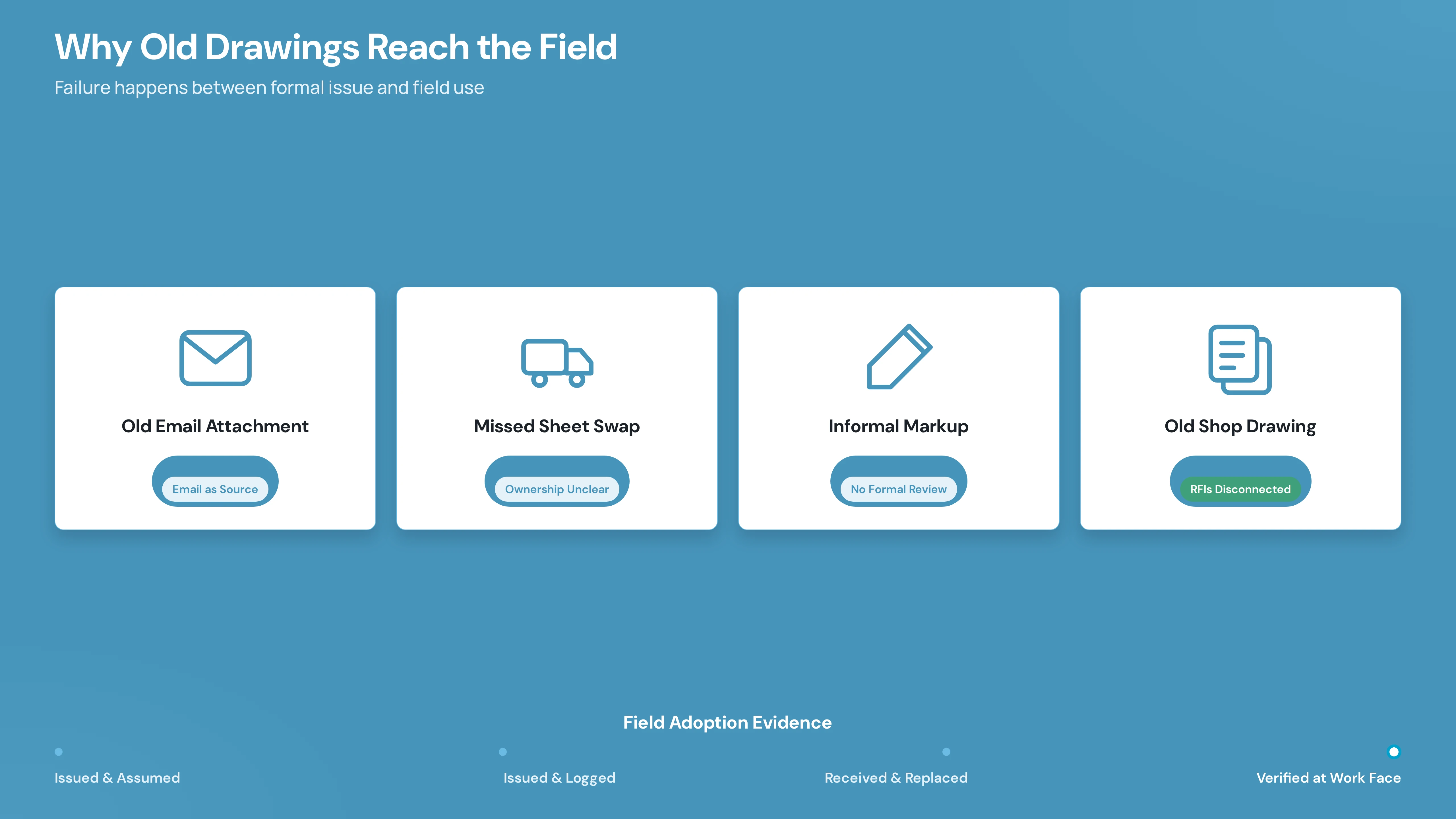
Construction failures begin between formal issues and field use. For instance, a document controller may update the register while an old PDF remains in a foreman’s inbox, or a new sheet may reach the trailer without replacing the copy posted near the work area.
Approval alone does not prove that the field adopted a change. The project needs evidence showing what was issued, who received it, which copy it replaced, and whether the affected team checked the revision before work began.
A useful test: Can the project team reconstruct which revision was available to each affected party on a specific date? If the answer depends on searching inboxes or asking who remembers the change, the control process is lacking.
Use a Seven-Step Revision Control Process
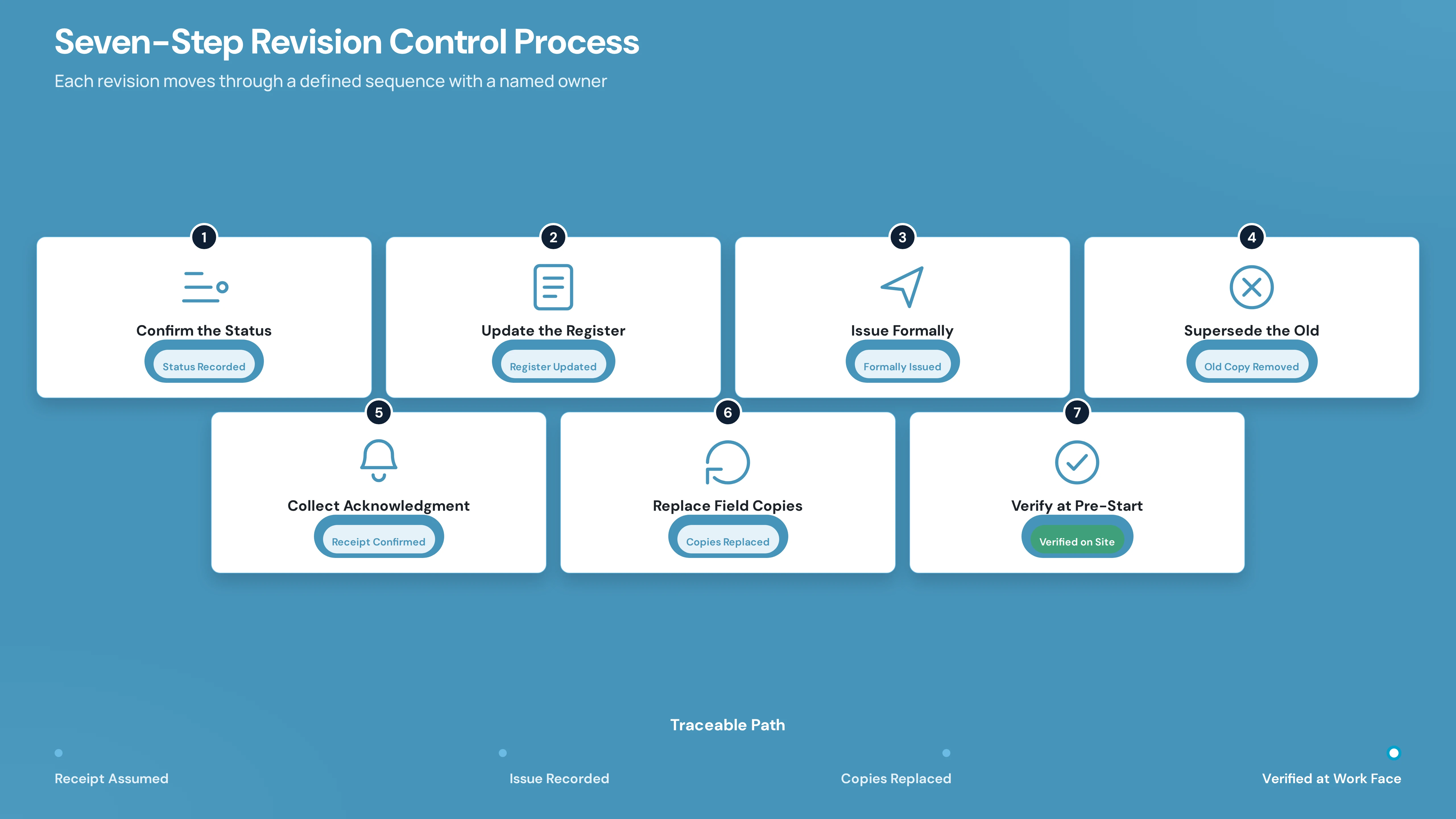
Drawing control works when each revision moves through a defined sequence with a named owner and a recorded outcome. The following process creates a traceable path from receipt to field verification:
Step 1: Confirm the document status
Identify whether the drawing is work-in-progress, shared for review, approved, issued for a defined purpose, or issued for construction. Record the status before anyone uses the sheet on site.
In CUBE, you can configure custom statuses in Portal Settings (grouped into Open, In Progress, Closed - Positive, Closed - Negative categories) and assign them to files inside Review workflows. The status appears on the document record, so the register and the drawing stay aligned.
Step 2: Update the drawing register
Record the sheet number, title, discipline, revision code, status, issue date, and associated transmittal. Use consistent naming so users can compare the register with the drawing title block.
CUBE lets you configure Nomenclature rules per folder. You define the separator and fields with character limits, so every file follows a consistent naming pattern automatically. Revision series can be configured portal-wide with start patterns, sequence rules, and default behaviors.
Step 3: Issue the revision formally
Send the drawing with a transmittal that identifies the recipients, included sheets, revision codes, the purpose of the issue, and the date. Distribution should follow the project's approved responsibility matrix.
CUBE Transmittals support controlled file distribution from one Space to another and to specific users, with remarks against each file, recipient notifications, and full traceability. Every transmittal records from which Space, to which Space, to which users, subject, body, sent by, and sent on.
Step 4: Supersede the previous revision
Change the old drawing's status and move it away from the current working view. Retain the prior version in controlled history when the contract or records policy requires it.
CUBE's version tracking lets you view all previous versions with timestamps and the user who uploaded each one. You can download any specific version. The Revision metadata field is version-specific and shows a log of all revisions added by users. You can also add notes to specific versions visible to every user in the Space.
Step 5: Collect acknowledgment
Ask affected recipients to confirm receipt and review. Acknowledgment requirements should reflect the project's contract, quality plan, and risk profile. CUBE's Mailbox module lets you send mails with a Response Type set to "Acknowledge by" or "Reply by" with a Due Date, so acknowledgment is built into the communication workflow. Transmittals also record who received what and when.
Step 6: Replace field copies
Remove outdated sheets from trailers, work areas, local folders, and other active locations. Mark any retained reference copy clearly so nobody can mistake it for the current construction issue.
CUBE's PDF QR code feature lets crews scan a drawing from the mobile app and immediately see whether it is the latest version, before relying on any printed or cached copy.
Step 7: Verify at pre-start
Compare the crew's drawing with the current register before the affected work begins. Record the check in the site report, inspection record, or approved project form.
CUBE's file details panel shows version, revision, modified date, and conversion status at a glance. The QR code on each PDF can be scanned from the mobile app to confirm the file's current revision status against the register.
The project’s contract and information-management plan determine which status is buildable. Teams should define that status at project setup and apply it consistently. Where issued-for-construction is the agreed construction status, crews should verify that designation before starting the relevant scope.
1. What approved, issued, and issued for construction mean in practice
These labels describe different points in a drawing’s controlled life. Project-specific contracts can define them differently, so the project information standard remains the governing reference.
1. Approved
The drawing has completed the required review. Approval may relate to design acceptance, coordination, or another stated purpose.
2. Issued
The drawing has been distributed formally for a declared purpose. The transmittal should state whether the issue is for review, information, tender, fabrication, construction, or another use.
3. Issued for construction
The drawing carries the project’s designated construction status. When the contract uses issued for construction as the buildable status, the current IFC revision becomes the field reference for that scope.
The status must appear in both the controlled system and the drawing record. A filename containing final offers little protection when the register carries a different revision or purpose.
5 Best Practices to Prevent Outdated Drawings on Site
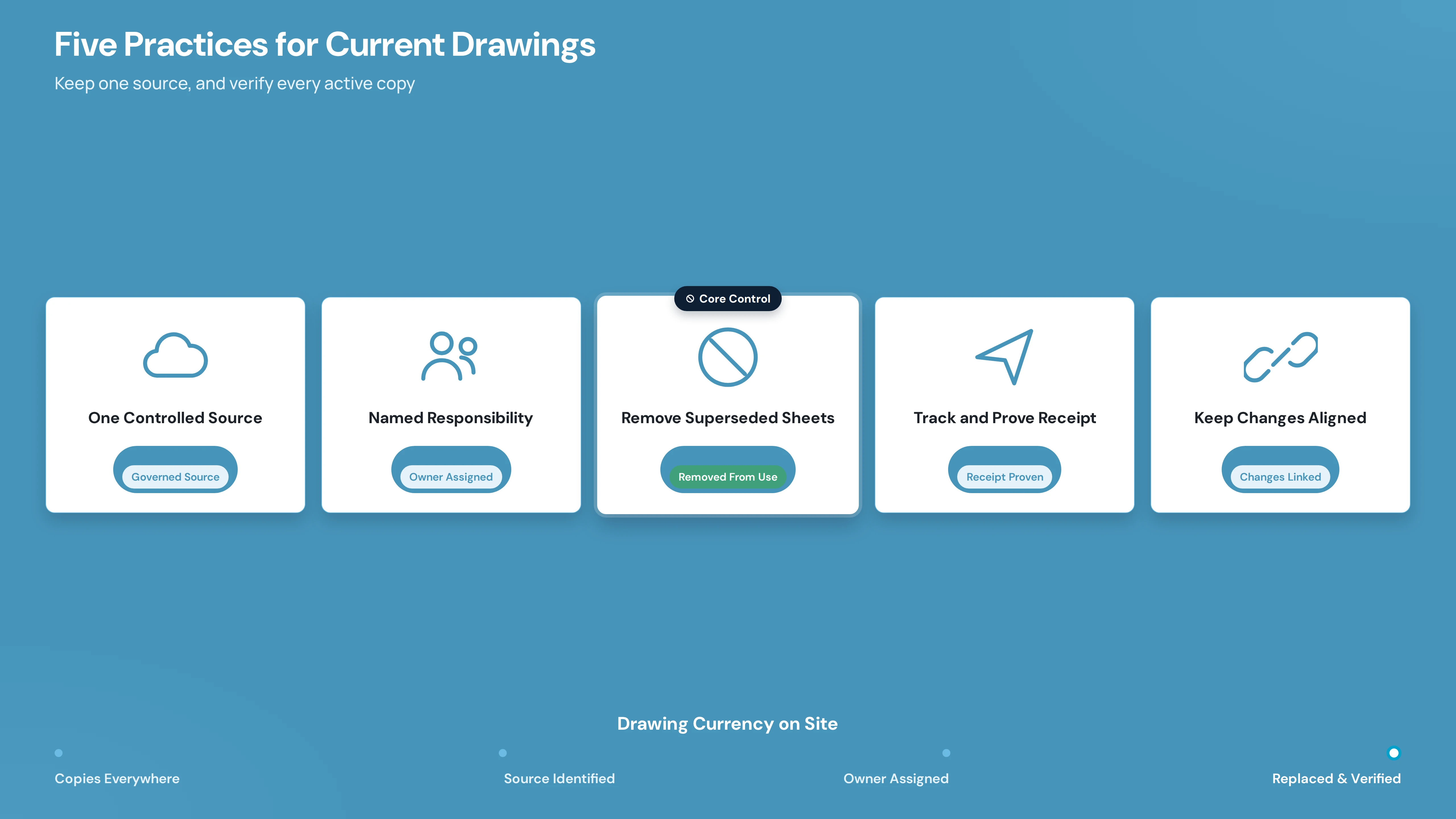
Outdated drawings usually stay in circulation when revisions are issued without confirming that active copies have been replaced. These five practices help teams control each revision, remove superseded sheets, and verify that crews have the correct drawing before work begins.
1. Create one controlled source for current construction drawings
A single source of truth is a governed working environment that identifies the current drawing and preserves its history. It should connect the register, document status, transmittals, related changes, user permissions, and audit records.
Also Read: What is common data environment and why does it matter?
Shared drives can hold files, but their value depends on the controls applied around them. If users can create competing current folders, forward attachments, or rename local copies without restriction, the project still has several operating sources.
Mobile access helps crews reach the controlled set near the jobsite. Downloads, cached files, screenshots, and prints still need governance. A mobile device can display an obsolete copy as easily as a current one when the user bypasses the controlled record.
With CUBE, you can manage drawings, revisions, approvals, and transmittals in one connected AECO platform. This gives your office and field teams a clearer view of current project information, helping them find the right drawing and follow updates through the project workflow.
Also explore CUBE’s latest features for construction management.
2. Assign responsibility for drawing control and field adoption
Drawing control crosses office and field roles. Each project should assign ownership in its document-control procedure and distribution matrix instead of relying on informal expectations.
Accountability should be governed by the project’s contract and management plan. A practical Responsible, Accountable, Consulted, and Informed (RACI) can name the project manager as accountable for the framework, the document controller as responsible for the controlled record, and field leaders as responsible for adoption within their work areas. Add design managers, quality leads, owners, or trade coordinators where the delivery model requires them.
3. Remove superseded drawings from active use
Superseded-drawing control needs a visible status change and a physical response. Moving an old file into another folder will not protect a crew that already printed or downloaded it.
- Change the controlled status: Mark the replaced revision as superseded or archived in the governed environment. Remove it from the default current-drawing view.
- Record the replacement: Update the register and transmittal so the history shows which revision replaced the old sheet and when the change occurred.
- Collect active printed copies: Replace sheets in the trailer, site office, gang boxes, work areas, and trade binders. Set the completion window in the project procedure rather than using an unsupported universal deadline.
- Mark retained references: Stamp or watermark any copy kept for records with “SUPERSEDED,” the replacement revision, and the issue date. Store it away from active construction sets.
- Address digital copies: Restrict obsolete links where the platform allows it. Tell affected teams to remove saved copies and verify the revision before reopening downloaded material.
- Confirm completion: Record the check in the site report, quality record, or document-control log. Escalate missing sheets and conflicting revisions before the related work continues.
Warning signs include different revision codes on the wall and in the register, a crew referencing handwritten changes that do not appear in the current set, or a shop drawing that predates an affecting RFI response.
4. Track notifications and prove acknowledgment
A transmittal proves that a controlled issue was sent. Acknowledgment adds evidence that an affected recipient received and reviewed it. Projects should define when acknowledgment is mandatory, who must respond, and what happens when a response is late.
- Transmittal record: Capture the transmittal number, document IDs, revision codes, issue purpose, sender, recipients, and timestamp.
- Acknowledgment record: Capture the recipient’s name or role, company, response date, method, and comments. Link the response to the relevant transmittal.
- Escalation rule: Set a project-specific response period. Route overdue acknowledgments to the named owner, with shorter treatment for changes affecting imminent work or safety-critical scope.
- Field communication: Use a site briefing, coordination meeting, or approved toolbox process when a drawing change requires discussion at the worksite. Record attendance and the affected scope.
- Audit history: Preserve status changes, distribution events, acknowledgments, and supersession records so the team can reconstruct the drawing’s controlled history.
Receipt alone may be insufficient for a complex change. A subcontractor can acknowledge a file without recognizing its effect on fabrication, access, sequencing, or installed work. The field owner should identify the affected scope and confirm that the work package reflects the revision.
5. Keep RFIs, change orders, and drawing revisions aligned
Project changes often begin outside the drawing register. An RFI answer may revise a detail. A change order may alter scope. A site condition may produce a markup that later belongs in the record set.
Create a link whenever one record affects another. The relationship should identify the source change, affected sheet, responsible designer, required review, issue status, and field action. This gives the document controller a clear trigger and helps the superintendent see whether the current sheet reflects the latest authorized decision.
Use the following control sequence:
- Identify the effect: Decide whether the RFI, change order, nonconformance, or field instruction changes a drawing.
- Assign the update: Name the person responsible for revising the affected sheet and set the required issue purpose.
- Complete review: Follow the project’s technical and contractual approval route.
- Issue the drawing: Update the register and distribute the revision through a formal transmittal.
- Adopt the change in the field: Replace active copies, brief affected teams, collect required acknowledgments, and verify the current set.
- Preserve the relationship: Keep the source record linked to the drawing revision for closeout, handover, and future review.
Field markups need their own defined path into as-built or record drawings. Until the project’s authorized process incorporates them, their use should follow the governing contract and quality procedure.
Pre-start drawing verification checklist
Put the Control Process into Daily Field Use
Outdated-drawing risk persists until the current revision reaches the worksite and replaces all active copies. Start with the drawing register and distribution procedure. Then assign ownership for acknowledgments, printed-set changes, and pre-start verification.
CUBE supports connected document and revision-control workflows across project delivery. Its Spaces module provides governed file storage with nested folders, granular access controls, nomenclature rules, configurable revision series, and version tracking.
Transmittals handle controlled distribution with full audit trails. Review workflows manage approvals through configurable levels, statuses, and transition diagrams. The PDF QR code feature lets field crews verify the latest revision by scanning from a mobile device.
The Mailbox and Notifications modules keep records of acknowledgments and escalations. Review the platform against your required statuses, permissions, transmittal process, field-access needs, audit requirements, and handover rules.
When you are ready to evaluate the workflow, Sign Up.
Frequently asked questions (FAQs)
1. How can site teams confirm that they have the latest drawing revision?
Compare the sheet number, revision code, issue date, and status with the current drawing register in the controlled environment. Review related change records, remove conflicting copies, and record the verification before work begins. Printed and downloaded drawings should be checked again after any relevant revision notice.
2. What is construction drawing revision control?
Construction drawing revision control is the governed process for creating, reviewing, approving, issuing, superseding, distributing, verifying, and retaining drawing versions. It connects the controlled record to field action, enabling the team to identify which revision was authorized for a stated purpose at a particular time.
3. How do contractors reduce the risk of building from outdated plans?
Contractors designate one current construction set, maintain a live register, issue changes through recorded transmittals, remove superseded copies, collect acknowledgments where required, and check drawing status at pre-start. The procedure should cover digital access and printed sets.
4. What should happen if the foreman has the current drawing and a subcontractor does not?
The affected subcontractor should receive the controlled revision and review its impact before continuing the related scope. The project’s escalation procedure should identify who can pause work, who resolves the distribution gap, and what evidence must be recorded before work resumes.
5. How can a team prove which drawing revision was available on a given date?
Use the drawing register, transmittal history, status records, acknowledgment log, and system audit trail. Together, those records can show what was issued, its stated purpose, who received it, when it was superseded, and which revision the project treated as current.

.png)
.png)