





How to Give External Collaborators Access Without Buying Full Seats
Give subcontractors, consultants, and owner reps project access without buying full seats: map roles to access, then pick the right seat model.


TL;DR
- On busy projects, outside firms can outnumber your staff, so giving every architect, engineer, and subcontractor a full seat inflates software costs fast.
- Outside users usually only view files, upload their own work, or record a decision, so map each role to the lowest access that fits.
- “Free collaborators” varies by vendor, so check what limited users can open, upload, and approve, and how many projects they can access.
- Scope each outside user to one project, and send one-off files as a transmittal instead of inviting someone for a single exchange.
- CUBE adds 10 free Guest seats for every 10 paid CDE seats, each scoped to one project, with access levels set per user.
How do you bring architects, engineers, subcontractors, and owner reps onto a project without paying a full seat for each one? To give external collaborators from other firms access without buying full seats, map each outside role to the access it actually needs. Then pick a seat model that covers those roles with limited or free seats.
Consultants, subcontractors, and owner reps usually need to view current files, upload their own work, or record a decision. Per-seat pricing ignores that and turns every outside firm into a line item. On a busy job, those firms can outnumber your own staff, and teams fall back on shared logins or emailed PDFs.
Below you’ll find a role-to-access map, the three ways vendors count outside users, a five-step setup, and a seat scenario for a 45-person project.
Why External Access Gets Expensive
External access gets expensive when a reviewer who opens five drawings a month costs the same seat as your document controller. Per-seat pricing counts people. Many firms build construction projects, so the count climbs fast.
For example, in a commercial job, the architect sends two reviewers, and the structural and MEP engineers send one each. Three trade contractors each bring a project manager and a detailer. To these, if you add the owner's representative and a testing agency, that's 12 outside people on one project, before any field crew logs in.
The workarounds cost more than the seats. A shared login hides who uploaded a file. A PDF sent by email leaves no record of which version the subcontractor received. Both problems surface later, usually during a dispute.
What Each Outside Firm Actually Needs
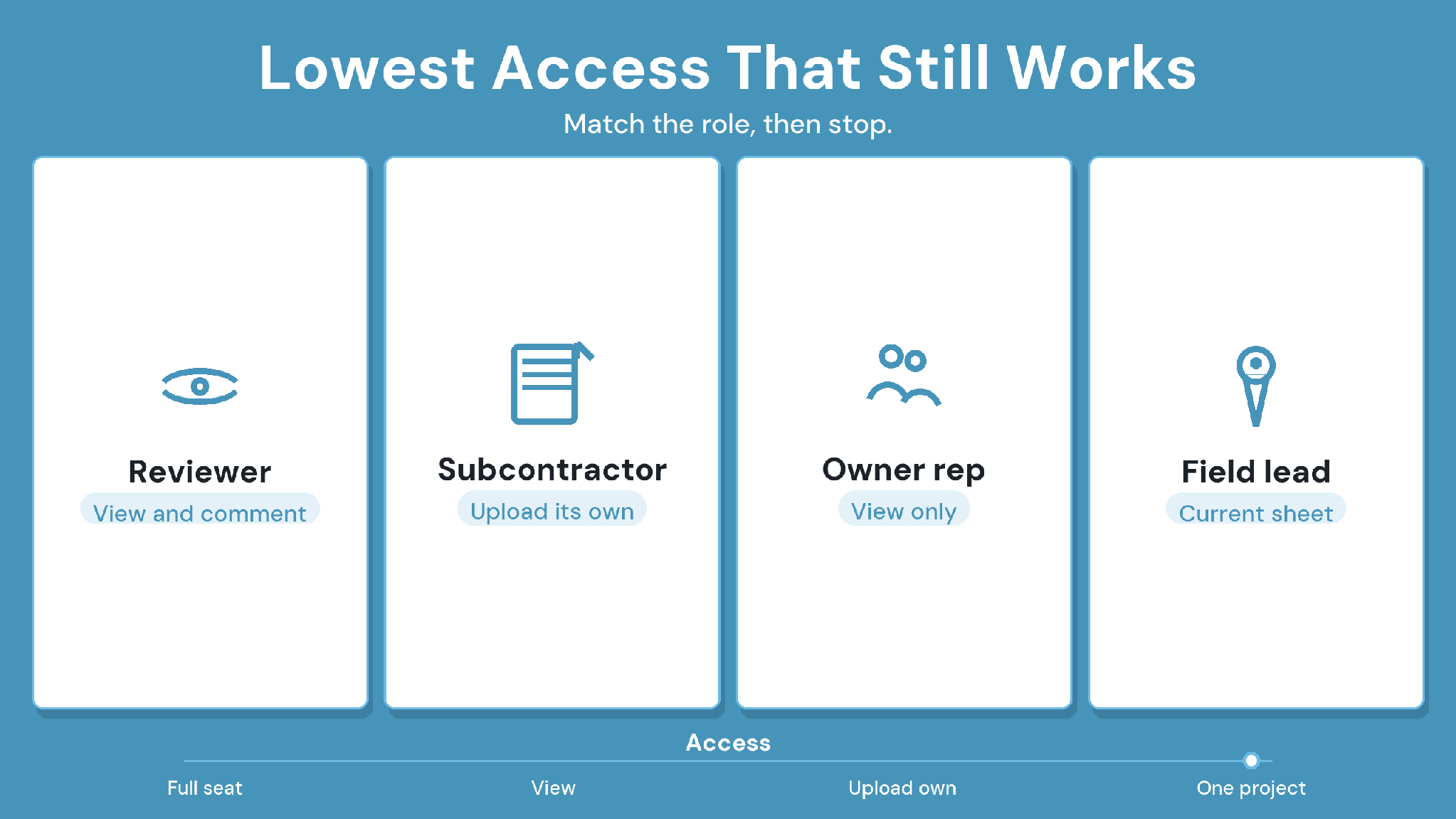
Each outside firm needs the lowest access that lets it do its own job, scoped to its own project. For outside users, that rarely means a full seat.
People who work across several of your projects at once are the exception. For instance, a consultant embedded in every job, or an owner's rep across a whole program, may justify a full seat.
Three Ways Vendors Price External Access
Vendors price outside users in one of three ways: every named user pays; users are unlimited; or a set number of limited seats comes with each paid seat. The right model depends on what limited users can actually do.
Ask the same four questions of every vendor.
- Can a free or limited user upload files?
- Can they record a review decision?
- How many projects can each one reach?
- What happens to their access when the project closes?
How to Give External Collaborators Access Without Buying Full Seats
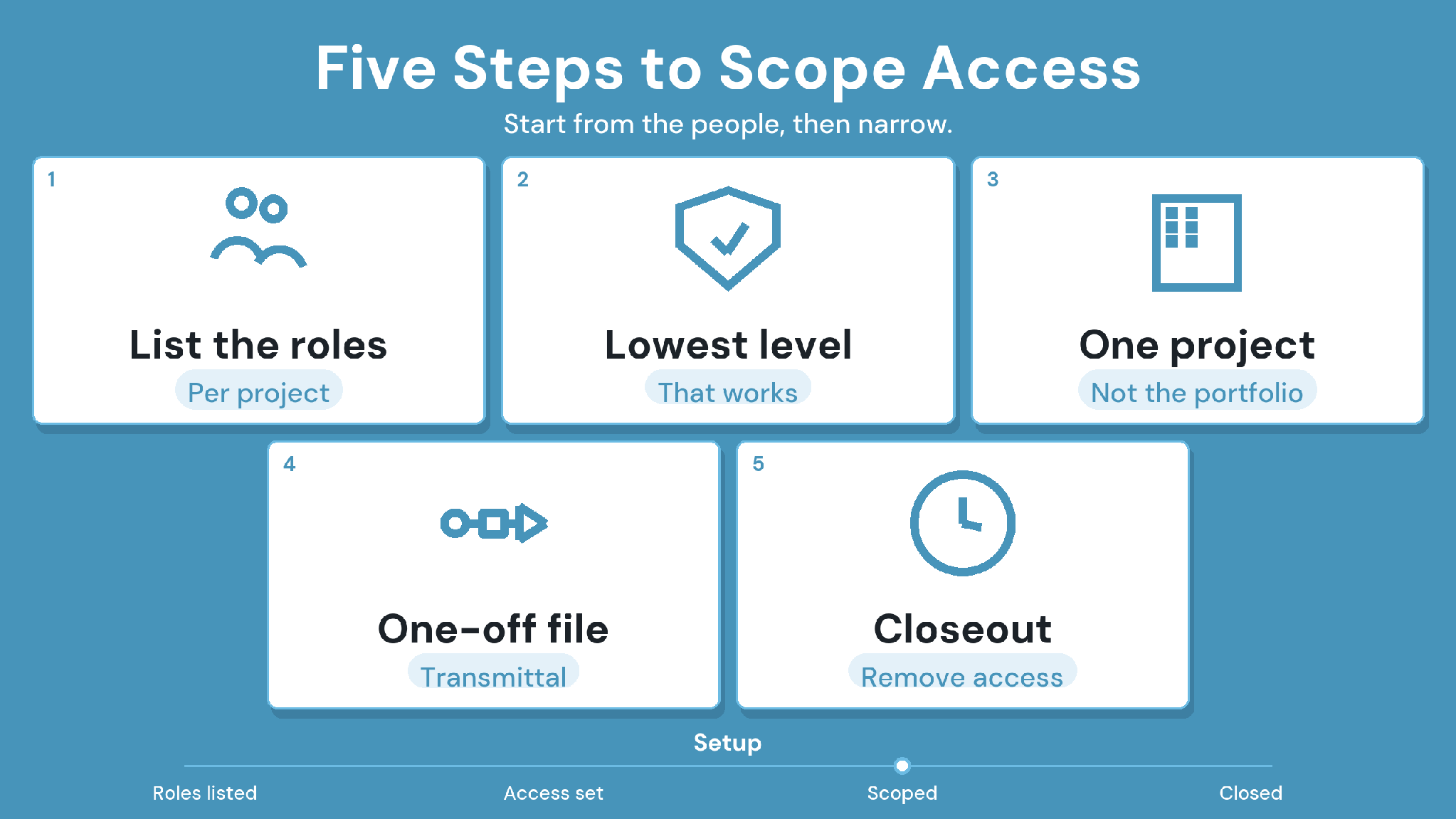
Give outside firms access in five steps, starting from the roles you actually have. Each step narrows access, so no one ends up with more than their scope of work requires.
1. Inventory outside roles per project
List every outside firm and the people it sends. Note what each person must open, upload, or decide. This list sets your real seat need.
2. Assign the lowest access level that works
Give view access to the drawing set and upload access to one folder per firm. A detailer then uploads shop drawings without touching the architect's files.
3. Scope each outside user to one project
Keep outside users inside the project they work on. A subcontractor on your hospital job has no reason to see your school job.
4. Send one-off files as transmittals
A supplier who needs one sheet doesn't need an account. Send the file as a formal transmittal, with named recipients, a stated purpose, and a record of what went out.
5. Plan removal at closeout
Agree at kickoff who removes outside access when the project closes. Deactivate those users, and keep their uploads and decisions in the project record.
An Outside-User Access Seat Scenario
One project with 15 internal staff and 30 outside people shows how the three models count seats. The outside group includes 8 design reviewers, 12 subcontractor staff, 2 owner reps, and 8 crew leads who only complete forms.
The bundled model also keeps the access tight. Each Guest seat reaches one project, so a subcontractor's access ends with its scope of work.
How CUBE Handles Outside Firms on a Project
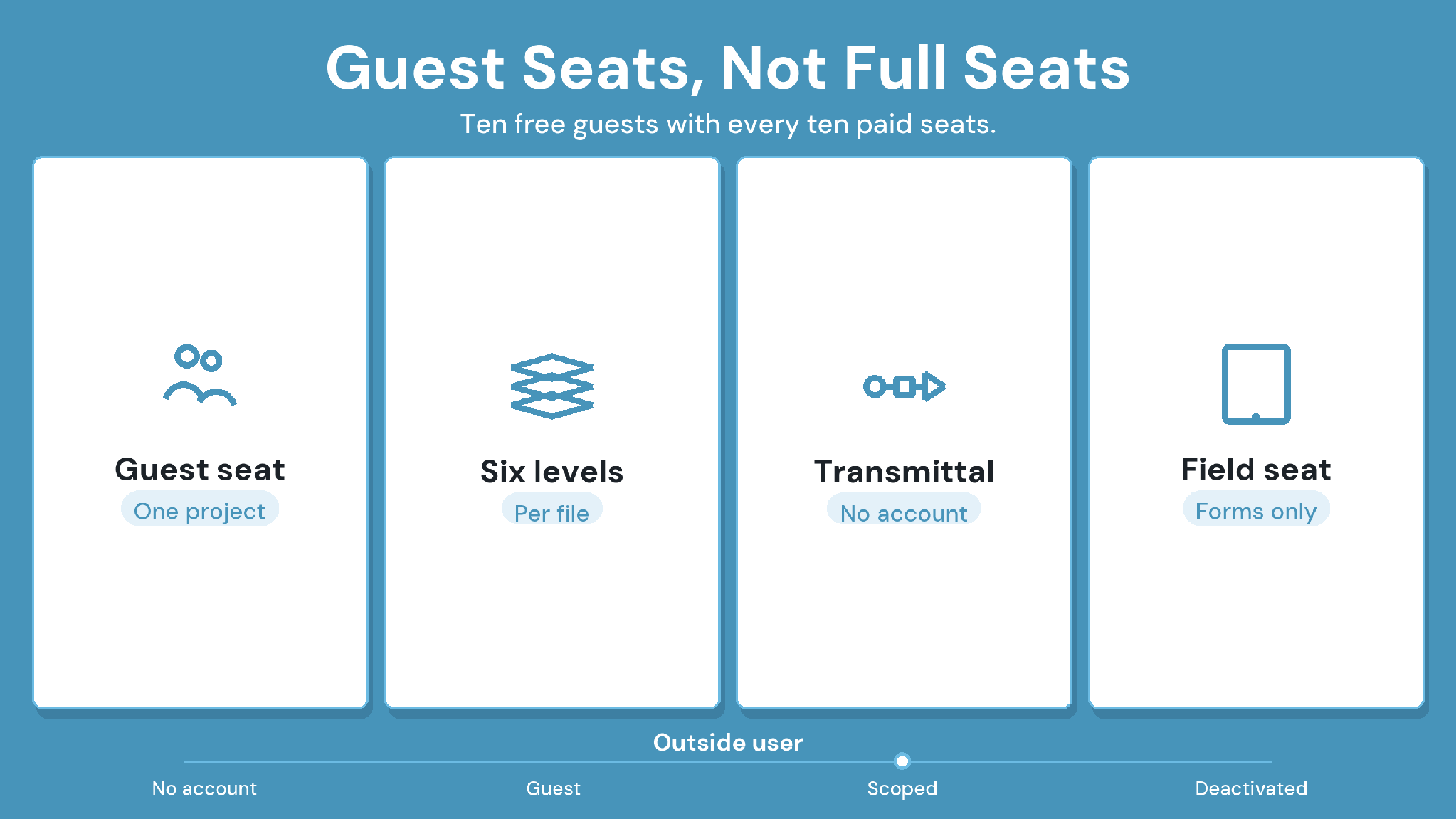
In CUBE's Common Data Environment (CDE), outside firms join on Guest seats. Every 10 paid CDE seats add 10 free Guest seats, rounding down to the last full block of 10. Each Guest seat gives access to the CDE modules within one space and one project.
Access is set per user, on any file or folder, at one of six levels: Full Access, Can Update Version, Can Update, Can Download, Can View, or No Access. A file's setting overrides its folder, and a folder overrides its Space. A detailer can upload shop drawings to the firm's own folder and view the rest of the set.
Project Roles set what each person can do in a project. Space-level permissions then set default access and creation rights module by module, so a reviewer and a detailer start from different defaults.
Firms that run their own Spaces can exchange files through Transmittals. Each transmittal goes out with named recipients, a subject and message stating its purpose, and the referenced files attached. Received files appear in the recipient Space's External tab, along with the version they carry in the sending Space.
Crew leads who only complete forms can use free Field seats, which come with paid Project Management seats at the same 10-per-10 ratio and work in the mobile app for forms-based modules. At closeout, admins deactivate outside users from User Administration. CUBE holds ISO 27001 and SOC 2 Type II, covered in more depth in our guide to data security in construction document management.
Give External Collaborators Access Without Full Seats in CUBE
To give external collaborators access without buying full seats, map each outside role to the lowest access it needs, scope it to one project, and pick a seat model whose limited users can do that work. Full seats are for the people who run your projects.
CUBE suits mid-market and enterprise teams whose projects bring in many outside firms. Its free Guest seats, per-user access levels, and transmittal records cover those users from outside the organization. Try the setup on your next job, starting with the role map above. SIGN UP
Frequently Asked Questions
1. Can a subcontractor upload files without a full seat?
In many platforms, yes, if the limited seat includes upload rights. Give the subcontractor upload access to its own folder and view access to the current set. Confirm in a demo that limited users can upload new versions.
2. What should happen to outside users' access when a project closes?
Remove it on a fixed date agreed at kickoff, usually after closeout documents are accepted. Keep every file and decision those users created in the project record. Deactivating accounts closes access without deleting the history.
3. How do you give external collaborators from other firms access without buying full seats across several projects?
Give project-scoped limited seats to firms working on one job each. Reserve full seats for consultants or owner reps who work across your whole portfolio. Review the split at each renewal as the list of outside firms changes.
4. How do CUBE's Guest seats work for consultants and subcontractors?
CUBE adds 10 free Guest seats for every 10 paid CDE seats, rounding down. Each Guest seat opens the CDE modules in one space and one project, with access levels set per user on files and folders.
5. How do firms exchange files in CUBE without sharing one project Space?
Each firm can work in its own Space and send files through Transmittals. The receiving Space sees the files in its External tab, with the version they carry in the sending Space and a record of the transmittal.