




How to Federate Multi-Discipline BIM Models for Coordination Meetings
Federate architecture, structure, and MEP models for coordination meetings: prerequisites, a weekly cadence, and a meeting agenda.


Key Takeaways
- A federated BIM model overlays separate architecture, structure, and MEP files in one shared view, while each discipline keeps authoring its own model.
- Shared coordinates, version rules, and agreed model scope come first, because misaligned or outdated models turn the meeting into a debate about files.
- Treat federation as a weekly rhythm with a model-drop deadline, a version check, refreshed clash tests, and grouped results before each meeting.
- A coordination meeting works when every decision leaves as an issue with one owner, a due date, and a viewpoint the model author can open.
- CUBE merges discipline models in the browser, flags the merge when a model changes, and turns clashes into assigned issues through a paid add-on.
To federate multi-discipline BIM models for coordination meetings, align every model to shared coordinates and set a model-drop deadline. Then load the current version of each discipline into one view and run clash tests before anyone joins the call.
The meeting itself then works through grouped clashes and ends with assigned issues. The hard part is keeping that federated view current. One late mechanical, electrical, and plumbing (MEP) upload can turn a 90-minute meeting into an argument about which file is right.
The steps below give virtual design and construction (VDC) teams a weekly rhythm for building a reliable federated view, plus an agenda that turns clashes into owned work.
What Is a Federated BIM Model?
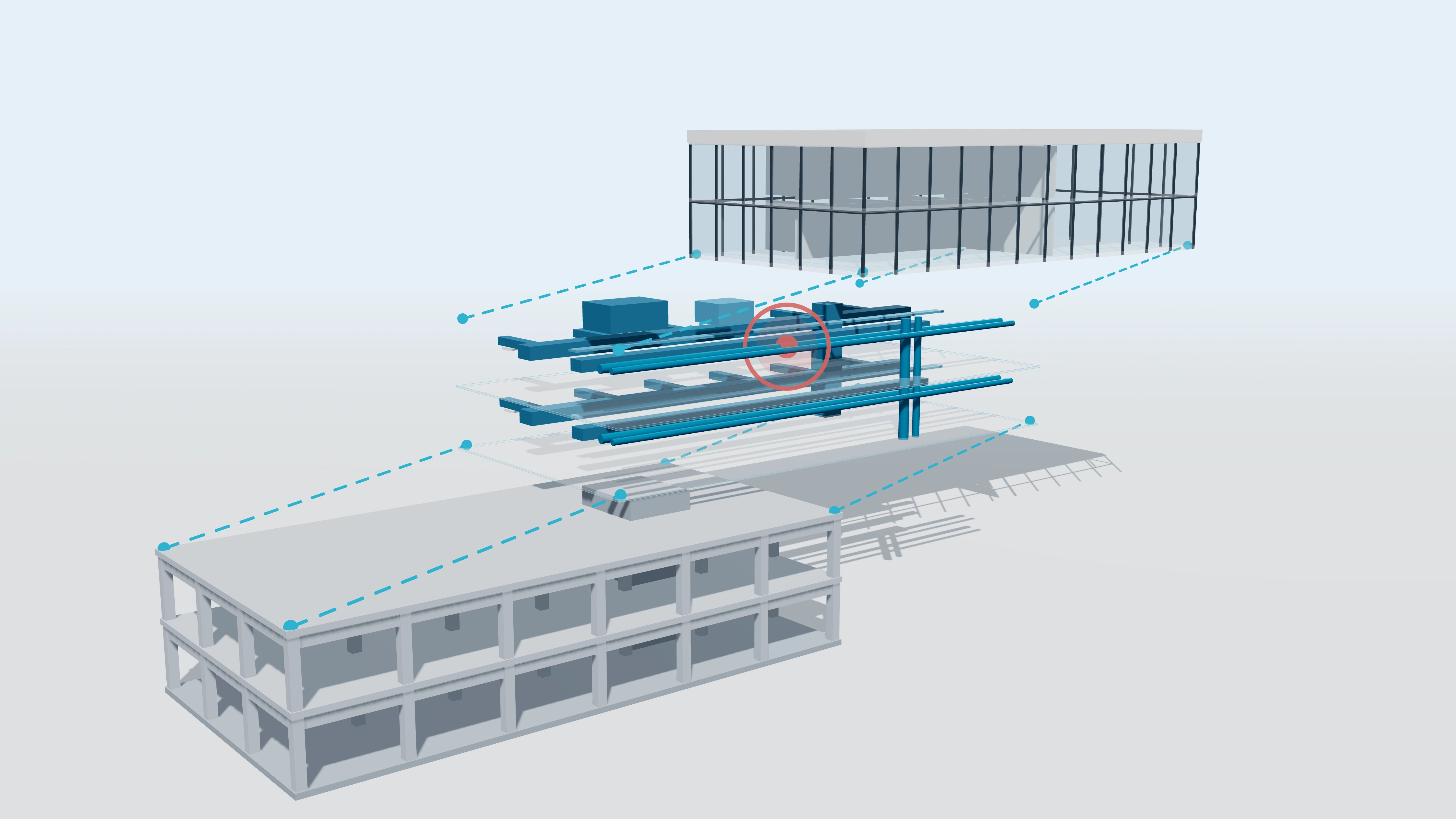
A federated building information modeling (BIM) model is one coordinated view built from separate discipline models, where each file stays separate, and each team keeps authoring its own work. The architect owns walls and rooms, and the structural engineer owns the frame. The MEP engineer owns services routing.
Federation differs from an integrated model, which merges geometry into a single file. Keeping files separate keeps authorship clear, so every clash points to a model owner who can fix it.
Signs Your Federated Model Needs Work Before the Meeting
Watch for these warning signs in the first ten minutes of a coordination meeting:
- Models float apart or sit at different elevations when loaded together.
- Someone asks whether the MEP model on screen is this week's upload.
- Clashes closed last week reappear with new IDs.
- Issues raised in the meeting still have no owner when the call ends.
Each symptom traces back to setup, and the clash engine is rarely the culprit. Setup rules agreed before the first model drop fix them at the source.
Three Prerequisites Before You Federate BIM Models
Federation works only when three rules are settled before the first model drop. Agree on them with every discipline lead and record them where the whole team can find them.
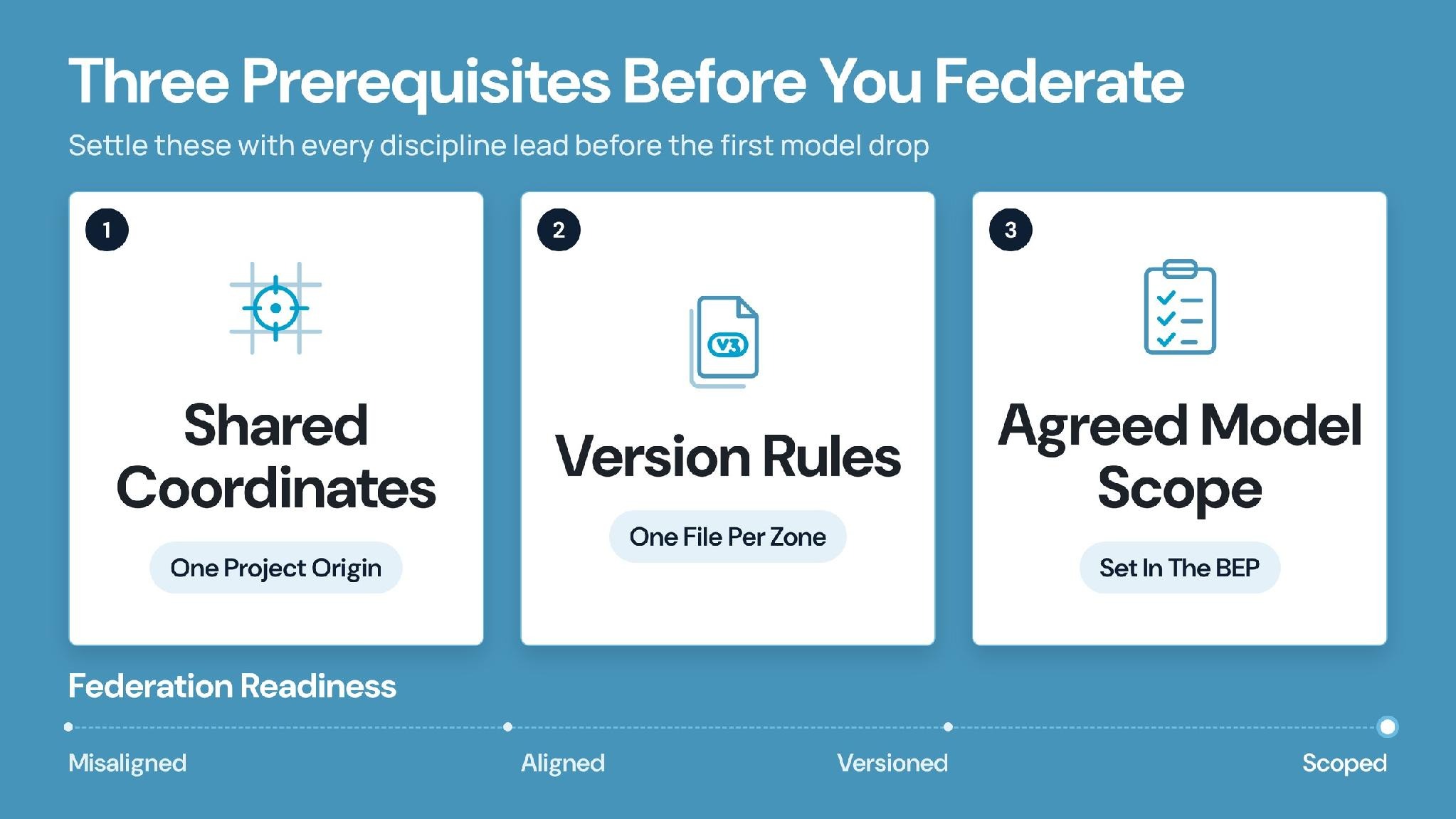
1. Shared coordinates and origin
Every discipline model needs the same project origin and shared coordinate system, set from one coordination model at project start. Check alignment on a known grid intersection after the first load. A model sitting 300 mm off grid produces clashes that are pure noise.
2. Version and naming rules per discipline
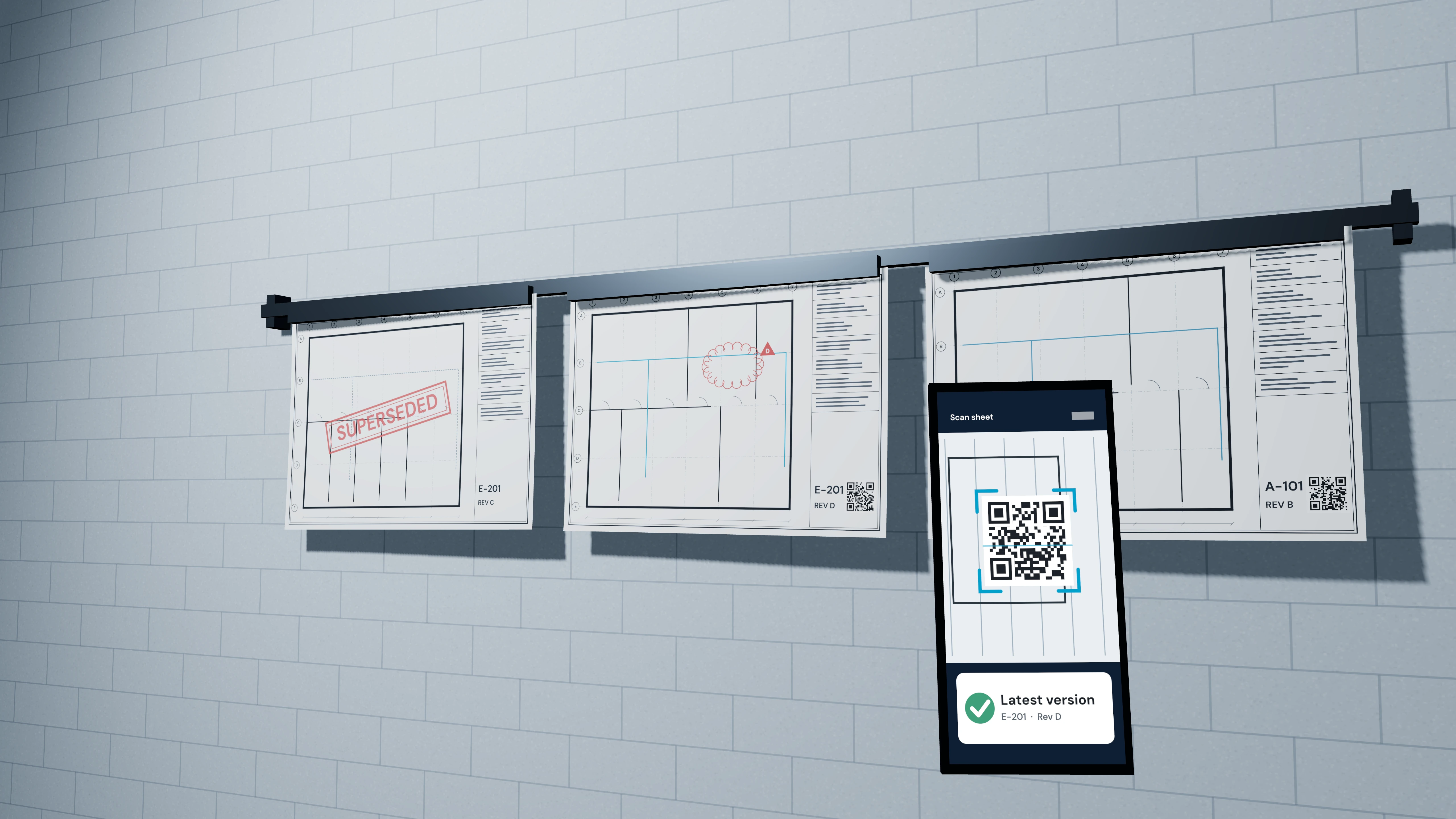
Agree how each discipline names and versions its uploads, and who confirms the version going into each meeting. Keep the rule simple: one file per discipline per zone, with the version number visible in the file details. For more on confirming currency, see how to know which construction drawing or BIM model is the current version.
3. Agreed model scope in the BIM Execution Plan
The BIM Execution Plan (BEP) should state what each discipline models, to what level of detail, and by which milestone. Clearance zones for access and maintenance belong here too. When scope is vague, a "clash" can simply be an element one team modeled ahead of schedule.
How to Federate Multi-Discipline BIM Models for a Coordination Meeting
To federate models for a meeting, run the same six steps every week, starting about 48 hours before the call. The goal is a federated view built only from confirmed current versions, with clashes already grouped by zone when the meeting opens.
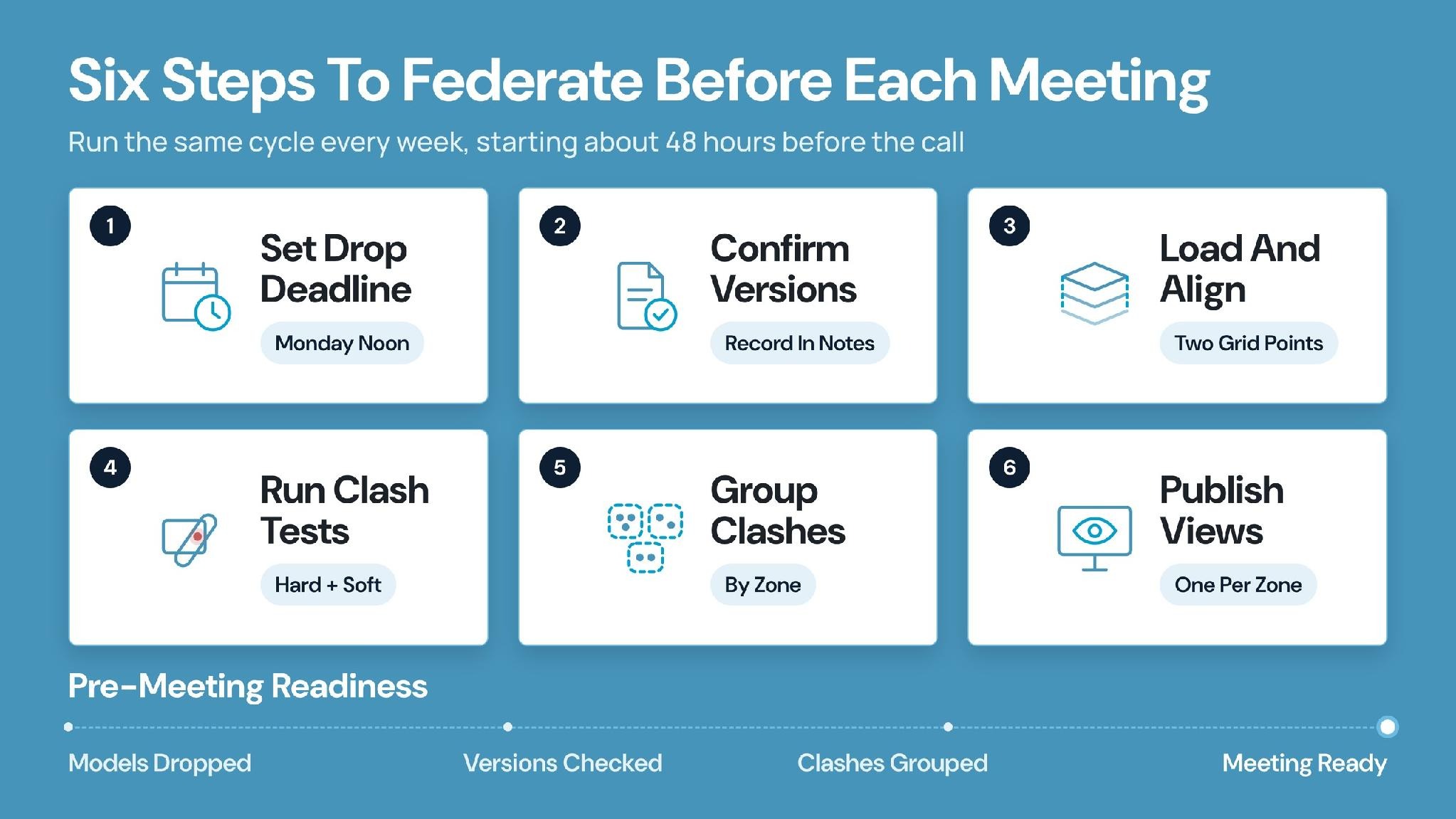
1. Set a model-drop deadline
Pick a fixed cutoff, such as Monday at noon for a Wednesday meeting. Models uploaded after the cutoff wait for the next cycle unless the coordinator agrees an exception.
2. Confirm each discipline's version
Check the version number and upload date for every model before loading it. Record those versions in the meeting notes, so each decision ties back to the files that produced it.
3. Load and align the models
Load native models, or Industry Foundation Classes (IFC) exports when disciplines use different authoring tools. Then check alignment on two known grid points and one level. For exchange basics, see what an IFC file is and how BIM teams use it.
4. Run or refresh clash tests
Run hard clash tests for physical intersections and soft (clearance) tests for access zones, each with a set tolerance in millimeters. Ignoring clashes within the same element or the same model removes obvious noise.
5. Group and prioritize clashes
Group results by zone or system so the meeting reviews dozens of groups instead of hundreds of single hits. Mark known false positives once so they stay out of next week's count.
6. Publish the meeting views
Save one view per zone with sections and visibility already set. Attendees then open the same view, which keeps discussion on the element in question.
How Should You Run a BIM Coordination Meeting?
Run the meeting from the issue list, with the model as the reference. Close last week's items first, then work through new clash groups and leave with every decision assigned. A 90-minute meeting fits this agenda comfortably.
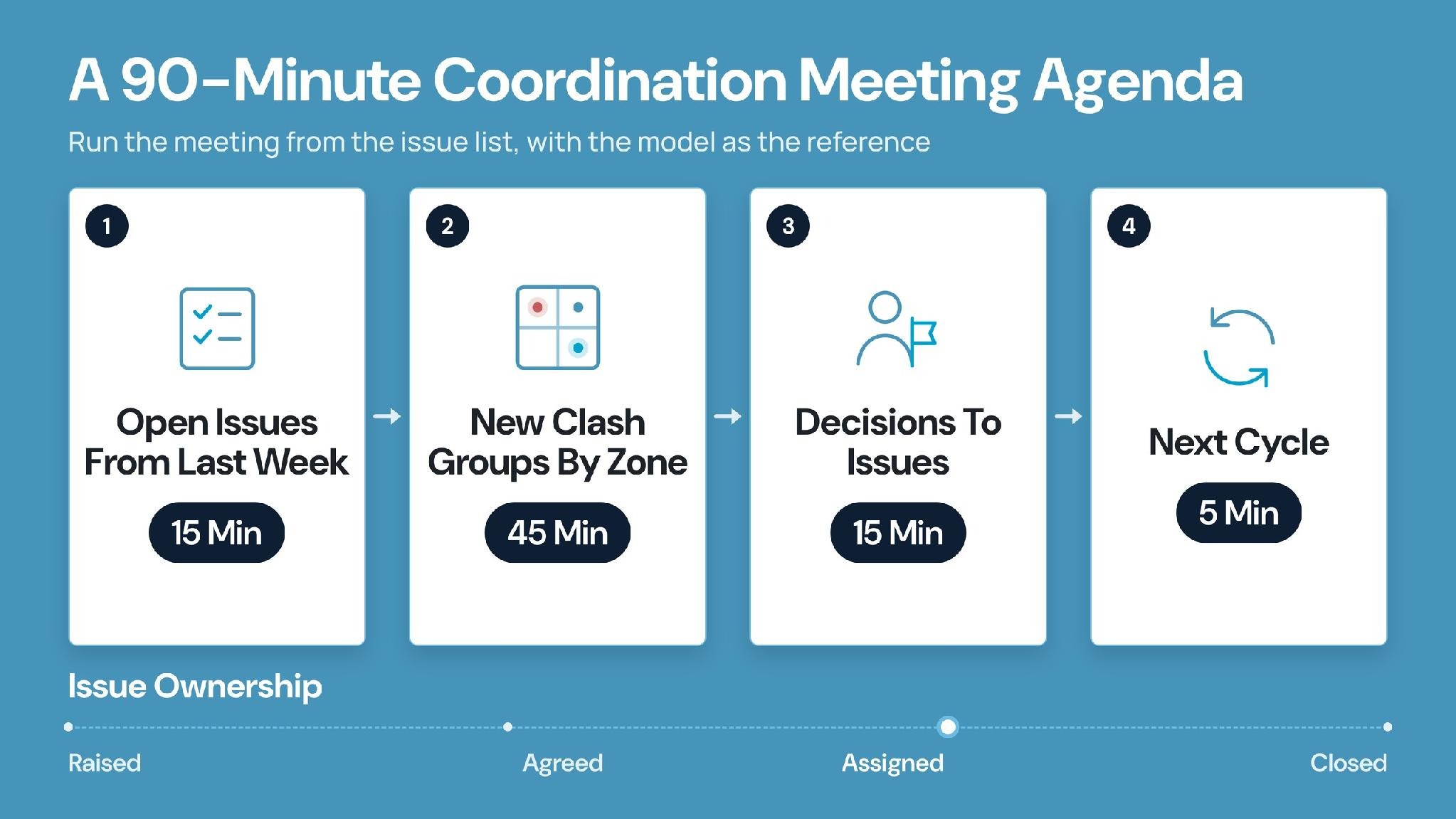
- Open issues from last week (15 minutes): confirm what each owner changed, and close resolved items.
- New clash groups by zone (45 minutes): agree a resolution for each group, starting with the highest severity.
- Decisions to issues (15 minutes): every decision becomes an issue with one owner, a due date, and a saved viewpoint.
- Next cycle (5 minutes): confirm the drop deadline and any scope questions for the BEP.
Send issues back to authoring tools in BIM Collaboration Format (BCF), the openBIM standard for exchanging model-based issues. A BCF issue carries the viewpoint and element references, so the modeler opens the exact spot without rereading meeting notes.
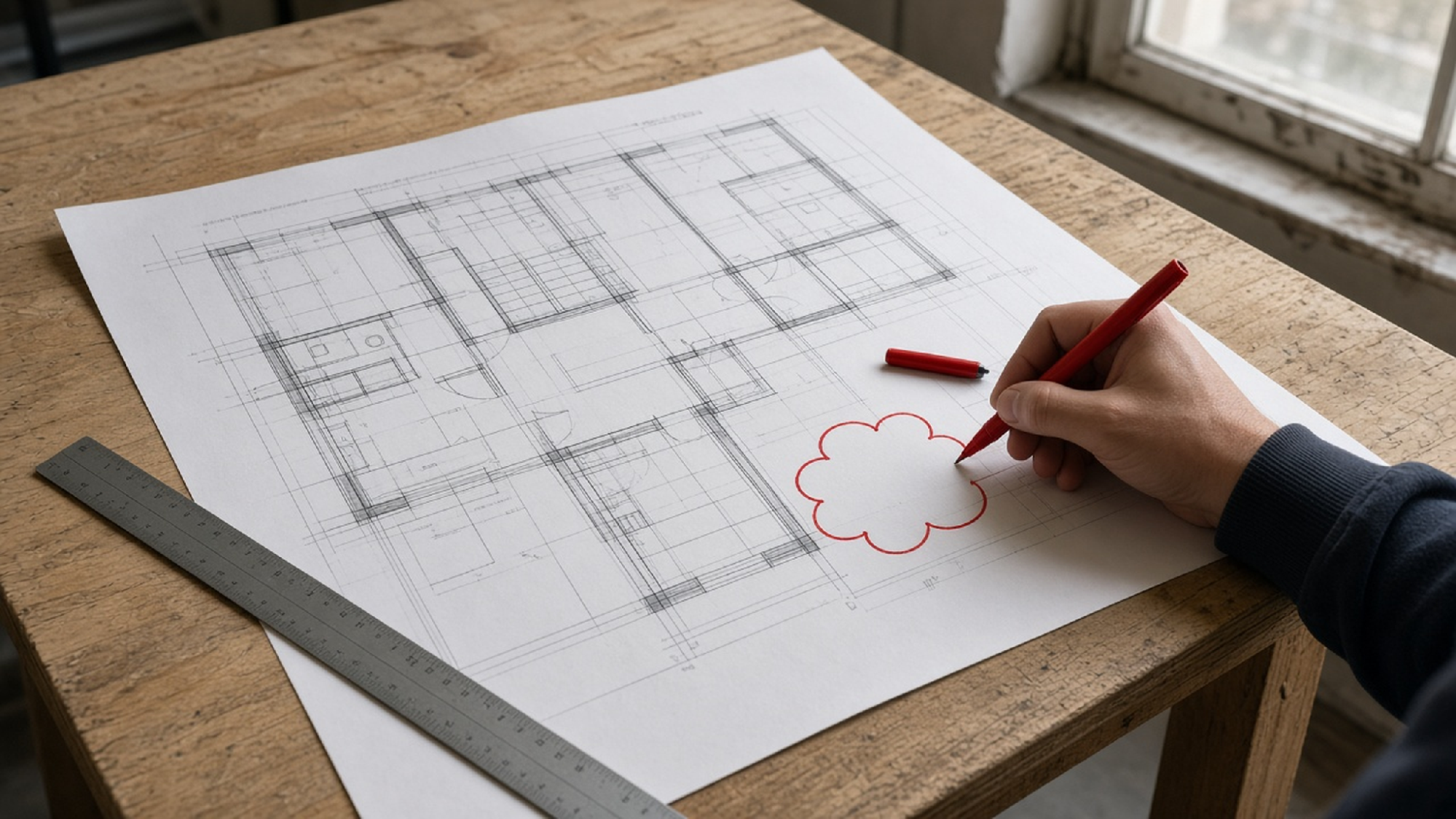
Keep markups and decisions in the issue layer and out of the authored models. The model author makes the change in the authoring tool and uploads a new version for the next cycle.
Keeping the Federated Model Current Between Meetings
A federated model goes stale the moment one discipline uploads a new version mid-cycle. Decide in advance how the team handles those uploads, and write the rule into the BEP.
A workable rule has two parts. Late uploads wait for the next cycle by default, and urgent fixes trigger a deliberate re-federation plus a fresh clash run. Compare the new run against the previous one so the team sees which clashes are new and which are resolved.
Either way, the federated view used in the meeting should match the versions recorded in step 2. If the coordinator updates it after the version check, note the change at the top of the agenda.
Watch out: A clash count that drops to zero overnight usually means a model failed to load. Check that every discipline is present in the federated view before reporting progress.
How CUBE Supports Model Federation and Clash Review
In CUBE's common data environment (CDE), open it in the browser Design Viewer. When any constituent model gets a new version, CUBE automatically creates a new version of the merged file, so the federation always reflects the latest discipline uploads.
Clash tests run on the merged model once it is preloaded in full. You choose the rule type (manual, selections, or queries), set hard or soft clashing with a tolerance in millimeters, and ignore clashes within the same element or model. After each Update and re-run, CUBE separates new clashes from resolved ones, so the team sees what changed since the last cycle. Clash Detection is available as a paid add-on.
From any clash result, you can create an issue with an assignee and due date. Issues export to BCF for authoring tools and to Excel or PDF for reporting. Issues created in CUBE also sync back to the Revit plugin with persistent element IDs, so the modeler lands on the right element.
Shared Layouts let the coordinator save one view per zone for everyone in the meeting. Large federated models load more predictably with Preload and Open, which loads the complete model before review.
Case in point: a G+43 mixed-use development (UAE)
A G+43 mixed-use project team needed BIM access and document management in one place. CUBE brought both into a single cloud platform, with issue tracking and clash tests run on federated models. Read the full case study →
Federate Multi-Discipline BIM Models for Coordination Meetings With CUBE
Coordination meetings pay off when the federated view is trusted before the call starts. Shared coordinates, a model-drop deadline, and a version check do most of that work, and an issue-led agenda does the rest.
CUBE keeps that rhythm in one environment, taking care of merged models in the browser to issues that travel back to authoring tools. To see the workflow on your own models, sign up for CUBE.
Frequently Asked Questions
1. Who should attend a BIM coordination meeting?
The VDC coordinator runs it, with one modeler per discipline who can commit to changes. The general contractor's project engineer and relevant trade foremen join when clashes affect sequencing, so issues get owners before the call ends.
2. How many clash groups should one meeting cover?
Plan for roughly 20 to 40 grouped clashes in a 90-minute meeting, depending on complexity. Review the highest-severity zones first. Anything left over carries into next week's agenda with a named owner, so it stays on the list.
3. How do you federate multi-discipline BIM models when teams use different software?
Ask each discipline to export IFC from its authoring tool on the agreed schedule. Check that each export keeps shared coordinates and element IDs. Then federate the IFC files alongside any native models your coordination platform opens.
4. Can you federate BIM models without Navisworks?
Yes. Several platforms merge models and run clash tests in a browser. In CUBE, you merge discipline models into a Merged File in the Design Viewer, and clash tests run through a paid add-on.
5. Does CUBE update a merged model automatically when a discipline uploads?
Yes. When a constituent model gets a new version, CUBE automatically creates a new version of the merged file, and its version history shows which upload triggered it.