







How to Run Structured Drawing Reviews and Redlines Without Email
Run drawing reviews and redlines in one record. A review charter for stages, markup rules, closure, and the next revision.


Email fails drawing reviews because comments detach from the sheet revision they concern, so a Rev B cloud can go unanswered before Rev C issues.
Structure comes from four rules set before the review: stages and reviewers, markup conventions, a definition of closed, and a hand-off to the next revision.
Every markup should carry an author, sheet and revision, type, owner, and due date; without these, a markup is a note nobody can close.
Markups on models and computer-aided design (CAD) files belong in the same review record as PDF markups, for discussion only; authoring stays in desktop tools.
CUBE runs reviews as multi-level Review Flows with issues raised on PDF, CAD, and model files, so the review record stays with the file.
To run structured drawing reviews and redlines without email threads, set four rules before the review starts. Then keep every markup on the file version under review. The rules cover who reviews at each stage, what a markup must carry, what counts as closed, and how the result reaches the next revision.
Email reviews leave three questions open.
Which revision was that structural cloud drawn on?
Who owns the response?
Was it closed before Rev C went out?
A shared review record answers all three, because each markup stays attached to its sheet, its revision, and a named owner.
This guide sets out a review charter template covering stages, markup conventions, closure, and hand-off. It also covers reviewing models and CAD files alongside PDFs, plus a decision table for when email and PDFs are still enough.
What Makes a Drawing Review "Structured"?
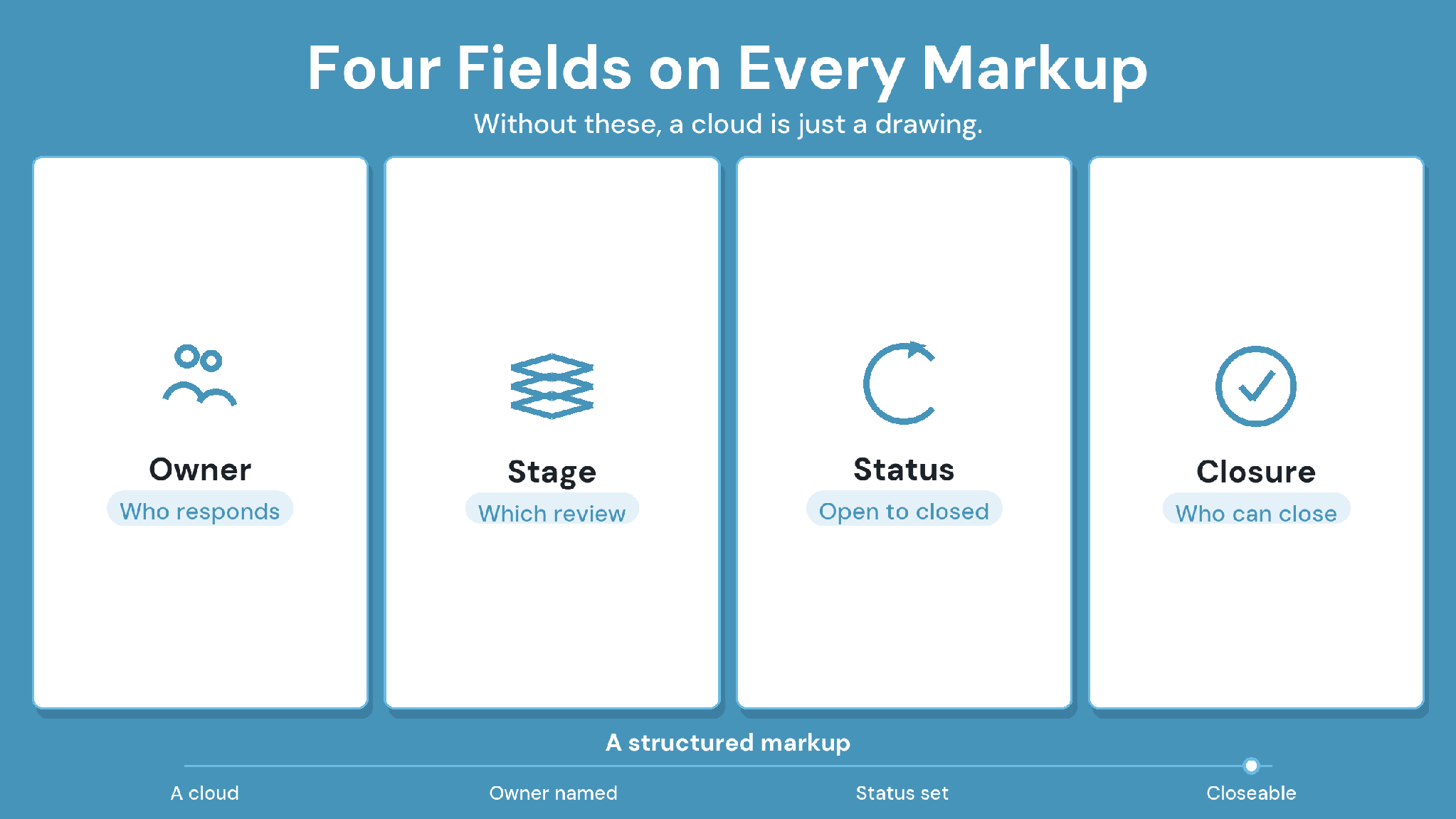
Four Fields on Every Markup
A drawing review is structured when every markup has four properties: an owner, a review stage, a status, and a defined way to close. These four properties turn a redline into a tracked review item tied to one revision of one sheet.
Owner: the person responsible for responding.
Stage: the review step where the markup was raised, such as structural review.
Status: open, responded, accepted, or rejected.
Closure: the rule for who can close the markup and on what evidence.
A redline is a markup on a drawing that requests a change, traditionally drawn in red. Markup is the broader term for any annotation, including clouds, notes, and questions. Design review checks what a drawing says, while document control manages which revision is issued, and a structured review connects the two.
Signs Your Drawing Review Process Is Running on Email
Markups land on a superseded sheet because a reviewer opened last week's attachment.
Two reviewers raise the same comment, and the designer answers it twice.
Nobody can say which comments are still open at issue time.
Someone merges PDF markups by hand into one master set before every response.
Some public owners have formalized the fix. California's Division of the State Architect runs each plan review increment in a single shared electronic session. Design professionals upload corrected sets into that session, and DSA staff verify the corrections with them.
Why Email-Based Drawing Reviews Break Down
Four root causes sit under those symptoms:
Comments detach from the file version: An emailed markup refers to whatever attachment the reviewer opened, with no link to the current revision.
No defined reviewer per stage. Reply-all lets anyone comment at any time, so nobody owns the response.
No definition of closed. A comment answered in a thread looks resolved even when the drawing never changed.
Review isn't linked to the next issue. The reviewed set and the issued set are separate files, so unresolved markups can slip into the next revision.
How to Set Up a Structured Drawing Review
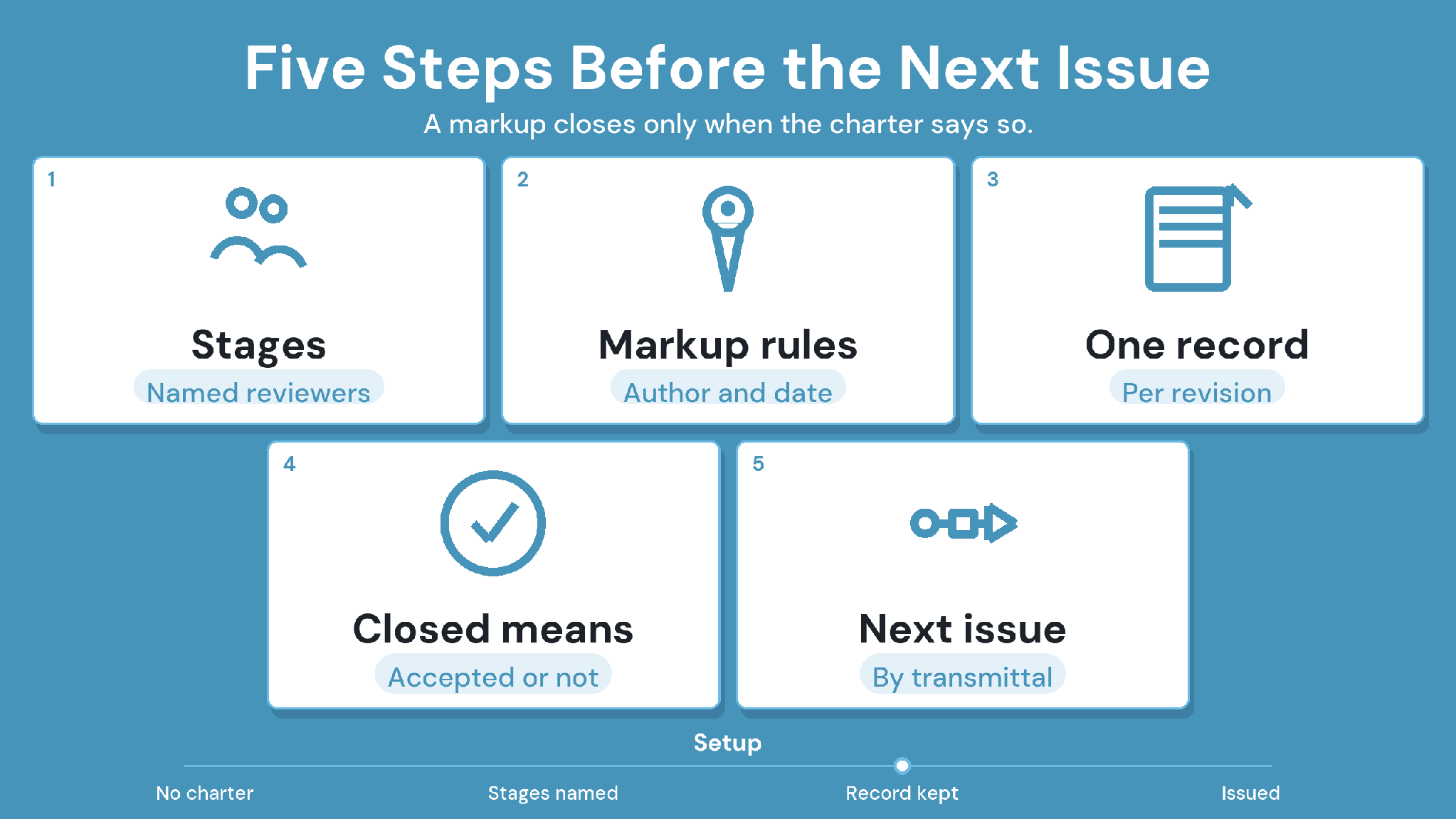
Five Steps Before the Next Issue
Set up a structured drawing review by agreeing a review charter with every reviewer before the first sheet opens. The charter defines the stages, reviewers, and fields every markup carries. It also sets one review record per revision, what closed means, and how the reviewed set becomes the next issue.
Caption: Example review charter; adjust the stages, reviewers, and durations to the project.
1. Define review stages and who acts at each
Stage the review by discipline or by sequence, such as architect QA, then structural and mechanical, electrical, and plumbing (MEP) review, then project manager sign-off. For each stage, name the reviewers, the minimum number who must act, and the due date.
2. Set markup conventions
Agree what every markup carries: author, sheet and revision, type (cloud, note, or question), severity, assignee, and due date. A markup missing any of these can't be routed or closed.
Color conventions help when they're a team standard. Red for deletions and green for additions is a common practice. Writing it into the charter means a consultant's cloud carries the same meaning as yours.
3. Keep one review record per revision
Comments belong on the file version under review, in one record per revision. A version is any saved copy, and a revision is the formally issued state reviewers comment on.
If a new revision arrives mid-review, the charter should say whether open markups carry forward to it or the review restarts on the new version.
4. Define what "closed" means
A markup closes with one of three outcomes: accepted, rejected with a reason, or resolved with a response the reviewer agrees with. Name who can close each type, usually the reviewer who raised it or the stage lead.
5. Hand the result to the next revision and issue
The reviewed set feeds the next revision: every accepted change appears in it, and every rejected markup keeps its reason on record. The revised set then goes out as a formal transmittal, which records what was sent, to whom, and when.
How Do You Review Models and CAD Files Alongside PDFs?
Review models and CAD files in the same record as PDFs by raising markups and issues directly on them, tied to the file version. Those markups are for discussion. Changes still happen in Revit or AutoCAD, and the next upload becomes a new version.
Building Information Modeling (BIM) markups work best when they point at a specific model element. That way the designer sees exactly which duct, beam, or sleeve the comment concerns.
BIM Collaboration Format (BCF) is an open buildingSMART format for exchanging model issues, with their viewpoints, between tools. It carries a reviewer's model issue into the designer's authoring tool without retyping. In CUBE, issues raised on drawings and models export and import as BCF.
When Are Email and PDFs Still Enough for Drawing Reviews?
Email and PDFs can work for a single reviewer, one discipline, and one review round with no audit requirement. Move to a shared review record once several disciplines review the same set, rounds repeat, or you need to show who closed which markup.
Caption: When email and PDFs are enough for a drawing review, and when to use a shared review record.
Email still has a job in a structured review: notifications. Comments, responses, and closure belong in the review record.
How CUBE Runs Structured Drawing Reviews
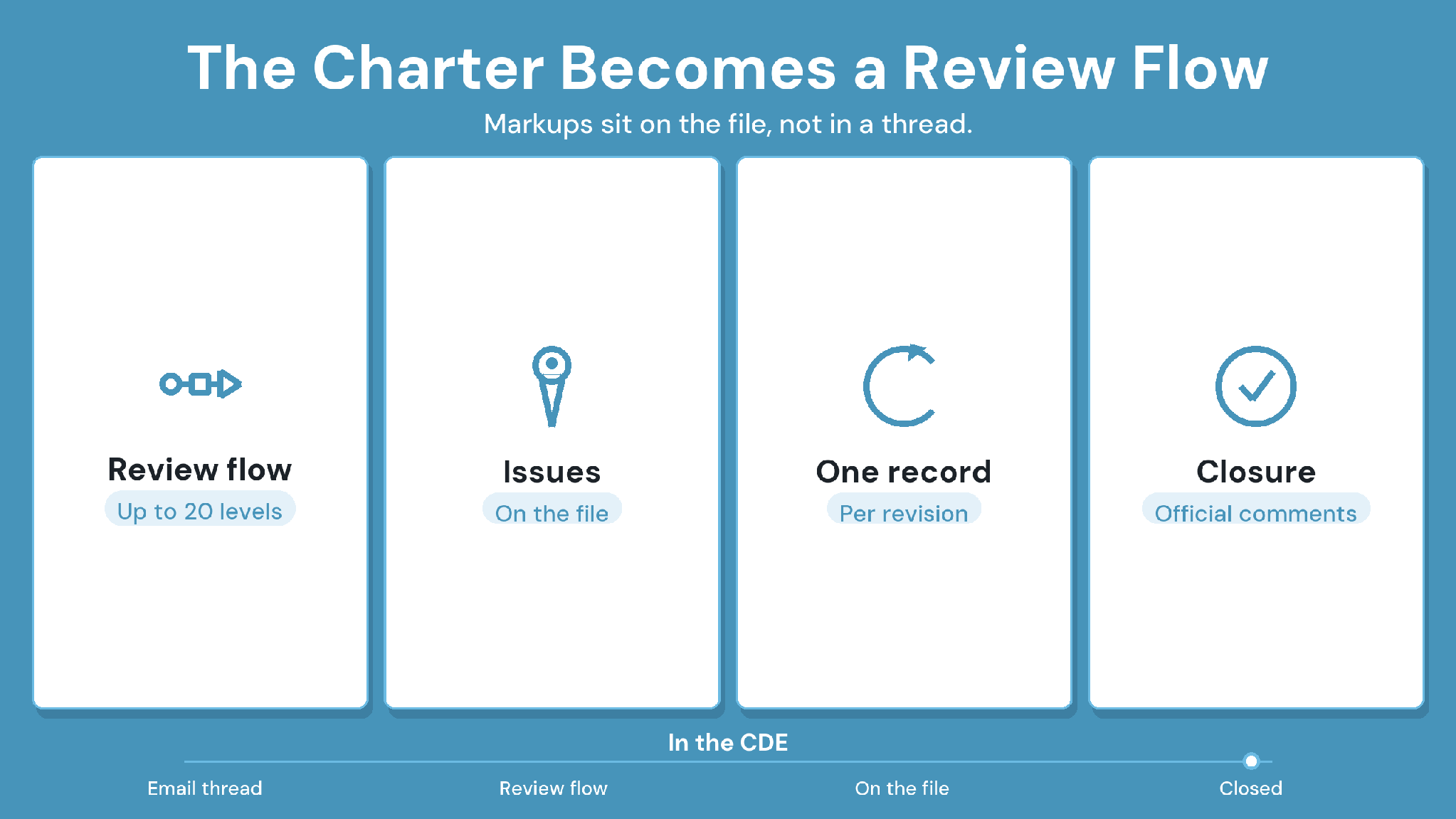
The Charter Becomes a Review Flow
CUBE's common data environment (CDE) runs the charter as Review Flows, with markups raised as Issues on the files under review.
CUBE holds the review and leaves authoring to Revit and AutoCAD. Each charter step maps to a documented capability:
Caption: How each review charter step maps to CUBE capabilities.
External consultants can join on Guest seats, at 10 free per 10 paid full CDE seats, counted in completed blocks of 10. Each Guest seat covers one Space in one project.
Case in point: Global design consultant
A global design consultant needed one way to manage documentation and multi-team reviews across previously siloed tools. CUBE delivered a centralized CDE with integrated review workflows and simplified Transmittals. Read the full case study →
See your charter as a Review Flow: Sign up for CUBE and set it up on your next review.
Run Structured Drawing Reviews Without Email Using CUBE
Adopt the charter on your next review cycle, starting with one drawing set and one consultant. CUBE keeps that charter in place, with Review Flows for the stages and Issues on the files for every markup.
Frequently Asked Questions
1. How do you stop redlines getting lost in email threads?
Keep every redline in one shared review record, attached to the sheet and revision it concerns, with an owner and a status. Use email only to notify people that a review started or a markup was assigned.
2. Can you run a drawing review in Bluebeam and still keep a controlled record?
Yes, if the review sessions follow the charter and the final markup record is filed with the revision it covers. Watch the hand-off: markups made in a PDF session need to reach the document-control record before the next revision issues.
3. How long should each review stage take?
Use the review period in the contract or specification where one exists. Otherwise agree durations in the charter, such as two days for a QA check and five for a discipline review, and shorten repeat rounds.
4. Should email be banned from reviews entirely?
No. Email works for notifications, such as a review starting or a markup being assigned. Comments, responses, and closure belong in the review record. CUBE sends email and in-app notifications for Review events.
5. How do you export a review record for handover or a claim?
Export the markups with their status, owner, and dates, alongside the revision they concern. In CUBE, Issues export to Excel, PDF, or BCF, and Reviews export to Excel.