.svg)


.png)
.png)


.svg)





.png)


.png)
.png)
What Is an IFC File? Format Guide for BIM & Construction Teams (2026)
Understand the IFC file format, including IFC2×3, IFC4, and IFC4.3. See how BIM teams open, review, validate, and control model exchanges.


Key Takeaways
- An IFC file carries standardized BIM geometry, object relationships, and properties between software platforms through an open, vendor-neutral data structure.
- IFC works best as a controlled exchange format, while native authoring files remain essential for detailed design changes and model production.
- Teams should specify the IFC schema, exchange purpose, coordinates, required properties, and acceptance checks before the first model submission.
- A successful import proves file access, while geometry, classification, property, coordinate, and workflow checks establish whether the model is usable.
- CUBE helps teams view model files, track revisions, manage reviews, control access, and issue coordinated information through recorded transmittals.
Reliable Industry IFC exchange starts before anyone exports a model. The sending and receiving teams must agree on the intended use, required information, coordinate system, and validation process.
Without those controls, a file may open while critical properties disappear or model elements shift position. The result can delay coordination and weaken downstream decisions.
This guide shows construction teams how to prepare, inspect, validate, and manage IFC exchanges across the project lifecycle.
What Is an IFC File?
Industry Foundation Classes, or IFC, provide standardized digital descriptions of built assets. buildingSMART International governs the standard, which is published as ISO 16739-1:2024.
An IFC file can describe physical elements such as walls, doors, beams, and ducts. It can also preserve spaces and relationships between objects. Properties may cover materials, classifications, dimensions, or performance information.
IFC supports openBIM workflows by separating an exchange from one software vendor’s native format. An architect can publish model information for a contractor who uses another compatible application.
1. What does IFC stand for?
IFC stands for Industry Foundation Classes. “Industry” refers to the built-asset sector, while “classes” describe standardized object categories and relationships.
The schema gives software a common structure for interpreting model information. For example, an `IfcWall` carries a clearer meaning than an unnamed three-dimensional shape.
2. Is IFC a file format or a data standard?
IFC is a data standard that can be serialized in several file formats. The familiar `.ifc` extension uses the STEP Physical File format.
The distinction is important because the schema defines the information model. The encoding determines how software stores or transfers that information.
3. What information can an IFC file contain?
An IFC file can hold geometry and placement data. It may also carry spatial structure, object types, property sets, classifications, materials, and system relationships.
The delivered content depends on the source model and export configuration. Project requirements should identify the data needed for each exchange.
Practical definition:
An IFC file is a structured BIM exchange. Its value comes from the geometry and project information it carries for a stated purpose.
How the IFC File Format Works
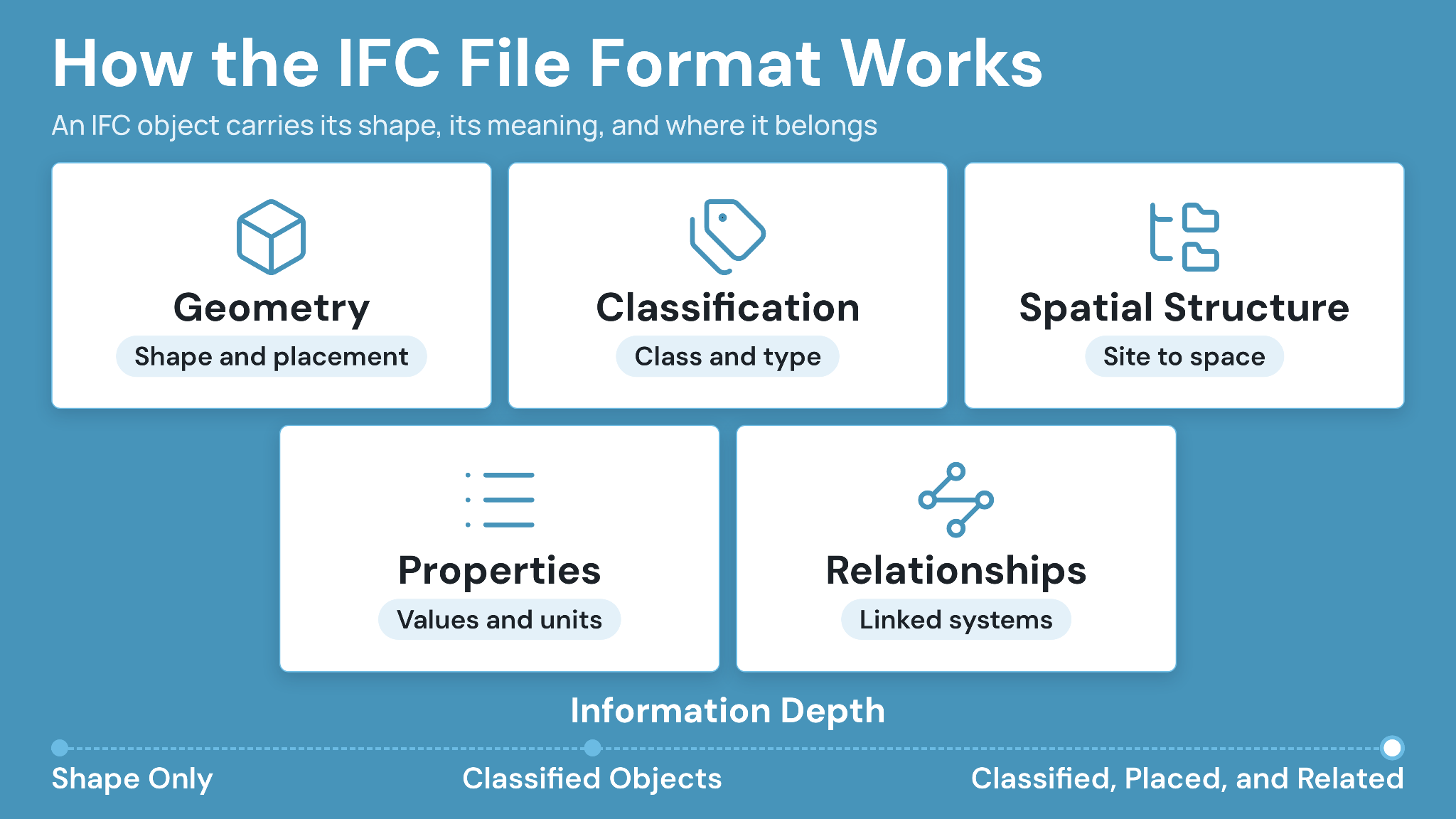
The IFC schema organizes project information as connected entities. Objects receive defined classes, attributes, relationships, and optional property sets.
A building element therefore carries more than its visible shape. Software can identify what the object represents and how it relates to spaces or systems.
buildingSMART reports that IFC includes more than 1,300 entities and about 2,500 properties organized across over 750 property sets. Project exchanges use relevant subsets instead of every available definition.
1. IFC objects combine geometry with meaning
Geometry describes an object’s shape and position. Semantic information identifies its class and relevant characteristics.
A rectangular solid could represent several construction components. An IFC class can identify it as a beam, while properties may record material or reference information.
2. Spatial structure places objects within the asset
IFC can organize information from the project down through sites and buildings. Building stories and spaces create additional levels for locating elements.
That structure helps reviewers isolate a floor or inspect objects within one room. Consistent source-model setup improves the quality of this hierarchy.
4. Relationships connect elements and systems
Relationships show how objects belong to systems or connect with other information. A flow segment may belong to a mechanical system, while an opening can relate to a wall.
These connections support filtering and coordination. Their quality depends on the authoring model and the exporter’s implementation.
5. Property sets carry structured attributes
Property sets group information associated with an IFC object. Standard sets often use names beginning with `Pset_`, such as `Pset_WallCommon`.
Project teams can also request custom properties. A delivery specification should define names, units, allowed values, and responsible authors before model production begins.
IFC File Extensions and Encodings
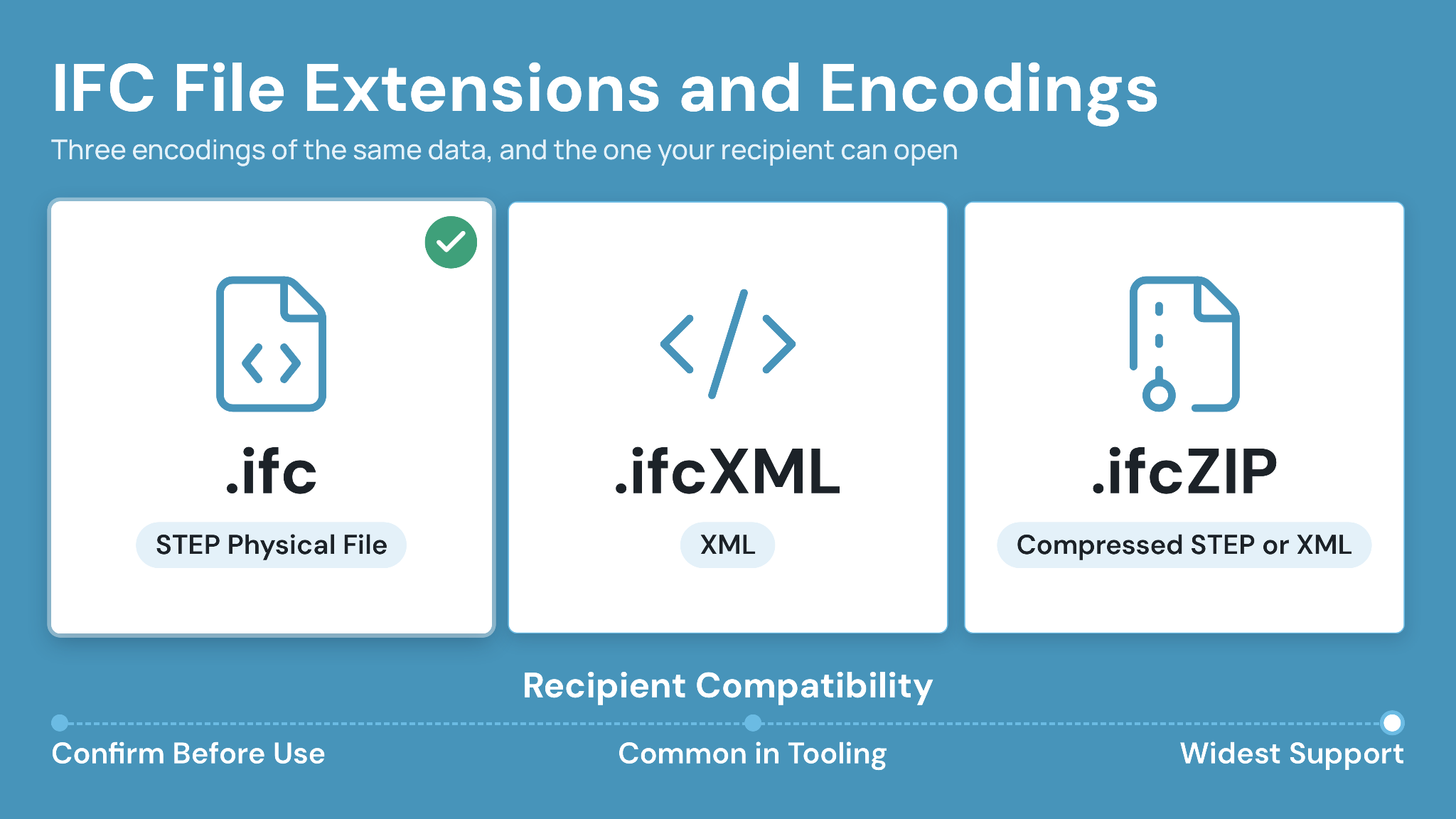
IFC data appears in three common file encodings. The `.ifc` format provides the widest compatibility for routine file-based exchange, according to buildingSMART.
File size and software support can influence the selection. Project teams should state the accepted extension instead of assuming every recipient supports each encoding.
1. .ifc uses the STEP Physical File format
The standard `.ifc` file is a clear-text representation based on ISO 10303-21. Each data row records an entity and its references.
Its combination of compatibility and compact size makes it the normal choice for model exchange. A text editor can display its header, although model inspection requires IFC-capable software.
2. .ifcXML stores IFC data as XML
The `.ifcXML` encoding represents IFC information in Extensible Markup Language. buildingSMART identifies readability and broad XML tooling as its main advantages.
XML files are commonly larger than equivalent STEP files. Teams should choose the format when an integration or processing workflow specifically requires XML.
3. .ifcZIP compresses IFC data
An `.ifcZIP` file is a ZIP container holding IFC data encoded as STEP or XML. Compression can make large exchanges easier to transfer.
Recipient software must support the container. Confirm import behavior during the project’s pilot exchange before relying on compressed submissions.
IFC2x3, IFC4 and IFC4.3 Compared
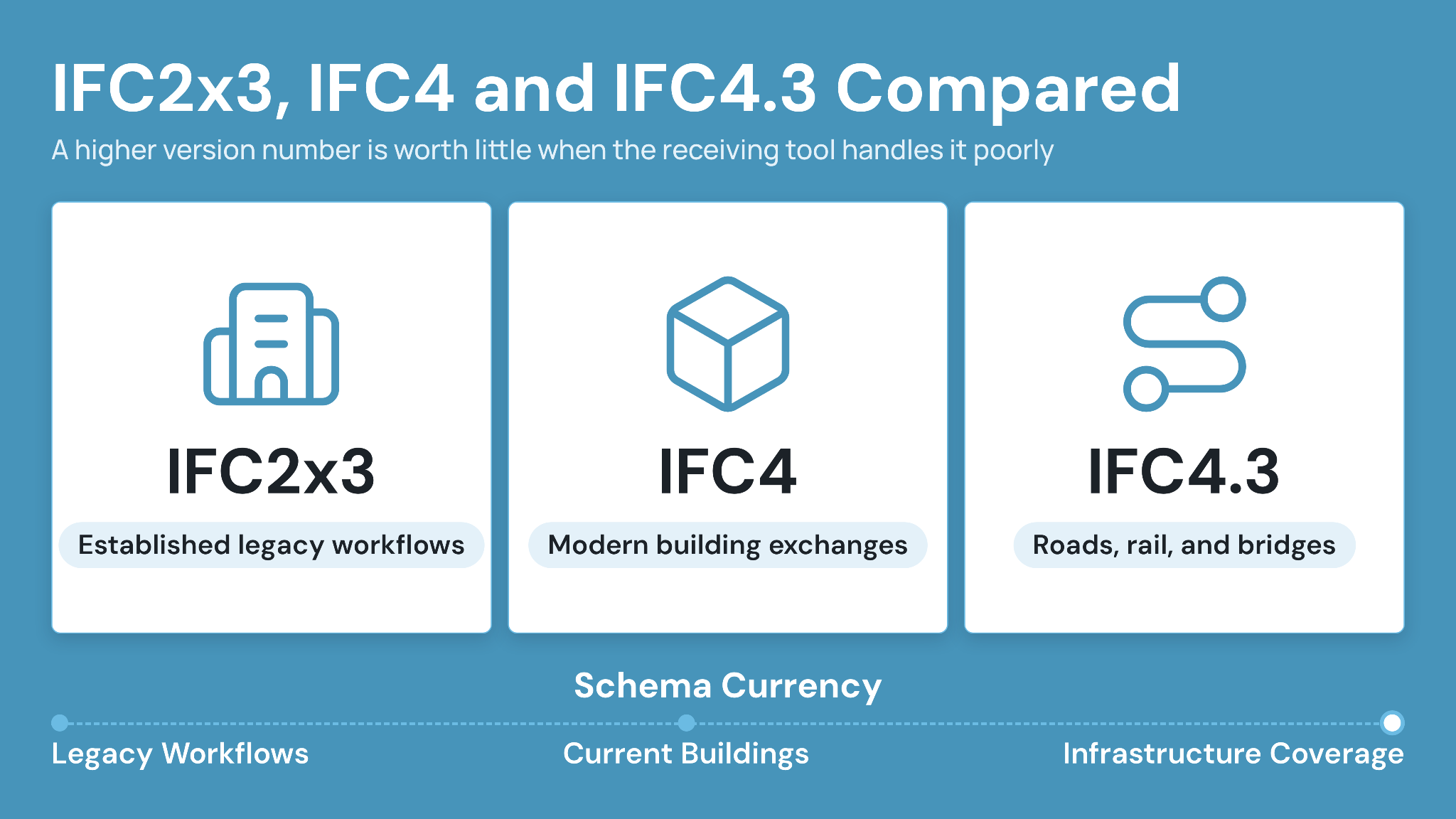
IFC versions define different schema capabilities and software compatibility. The correct choice comes from the project’s exchange requirements and tested application support.
IFC2×3 remains present in established workflows. IFC4 expanded the schema for buildings, while IFC4.3 added stronger coverage for infrastructure assets.
A higher version number provides limited value when a receiving tool handles it poorly. Pilot tests should verify the exact exporter, receiver, schema, and exchange definition.
1. IFC2x3 supports established legacy workflows
IFC2×3 has broad support across older BIM applications and project requirements. Teams often encounter it in coordination workflows built around established software configurations.
Use it when the project specification or receiving application requires that schema. Record the associated exchange definition because the schema name alone leaves room for interpretation.
2. IFC4 supports modern building exchanges
IFC4 improved several geometry and data definitions for built assets. Compatible applications may provide better representation than older IFC2×3 workflows.
Software support still varies by feature and export path. Project teams should test representative elements, including openings and curved geometry, before approving the exchange process.
3. IFC4.3 extends coverage for infrastructure
IFC4.3 is the current ISO 16739-1:2024 standard listed by buildingSMART. It adds stronger support for roads and railways. Bridges and other civil assets also receive expanded coverage.
A 2025 US Department of Transportation repository report found that 22% of surveyed State departments of transportation (DOTs) identified interoperability as a primary BIM and IFC challenge. The report states that its survey covered selected DOTs, so the result does not represent every jurisdiction.
Version rule: Follow the project requirement, then prove the selected exchange through a representative test. Schema labels alone cannot establish usable interoperability.
IFC Versus Native BIM Files
IFC and native BIM files serve different jobs. Native files support detailed authoring, while IFC supports structured exchange across compatible platforms.
Project teams often retain both. Designers work in native files and publish controlled IFC exchanges for coordination, or another agreed use.
1. Native files preserve application-specific authoring behavior
Native formats usually retain parametric families and detailed application logic. They may also preserve worksharing information or software-specific relationships.
That depth helps authors continue developing the model. Recipients need the relevant application and version to use the file as intended.
2. IFC provides a governed exchange snapshot
An IFC delivery captures information at a defined publication point. It supports viewing and checking across applications that implement the selected schema.
Treat each IFC as a controlled project record. Revision, status, purpose, author, and issue date should accompany the file in the model register.
3. How BIM and Construction Teams Use IFC Files
BIM teams use IFC for coordination and review. Construction teams may also apply it to quantity workflows, handover preparation, or owner information requirements.
Each use needs its own acceptance criteria. A visually correct model may still lack the properties required for asset delivery.
4. Multidisciplinary model coordination
Architectural and engineering teams can publish separate IFC models. A BIM/VDC coordinator then combines them for spatial review.
Coordinates and model segmentation must align across disciplines. An early test with grids and representative elements can reveal placement errors before detailed coordination begins.
5. Clash and constructability review
IFC classes help coordination tools distinguish systems and object types. Reviewers can test clearances or identify intersections between model elements.
A clash result begins a decision workflow. Teams still need an assigned owner, documented response, due date, and controlled model revision.
6. Quantity and information checks
Structured classes and properties can support quantity workflows. Reliability depends on modeling rules and consistent object classification.
Teams should reconcile selected quantities against another controlled source during setup. The test should cover units and exclusions. It should also record how composite or duplicated elements are handled.
7. Handover and asset information
IFC can carry asset properties for handover when requirements begin early. Owners should specify the needed objects, property names, values, units, and delivery milestones.
An information-rich file still needs verification against installed conditions. Accepted documents and commissioning records may remain linked through the project’s handover process.
How to Open and Inspect an IFC File
IFC files can be opened in compatible BIM authoring tools and coordination applications. Browser-based model environments can also provide access without a local authoring installation.
The right tool depends on the task. A superintendent may need visual inspection, while a BIM coordinator needs property queries and model federation.
1. Start with the file header and delivery record
Confirm the filename and schema before deeper review. Match the delivery against the model register and transmittal.
The record should identify the revision, purpose, originator, and issue date. It should also state whether the model supports coordination or another defined use.
2. Check geometry and coordinates
Open the model and inspect its extents. Confirm levels and grids against the approved project coordinates.
Review representative elements from every discipline. Focus on openings and hosted components because they often expose conversion problems quickly.
3. Inspect classifications and properties
Select several objects and confirm their IFC classes. Check required properties for presence and usable values.
Avoid testing only one clean element. Include assemblies and repeated systems. Pay special attention to custom families because their mappings can differ from standard components.
4. Review the model in a controlled environment
CUBE’s Common Data Environment supports viewing three-dimensional models alongside CAD drawings and PDFs. Every upload creates a version automatically, with the timestamp and uploader recorded, and a revision is a marker you apply to the version you actually issued using a configurable revision series.
Centralized access helps reviewers work from the same controlled file. Permissions and activity history preserve context around who accessed or reviewed the model.
Inspection principle: Opening an IFC file proves access. Acceptance requires geometry, coordinates, classes, properties, revision, and purpose to meet the agreed exchange requirements.
Common IFC Problems and Practical Fixes
IFC exchange problems often involve coordinates and missing properties. Incorrect classification or excessive detail can also reduce model usability.
A repeatable test process catches these issues before a formal submission. Test the same representative model slice after exporter or application changes.
1. Models appear in different locations
Problem: One discipline model appears far from the federated project. Its source used a different coordinate origin or reference system.
Fix: Define the project coordinate method in the BIM Execution Plan. Run a pilot exchange containing grids and known control points.
2. Required properties disappear
Problem: Geometry arrives, while equipment tags or performance properties are missing. The exporter omitted custom fields or used different mappings.
Fix: Create a tested property mapping. Compare required values in the source and receiving applications before a formal issue.
3. Objects arrive as generic proxies
Problem: Components appear as generic objects, which weakens filtering and rule-based review. Source categories may lack the correct IFC mapping.
Fix: Map representative families to the required IFC classes. Add classification checks to the exchange acceptance process.
4. The file becomes difficult to review
Problem: Detailed fabrication components or dense geometry create a heavy exchange. Review performance declines for users with ordinary project devices.
Fix: Match geometric detail to the stated use. Divide exchanges by discipline or zone when the project workflow supports that structure.
5. A newer upload creates revision confusion
Problem: Reviewers see two IFC files and choose the latest upload time. The newer model may remain under review.
Fix: Control revision and status through a model register. Issue accepted files through recorded transmittals and separate superseded models from active views.
How to Prepare a Reliable IFC Exchange
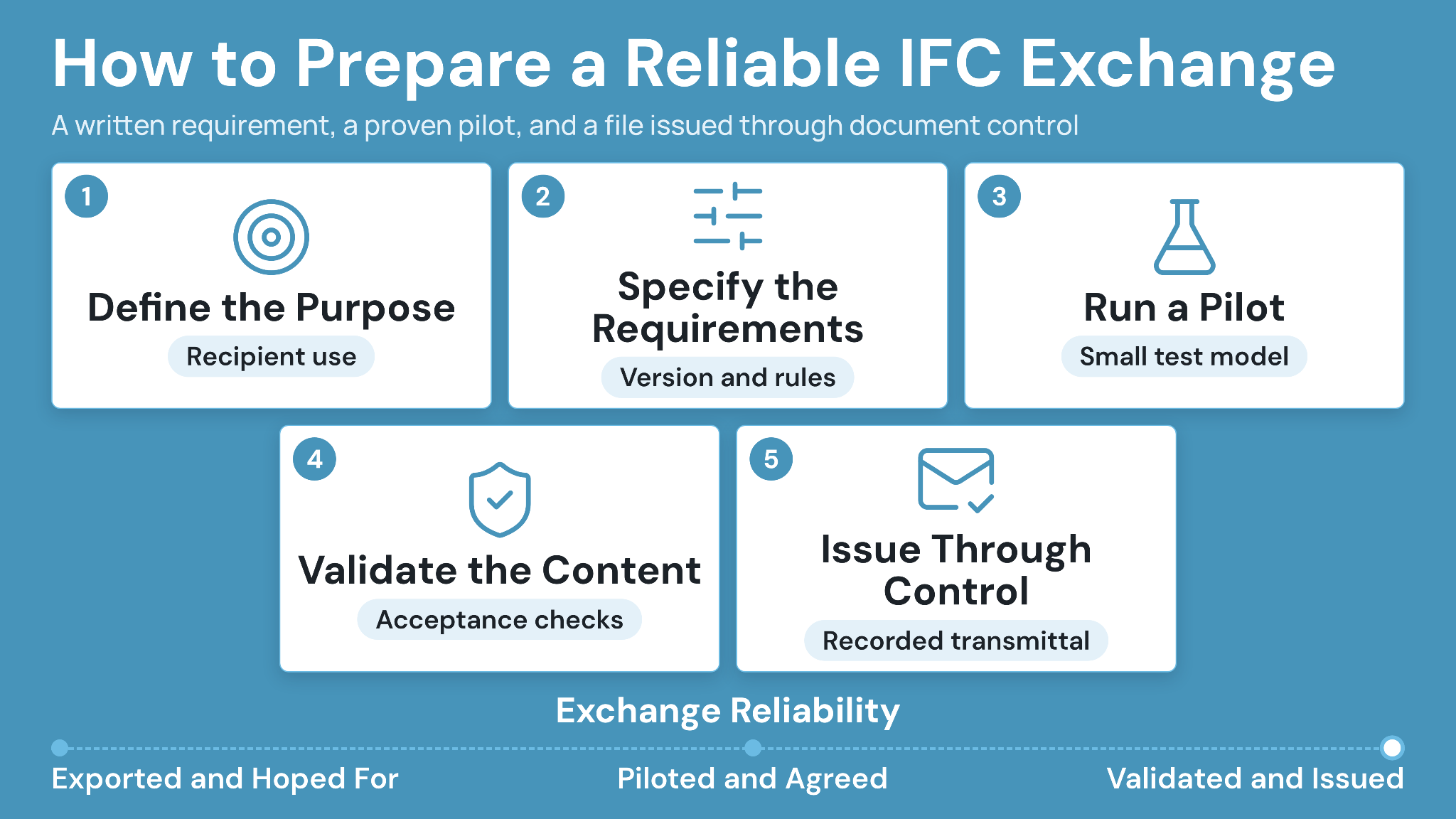
A reliable IFC exchange starts with a written requirement. The requirement defines purpose and schema. It also states which geometry and properties recipients need.
Teams should then prove the process with a small model before full production. The pilot creates an agreed baseline for later submissions.
1. Define the exchange purpose
State how the recipient will use the IFC file. Coordination and quantity review require different content.
Connect the purpose with a project milestone and responsible recipient. Clear use definitions reduce unnecessary detail and ambiguous acceptance decisions.
2. Specify schema and exchange requirements
Record the IFC version and accepted encoding. Include the required model view or exchange definition when the workflow uses one.
Set coordinate rules and naming requirements. Define classifications and mandatory properties in a machine-readable or tabular schedule where practical.
3. Run a representative pilot
Export a small model area containing typical and difficult objects. Include openings and custom families. Curved elements can test geometry handling.
Import the file into the receiving application. Record every setting and correction so later exports follow the approved configuration.
4. Validate content against acceptance criteria
Check file structure and schema first. Then test the project-specific requirements that technical validation may miss.
Review geometry and coordinates. Confirm classes, properties, units, relationships, and file performance against the agreed purpose.
5. Issue the file through document control
Assign a model number and revision. Add status and suitability information according to the project procedure.
CUBE supports transmittals with a file-transfer audit trail. Its CDE also provides permissions and activity records, helping teams preserve the exchange context after issue.
How CUBE Supports IFC and BIM File Control
CUBE places model files and related project information within a Common Data Environment. Teams can view three-dimensional models alongside drawings and PDFs through the same project environment.
Automatic version tracking helps users follow file updates. Digital reviews and redlining keep feedback connected with controlled project information.
Formal transmittals record file transfers between project spaces. Role-based access and detailed activity history support accountability across project organizations.
Read CUBE’s guide to BIM-based construction document management for a wider model-control workflow. The guide to Common Data Environments covers controlled information states and shared project records.
34. Keep model revisions identifiable
Store each exchange with its project metadata and revision context. Active views should direct users to the accepted model for their task.
Version history preserves earlier records where project procedures require them. Status and transmittal information show which file was formally shared.
35. Connect reviews with formal issue
Review teams can inspect model information and record feedback before release. Approval authority still follows the project’s contract and BIM Execution Plan.
After acceptance, a transmittal creates a traceable issue record. Recipients can access the controlled file without relying on a detached email attachment.
Manage IFC Exchanges With CUBE
Effective exchange depends on clear requirements and tested settings. Teams need a defined schema, purpose, coordinate method, property schedule, validation process, and controlled issue record.
CUBE supports the operational controls around IFC and other BIM files. Project teams can view models, track versions, manage reviews, control access, and distribute accepted information through recorded transmittals.
Start with one representative exchange before setting a project-wide standard. Test it in the receiving application, record the accepted configuration, and use the same checks for every later revision.
Ready to manage IFC files and related project information in one controlled environment? Start free with CUBE.
Frequently Asked Questions
1. Can an IFC file be edited after export?
IFC-capable applications can modify or convert some imported information, but results vary by schema and software. Teams usually edit the native authoring model, then publish a new controlled IFC revision with updated review and issue records.
2. Does an IFC file contain textures and material colors?
IFC can carry surface styles, colors, and some material information, although exporter and viewer support varies. Test representative finishes during the pilot exchange when visual appearance supports review, client approval, or another defined project use.
3. Can CUBE open an IFC file without BIM authoring software?
CUBE’s CDE supports browser viewing for three-dimensional models and other project formats without authoring applications. Confirm the specific IFC schema and project file during evaluation, then test geometry, properties, coordinates, permissions, and performance with representative users.
4. Is an IFC file suitable for fabrication?
Suitability depends on the exchange requirements and receiving workflow. Fabrication needs precise geometry, classifications, connections, and approved production information. The project team should test the complete handoff before relying on IFC for shop-level output.
5. How should CUBE users share a revised IFC model?
Upload the revised model with its controlled identity, complete the assigned review, and update its status. CUBE transmittals can then record the accepted file, recipients, purpose, and transfer history while preserving earlier versions for required project records.

.png)
.png)