






Best BIM Coordination Software for Construction (2026)
Compare the best BIM coordination software by job, from clash detection to coordination inside a CDE, with each tool's strengths and limits.


Key takeaways
CUBE tops this list of the best BIM coordination software because clash tests and approvals run inside the same common data environment as your drawings.
CUBE pins issues to model elements and syncs them back to Revit, while partners join free on Guest seats, ten for every ten paid.
Navisworks remains the long-standing desktop choice for heavy clash detection, while Autodesk Construction Cloud (ACC) suits teams already standardized on Autodesk.
Solibri leads on rule-based model quality checks, and BIMcollab keeps BIM Collaboration Format (BCF) issue exchange neutral when trades work in different authoring tools.
Revizto and Resolve suit issue-led and virtual reality (VR) stakeholder reviews, while Dalux and Procore cover field access and coordination inside project management.
Two Building Information Modeling (BIM) coordination tools can run the same clash test on the same federated model with very different results. One exports a 400-row report to whoever holds the license. The other turns each clash into an issue the trade opens in a browser, tied to the affected drawing.
Firms should look for two things first: a federation that updates when any discipline model changes, and issues that reach people without authoring licenses. Open model and issue formats come next, since trades rarely share one authoring tool.
This guide compares the 10 best BIM coordination software tools for 2026 against those needs. CUBE leads the list because it keeps coordination and approvals in the same environment as your drawings.
What Should BIM Coordination Software Do for Your Team?
Four Outputs From Every Cycle
BIM coordination software combines discipline models into a single federated view and tracks every conflict until someone resolves it. Structural and MEP (mechanical, electrical, and plumbing) models usually arrive from different authoring tools, often as Industry Foundation Classes (IFC) files.
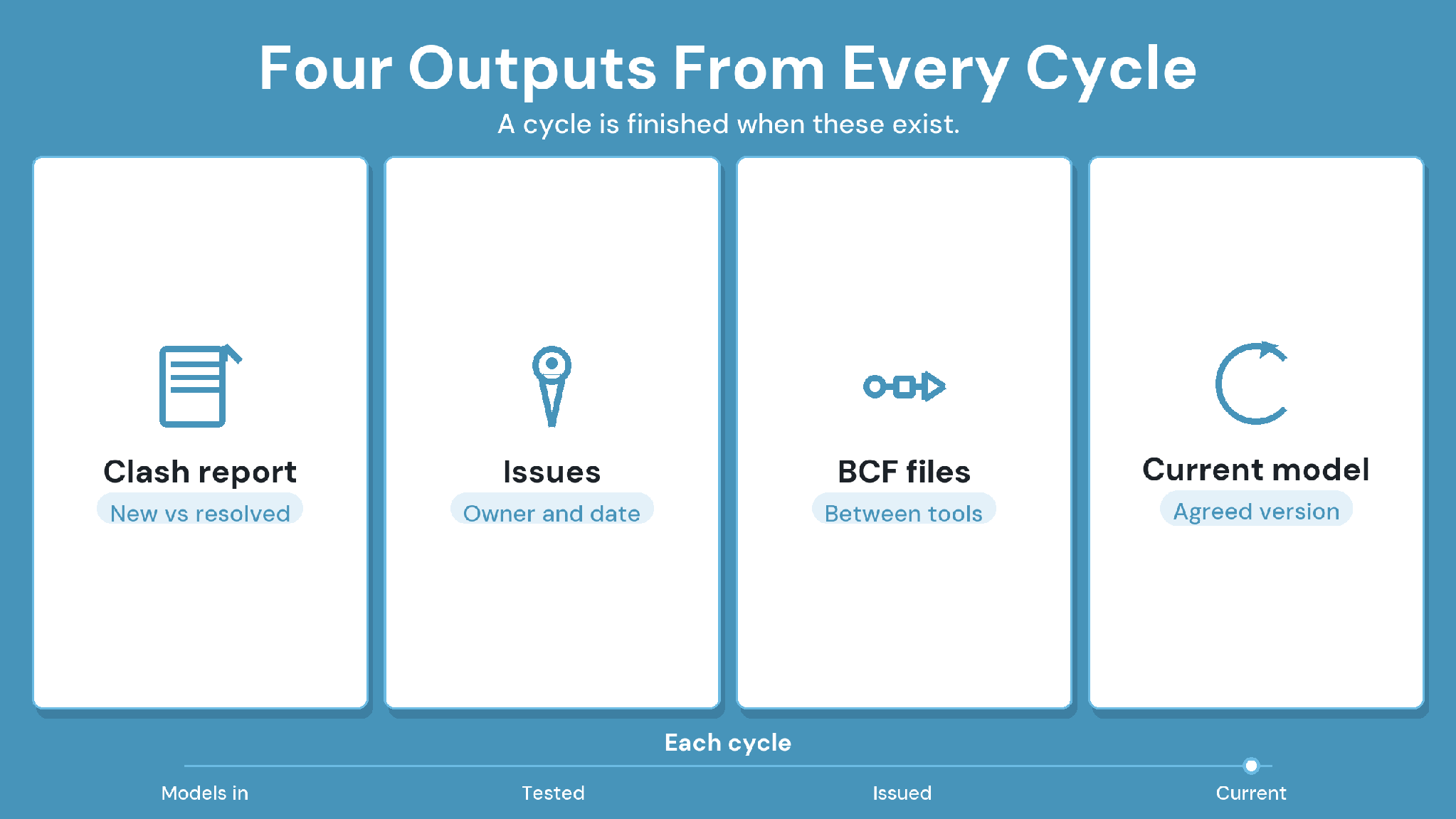
At the end of each cycle, a coordination tool should hand your team these outputs:
Clash report: new clashes separated from the ones already resolved.
Coordination issues: each with an owner, a due date, and a link back to the model element.
BCF files: so issues travel between tools.
Updated federated model: one that everyone agrees is current.
Users span the Virtual Design and Construction (VDC) lead who runs clash tests and the trade detailer who fixes the model. Superintendents and owners join to review results and sign off.
How to Evaluate BIM Coordination Tools
Eight criteria separate the best BIM coordination software for your projects from a tool that stalls in the first month. Weight them by who runs coordination on your jobs.
Open standards: check IFC import quality and BCF issue exchange, since trades rarely share one authoring tool.
Clash detection depth: look for hard and clearance clashes with set tolerances. Re-tests should show which clashes are new and which are resolved.
Issue workflow: each issue should be pinned to a model element and carry an assignee and due date.
Non-specialist access: superintendents and owners need browser or tablet viewing without an authoring license.
Field access: site teams need a quick way to confirm they are working from the current model or sheet.
Version control: everyone should see the current model, with a clear record of what changed between versions.
Scale and support: test large-model performance and admin effort before you commit, and ask how vendor support works.
Cost of including partners: seat pricing for subcontractors and owners often decides how many people actually take part.
Quick Comparison of the Best BIM Coordination Software
Every tool here earns its place through one primary coordination job. Use the table to match that job to the people who will run coordination on your projects.
Caption: Ten BIM coordination tools compared by primary job, where they run, and best fit, with CUBE first.
The 10 Best BIM Coordination Software Tools in 2026
CUBE comes first, with deeper coverage, because it runs coordination inside the same common data environment (CDE) that controls drawings and approvals. The other nine are grouped by the job each does best, starting with clash detection and ending with field access.
1. CUBE
Why CUBE stands out
Coordination in CUBE runs inside its Common Data Environment, next to the drawings and approvals it affects. Its BIM viewer opens Revit® and IFC models in the browser, along with other supported formats.
Coordination tools usually hand their results to a separate platform for approvals. CUBE keeps them together, so a resolved clash, the revised drawing, and its sign-off share one controlled record.
CUBE is best for
Mid-size contractors and specialty subcontractors who want coordination and document control in one place, including teams whose partners work without Autodesk licenses.
CUBE's key strengths
Merged Files: a Merged File federates discipline models. When a constituent model gets a new version, CUBE flags the merge, and a user selects Update to create a new version entry.
Clash Tests: the Clash Tests add-on checks merged models for hard or soft clashes within a tolerance in millimeters. A re-run then separates new clashes from resolved ones.
Issues on models: Issues raised on BIM files carry redline markups and the IDs of the elements they reference. They export to BCF, and BCF files from other tools import into CUBE.
Revit plugin: syncs CUBE Issues back to Revit with persistent element IDs.
Review Flows: a Review Flow is a reusable template with up to 20 ordered levels, each with its own reviewers and conditions.
Version history: every upload creates a version automatically, and revisions are applied by hand to the version actually issued.
Access control: six access levels, from Full Access down to No Access, set per user.
Guest seats: ten free per ten paid full seats, each scoped to one Space and one project.
How a coordination cycle runs in CUBE
Five Steps on the Merged Model
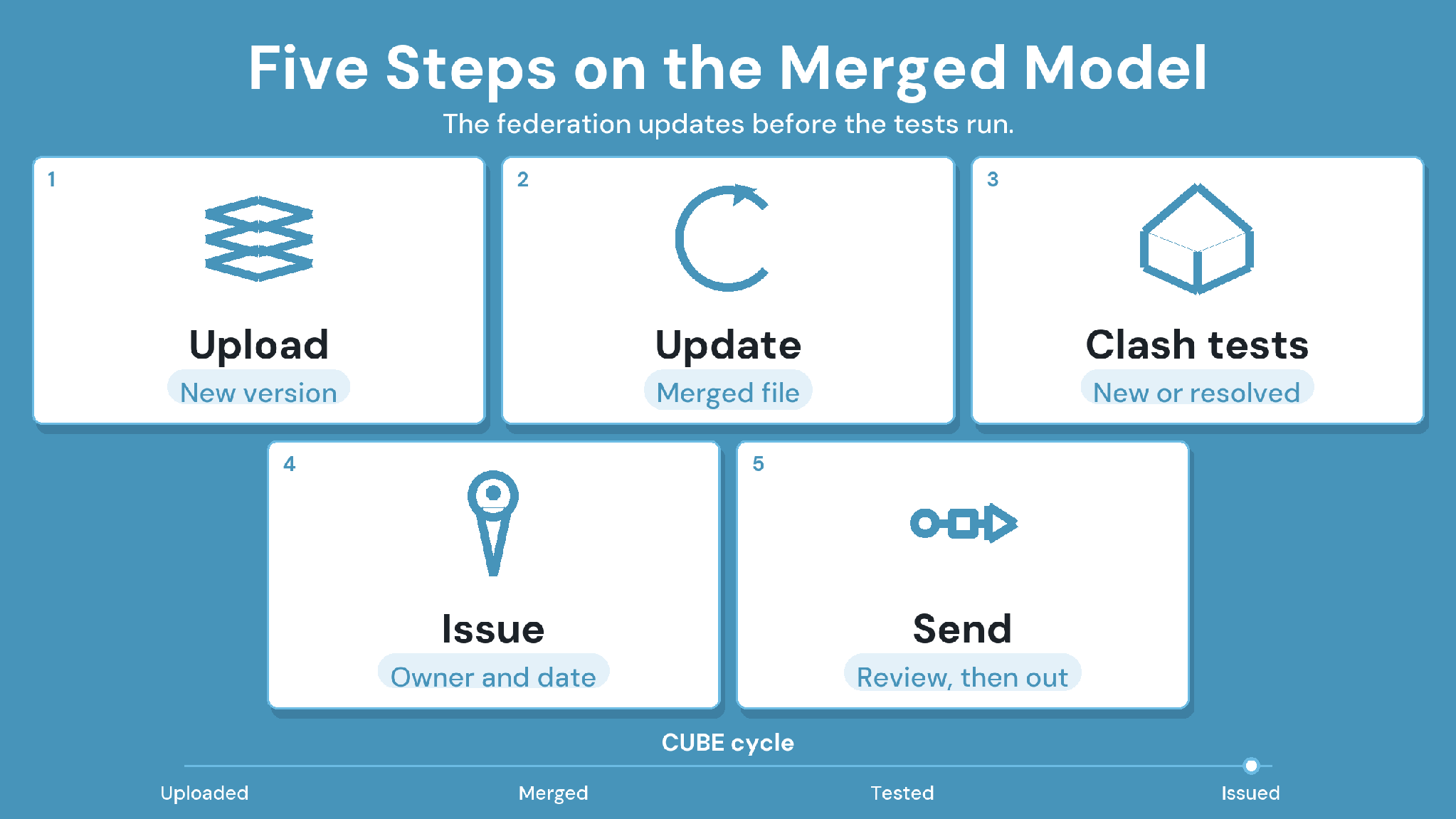
1. Each trade uploads its model to its folder, and every upload creates a new version.
2. The VDC lead selects Update on the flagged Merged File, so the federation matches the latest models.
3. Saved Clash Tests run on the merged model and show which clashes are new and which are resolved.
4. Real clashes become Issues with an assignee and due date, carrying the IDs of the elements involved.
5. The fix moves through a Review Flow, and the coordinated drawings go out as Transmittals.
CUBE's pricing
CUBE prices each product per user per month, with a lower rate for annual billing, and lists current rates for the Common Data Environment, Project Management and add-ons on its pricing page.
CUBE's limitations
Model authoring stays in tools such as Revit, since CUBE views and coordinates models.
The mobile app handles forms and QR checks, and models open in the browser.
Case in point: a G+43 mixed-use development in the United Arab Emirates
The project set out to digitize its workflows. CUBE brought BIM access and document management into one cloud platform, with issue tracking and clash tests on federated models. Read the full case study →
2. Autodesk Navisworks
Why Navisworks stands out
Navisworks is a long-standing choice for clash detection on building projects. Navisworks Manage aggregates models from many authoring tools into one federated file.
Navisworks is best for
VDC teams running clash tests on large, dense federated models.
Navisworks' key strengths
Clash Detective runs rule-based clash tests with tolerances across aggregated models.
TimeLiner links model elements to a schedule for 4D sequencing reviews.
NWD and NWC are familiar exchange formats on many coordination projects.
Navisworks' limitations
Navisworks runs as Windows desktop software, so sessions center on whoever holds the license.
Mobile and browser collaboration depend on pairing it with a cloud platform.
3. Autodesk Construction Cloud (ACC)
Why ACC stands out
ACC puts document management and model coordination in one cloud platform. Some listings now call it Autodesk Forma®, so verify current product naming during evaluation.
ACC is best for
Teams already standardized on Revit and other Autodesk tools.
ACC's key strengths
Model Coordination runs automatic clash detection on models uploaded to the project.
Documents and models live in the same environment, which shortens the hop from clash to drawing.
ACC's limitations
Mixed-tool teams may need extra conversion steps for non-Autodesk models.
Licensing spans several products, so model the full cost for every partner who needs access.
4. Solibri
Why Solibri stands out
Solibri focuses on rule-based model quality checks that go beyond geometry. Rulesets cover clearance and accessibility, along with information completeness and code compliance.
Solibri is best for
Teams with strict model-quality or information requirements, such as owner specifications built on open standards.
Solibri's key strengths
Solibri imports IFC models from any compliant authoring tool, including IFC2x3 and IFC4.
PDF plans can be overlaid on the 3D model, and BCF connectors sync issues with other platforms.
Solibri's limitations
DWG™ import covers 3D geometry only and depends on layer mapping, so trades without good IFC exports struggle.
As a desktop checking tool, it offers light field collaboration.
5. Revizto
Why Revizto stands out
Revizto builds coordination around one issue tracker that combines 2D sheets and 3D models. Issues stay in a shared ledger that the whole team can follow.
Revizto is best for
Teams that want a clear, auditable history of every coordination issue.
Revizto's key strengths
2D and 3D issues sit in one tracker, so sheet comments and model issues stay connected.
Revit and other common authoring tools connect to it.
Revizto's limitations
Field users may need training before they work comfortably in the tool.
Document control and formal approvals still need a CDE alongside it.
6. BIMcollab
Why BIMcollab stands out
BIMcollab builds coordination around BCF, so issues move between authoring tools without manual re-entry. Its products cover issue management and model checking.
BIMcollab is best for
Open BIM teams that need issue exchange to stay neutral across authoring tools.
BIMcollab's key strengths
BCF Manager plugins bring issues straight into authoring tools such as Revit and Archicad®.
Cloud issue management keeps every party's issues in one shared list.
BIMcollab's limitations
Document control and approval workflows sit outside its scope.
Teams often pair it with a separate CDE for drawings and transmittals.
7. Resolve
Why Resolve stands out
Resolve brings BIM models into immersive review on Meta Quest® headsets. The same models open on the web and iPad, with live presence across devices.
Resolve is best for
Superintendent-led and stakeholder reviews where non-specialists need to walk the model.
Resolve's key strengths.
Resolve syncs models from host platforms such as Autodesk Construction Cloud and Procore.
Issues logged in VR can sync to Procore Coordination Issues or escalate to Revizto.
Resolve describes an AI Spatial Assist feature for finding equipment and answering model questions.
Resolve's limitations
VR sessions need a headset for each participant.
Document control and approvals stay in the host platform.
8. Trimble Connect
Why Trimble Connect stands out
Trimble Connect is a CDE with model coordination in the browser and on the Windows desktop. Models from many authoring tools load into it.
Trimble Connect is best for
Mixed-authoring teams, especially those working with Tekla and other Trimble® tools.
Trimble Connect's key strengths
Clash sets run in Trimble Connect for Windows and in the web 3D viewer, with clearance or tolerance settings.
Clashes can become ToDos assigned to the party who needs to fix them.
Trimble Connect's limitations
Format support varies, so trial it with your project's real file mix.
Large federated models deserve a performance check before rollout.
9. Procore
Why Procore stands out
Procore is a construction management platform that adds model viewing and Coordination Issues to its project workflows.
Procore is best for
General contractors who want model issues inside the same platform as RFIs and submittals.
Procore's key strengths
Coordination Issues connect model reviews to the wider project record.
Field and document tools sit in the same platform as coordination.
Procore's limitations
Clash detection depth deserves a trial on your densest model before you rely on it alone.
Licensing for partners outside your company is worth settling up front.
10. Dalux
Why Dalux stands out
Dalux is mobile-first, with a BIM viewer built for phones and tablets on site.
Dalux is best for
Site teams that need simple model access and field workflows.
Dalux's key strengths
The mobile apps work offline and can show BIM models in augmented reality on site.
Dalux Field covers punch lists and inspections, and a free viewer tier is available.
Dalux's limitations
Some coordination features sit in paid tiers, so check the plan you need.
Large-model performance is worth trialing before rollout.
Building a BIM Software Ecosystem: Authoring, Coordination, and Field Tools
A working coordination setup pairs each authoring tool with a coordination tool and a clear handoff between them. Authoring tools create the models, and coordination tools combine and check them.
Common authoring tools on US commercial projects include:
Autodesk Revit: building models across most disciplines.
Tekla Structures: steel and concrete detailing.
Graphisoft® Archicad: architectural design.
Write each handoff into the BIM Execution Plan (BEP), with the file format each trade delivers and how often. Name the person who confirms each upload loaded correctly. Undocumented handoffs are where stale models enter the federation.
Integration notes for Autodesk Revit
Revit models reach coordination tools in two ways, either as native RVT files or as IFC exports. Agree on one route per discipline, then test it on a real model before coordination starts.
Shared coordinates: confirm them in every discipline model, so federated models line up without manual moves.
IFC export settings: save the settings each trade uses, and check a sample export in the coordination tool before the first cycle.
BCF round trip: test it, so an issue raised in the coordination tool opens at the right element in Revit.
CUBE's Revit plugin covers that last step directly. Any Issue created in CUBE syncs back to Revit with the persistent IDs of the elements it references. The modeler lands on the right object without searching the model.
Practical Advice for BIM Managers: Processes and Governance
Coordination holds up when the BEP names an owner for every step and a done condition for every cycle. Software supports that process, and people still own each step.
1. Define responsibilities in the BEP
The BEP should name one person for each recurring task:
Federating discipline models each cycle.
Running clash tests and grouping the results.
Assigning each clash group to a trade.
Signing off a zone or level as coordinated.
2. Set the clash cadence and ownership
Agree on a fixed cycle, such as weekly during heavy MEP coordination, and keep it. Every clash group gets one owner and a due date before the meeting ends.
In CUBE, re-run clash tests only after updating the Merged File. The merge is flagged when a discipline model gets a new version. That flag tells the team the federation needs an Update before the next test.
3. Keep version, revision, and status separate
The latest version of a model can still be unapproved for fabrication. CUBE separates the two.
Every upload creates a version automatically, with the timestamp and uploader recorded. A revision is a marker you apply by hand to the version you actually issued, using a revision series (A, B, C or 01, 02, 03) set for that folder.
Status is separate again. An admin creates your own statuses in Portal Settings and maps them onto review levels, so "latest version" and "released for fabrication" stay distinct.
4. Route approvals through staged reviews
Contractor checks and design questions belong at different stages. A Review Flow in CUBE can run a Contractor Coordination Check level, then a Design Review level. Each level has its own reviewers, checklist, and minimum number of reviewers who must act before it moves on.
5. Train field and office users separately
Office users need clash and issue workflows. Field users need fast answers to one question: is this the current model or sheet?
6. Track coordination KPIs
Pick a few key performance indicators (KPIs) and review them monthly:
Open issues by age: so stalled items surface early.
Reopened issues: items reopened after being marked resolved.
Clashes resolved per cycle: tracked in each zone.
How to Choose the Right BIM Coordination Software for Your Project
Three questions narrow the field fastest, and each has its own section below.
1. Choose based on team skill and role mix
If superintendents and subcontractors need to review the model directly, favor tools with browser or tablet access. Desktop-only setups keep those reviews dependent on one specialist.
2. Choose based on project complexity and discipline density
Dense MEP corridors and plant rooms reward deep clash tools with tolerances and rules. Lighter projects often get more value from strong issue tracking than from the deepest clash engine.
3. Choose based on integration with existing tools
Ask how each candidate exchanges models and issues with your authoring tools and your current platform. BCF support and a tested Revit route matter more than a long connector list.
Which BIM Coordination Tool Fits Your Team?
The best BIM coordination software setup is usually a pairing. These combinations match common team setups:
Coordination and document control in one place: CUBE as the core platform, adding the Clash Tests add-on when the project needs clash detection inside the CDE.
Dense MEP coordination on Autodesk projects: Navisworks for clash tests, with ACC or a CDE for documents and approvals.
Open BIM with strict quality rules: Solibri for model checking, with BIMcollab carrying issues across authoring tools.
Stakeholder-heavy reviews: Resolve for immersive sessions, synced to the host platform's issue list.
Field-first teams: Dalux for site access, paired with a desktop clash tool in the office.
Vendor Trial Checklist for BIM Coordination Tools
Seven Checks Before You Buy
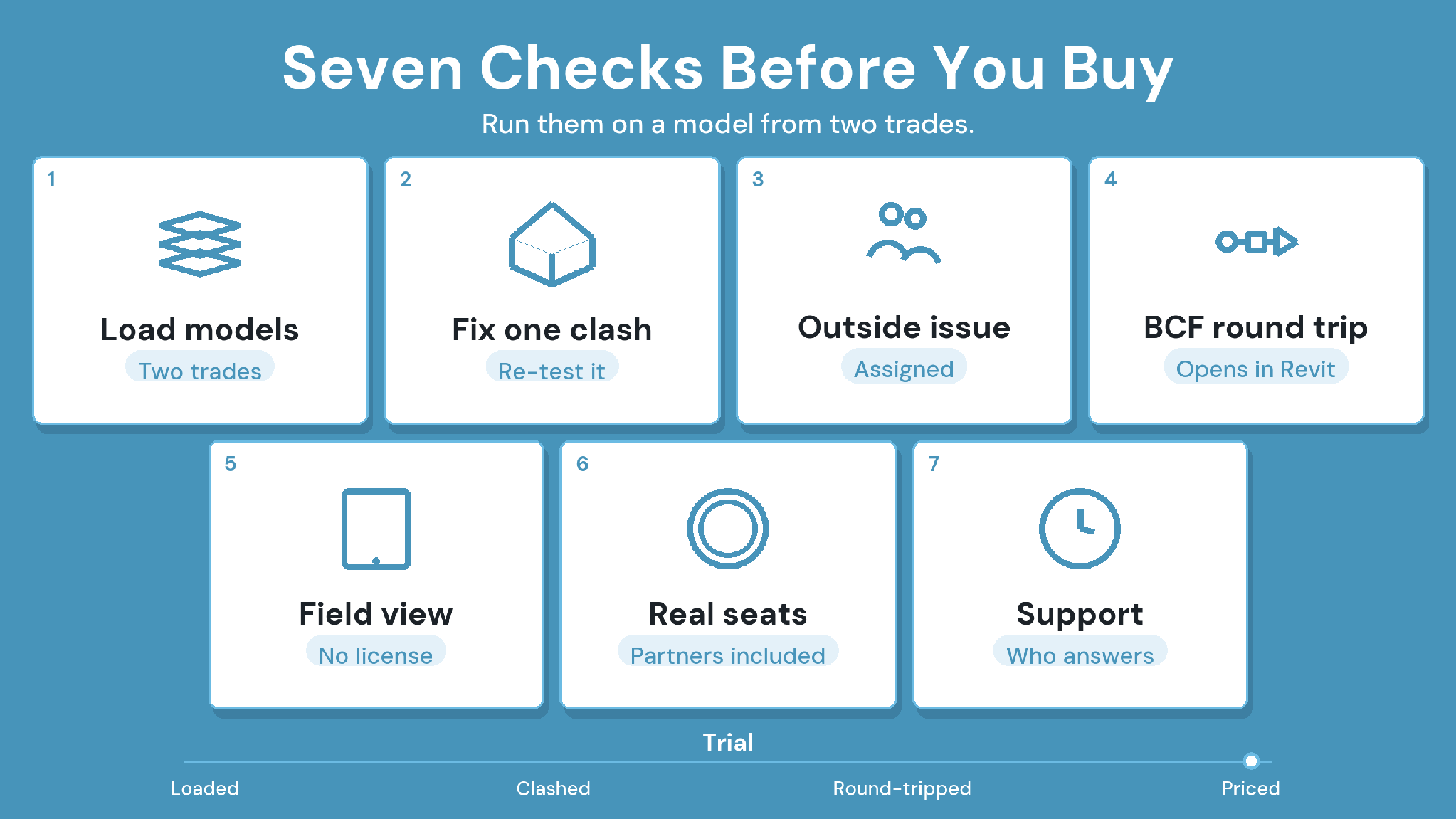
Load a federated set from at least two trades, in the formats those trades actually send.
Run a clash test and fix one clash in the authoring tool. Confirm the re-test shows it as resolved.
Raise an issue on a model element and assign it to someone outside your company.
Round-trip a BCF file to Revit and back, and check it opens at the right element.
Open the model the way a superintendent would, on a tablet or in a browser without an authoring license.
Price the setup for your real headcount, including subcontractor and owner seats.
Ask who handles support during your working hours and how quickly they respond.
Choose the Best BIM Coordination Software With CUBE on Your Shortlist
The best BIM coordination software for your team is the setup that closes issues on your real projects. For teams that want coordination and document control in one place, start the shortlist with CUBE, then pilot it on one live zone for two weeks.
Record open-issue age and reopened issues before the pilot starts. Compare the same figures afterward, and write what worked into your BEP so the next project starts from a tested setup.
CUBE keeps coordination next to the drawings and approvals it affects. Models and their issues sit in one CDE with your Review Flows, and partners join on Guest seats, ten free for every ten paid.
Ready to see coordination and document control in one place? Sign up for CUBE or request a virtual demo to walk through clash tests, issues, and reviews on your own models.
Frequently Asked Questions
1. Does CUBE replace Navisworks?
It can for many teams. CUBE federates models and runs Clash Tests, a paid add-on, inside its CDE. Teams running very large desktop clash sessions sometimes keep Navisworks alongside it for that job.
2. How long does it take to roll out BIM coordination software?
Rollout time depends on how many trades and approval stages you configure. CUBE offers self-serve sign-up, and its configuration scales with project complexity, so piloting one live zone before the full project is a sensible first step.
3. How often should BIM coordination meetings happen?
Weekly cycles are common during heavy MEP coordination, with longer intervals earlier in design. A good cadence is one where every clash group from the last meeting has an owner and a status before the next one.
4. How do site crews know a printed drawing is the current version?
Before issuing a sheet for site use, a user places a CUBE QR code on the PDF. Crews scan it with the CUBE mobile app to see if the sheet is current. Re-insert the code on each new version.
5. What file formats should a BIM coordination tool accept?
At minimum, expect IFC for open exchange and native Revit files if your designers use Revit, plus BCF for issues. AutoCAD-based model handling deserves a check too, since import quality for those files varies widely between tools.