.svg)


.png)
.png)


.svg)





.png)

.png)

How to Know Which Construction Drawing or BIM Model Is the Current Version in 2026
How to Know Which Construction Drawing or BIM Model Is the Current Version in 2026


Key Takeaways
- A current drawing or model is a governed workflow state that combines its revision or version, issue status, permitted use, distribution record, and controlled location.
- Verify drawings against the project’s designated register or CDE, rather than against emailed PDFs, local downloads, screenshots, or trailer print sets.
- BIM models need an additional check for model type, publication status, source-model versions, and federation history.
- Conflicting drawing, transmittal, and model records should trigger a hold and escalation through the project’s defined authority path.
- CUBE helps you connect controlled files, revision history, reviews, transmittals, permissions, and activity records in one project environment.
A construction drawing or BIM model is current only when its identifier, revision or version, issue status, permitted use, and controlled distribution record agree in the project’s designated source of truth. That source may be a drawing register, model register, or common data environment (CDE), depending on the project procedure. The name of the file, when it was uploaded, or whether it has more revisions cannot establish its ‘current’ nature or authority.
The current construction drawing or model is the latest authorized version shown in the project's controlled environment for the intended purpose. Before you rely on it, match the file identifier, revision or version, status or suitability, issue date or transmittal, and supersession record against the controlled register.
A file can look newer and still be unsuitable for the work at hand, or a drawing may carry a later revision but remain unissued. The check is therefore about the controlled record and the intended use.
What ‘Current Version’ Means in Construction
‘Current’ describes the version authorized for a defined purpose at a particular point in the project. It is made up of the document’s identity, revision or version, status, release state, and controlled distribution trail.
A drawing or model can be technically newer without being current for construction, fabrication, coordination, or another task. It may still be in review, shared for information, awaiting release, or superseded by a later controlled issue.
Currentness also works at more than one level. The current drawing set, an individual sheet, and a BIM model can each have separate records. Updating one sheet does not update the full package. Similarly, publishing one discipline model does not automatically refresh a federation.
Use the project’s information-management plan to set the authority hierarchy. In many projects, the designated drawing or model register is the persistent source of truth, supported by formal issue records and the information displayed on the sheet or model.
- Designated CDE or register: Establishes the project’s current controlled record.
- Issue or transmittal record: Shows what was formally released, to whom, for what purpose, and when.
- Sheet index or model register: Helps confirm that the set or information container is consistent.
- Revision and title blocks or model metadata: Supports a file-level check against the controlled record.
- Related change records: Addenda, bulletins, RFIs, and approved changes may explain why an issue changed.
The register or CDE remains the reference point only when the project procedure designates it as such, and the responsible team keeps it current.
How to Verify the Current Construction Drawing
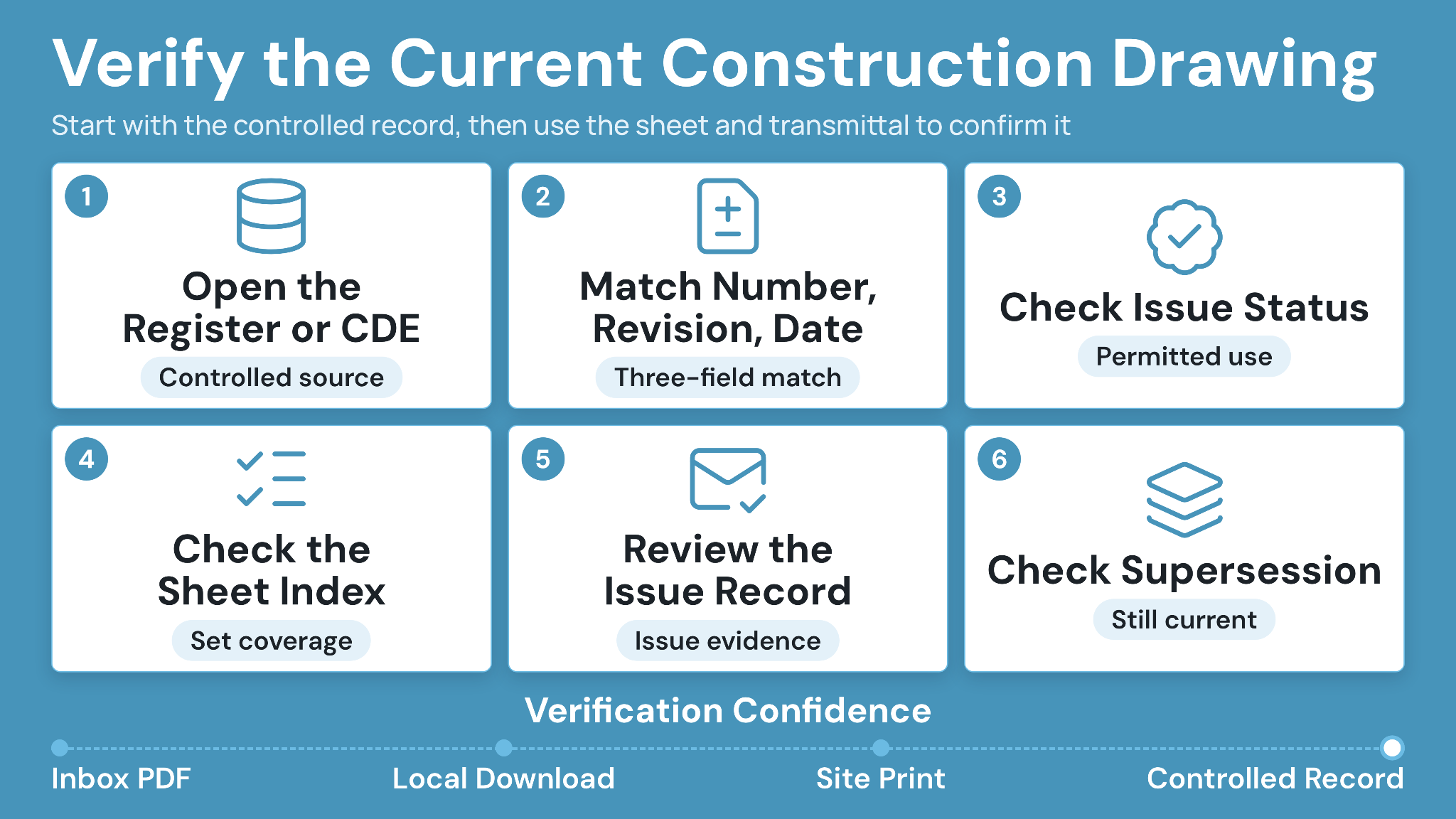
Start with the controlled record, then use the sheet and transmittal to confirm it. Do not begin with a PDF in an inbox, a local download, or a print on site:
- Open the project’s register or CDE. Find the sheet by its unique drawing number, discipline, zone, level, and package where relevant.
- Match the drawing number, revision, and issue date. Compare the controlled entry with the title block and revision block.
- Check the issue status and permitted use. Confirm whether the sheet is for review, information, tender, fabrication, construction, or another defined purpose.
- Check the sheet index. Confirm that the sheet appears in the current set at the matching revision where the project uses a set index.
- Review the issue record. Match the sheet with the transmittal or formal issue record that released it.
- Check supersession status. Confirm that a later revision has not replaced the sheet and that any older copies have been removed from active use.
Field check: Match the register, drawing number, revision, issue date, and permitted use. If one of these checks fails, pause the affected work and verify the controlled record.
How to Verify the Current BIM Model
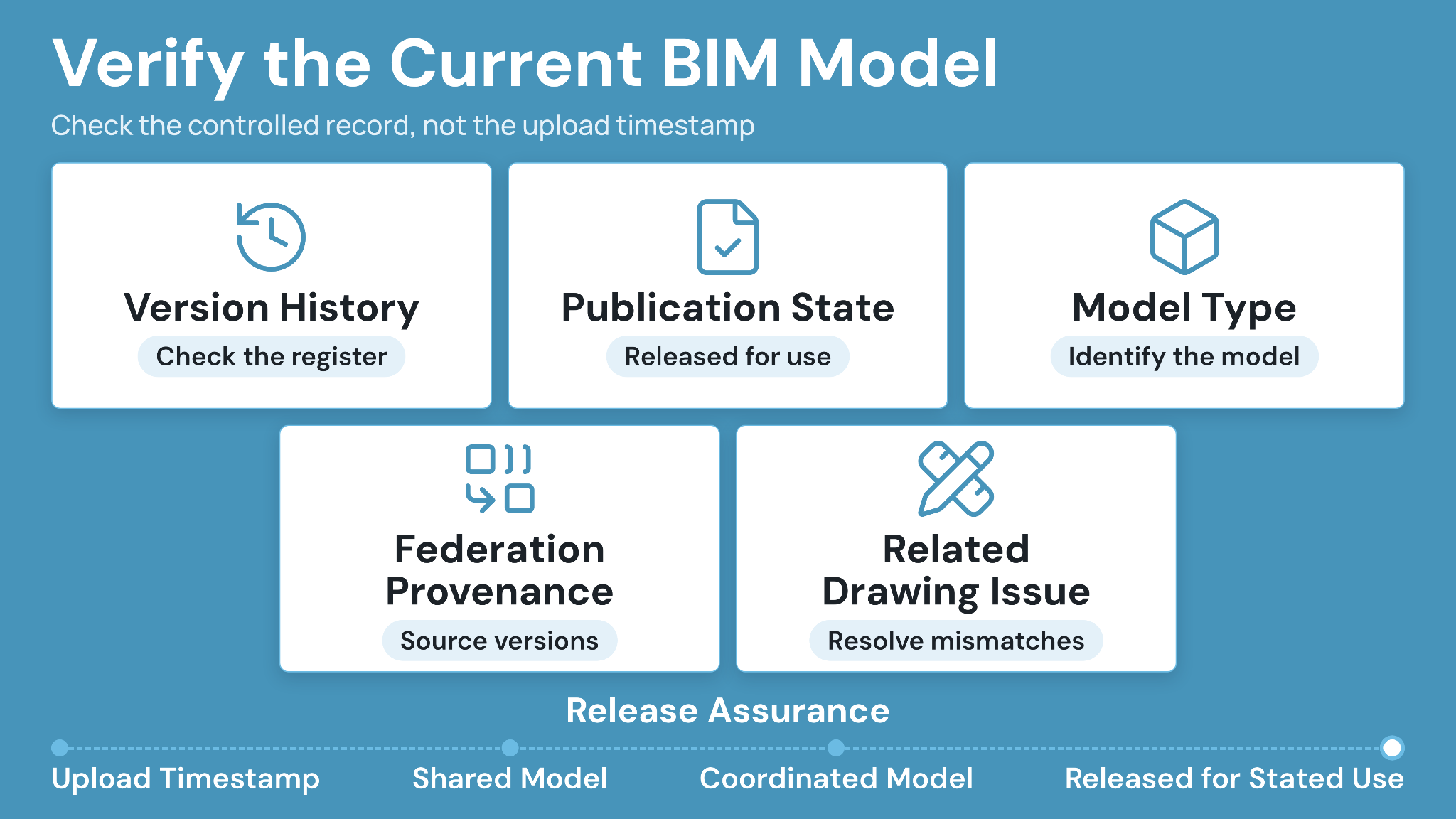
For BIM, an upload timestamp is a weak signal. A newer discipline model can still be unsuitable for the intended use if it has not completed the project’s required publication, coordination, or approval process.
Check the model’s controlled record and its relation to other models:
- Version history: Confirm the applicable publish cycle or version against the model register.
- Publication or release state: Check whether the model is shared, published, coordinated, approved, or released for the stated use under the project procedure.
- Model type: Identify whether you are viewing a discipline model, a federated model, or a model designated for a specific downstream use.
- Federation provenance: For a federated model, confirm the source-model versions and the federation date.
- Related drawing issue: Compare the model’s controlled release with the relevant drawing set or coordination milestone. A later model publication creates a mismatch to resolve; it does not automatically replace a controlled drawing issue.
A current discipline model may not appear in the latest federation. A federation may also combine discipline models released for different purposes. Record the source versions and purpose before using a model for coordination, quantity takeoff, fabrication, installation, or inspection.
CUBE calls this a Merged File. When a constituent model gets a new version CUBE flags it, but the merge updates on demand. Someone opens the merged model and selects Update, which creates a new version entry. So a federation is never silently out of date, and never silently refreshed either.
For related guidance, see The Role of BIM in Construction Document Management.
Where to Check First: Register, Transmittal, Sheet Index, Title Block, and Revision Block
Each record answers a different question. Check the most governed record first, then use the others to validate the file in front of you.
What to do When the Drawing, Transmittal, and Model Do Not Match
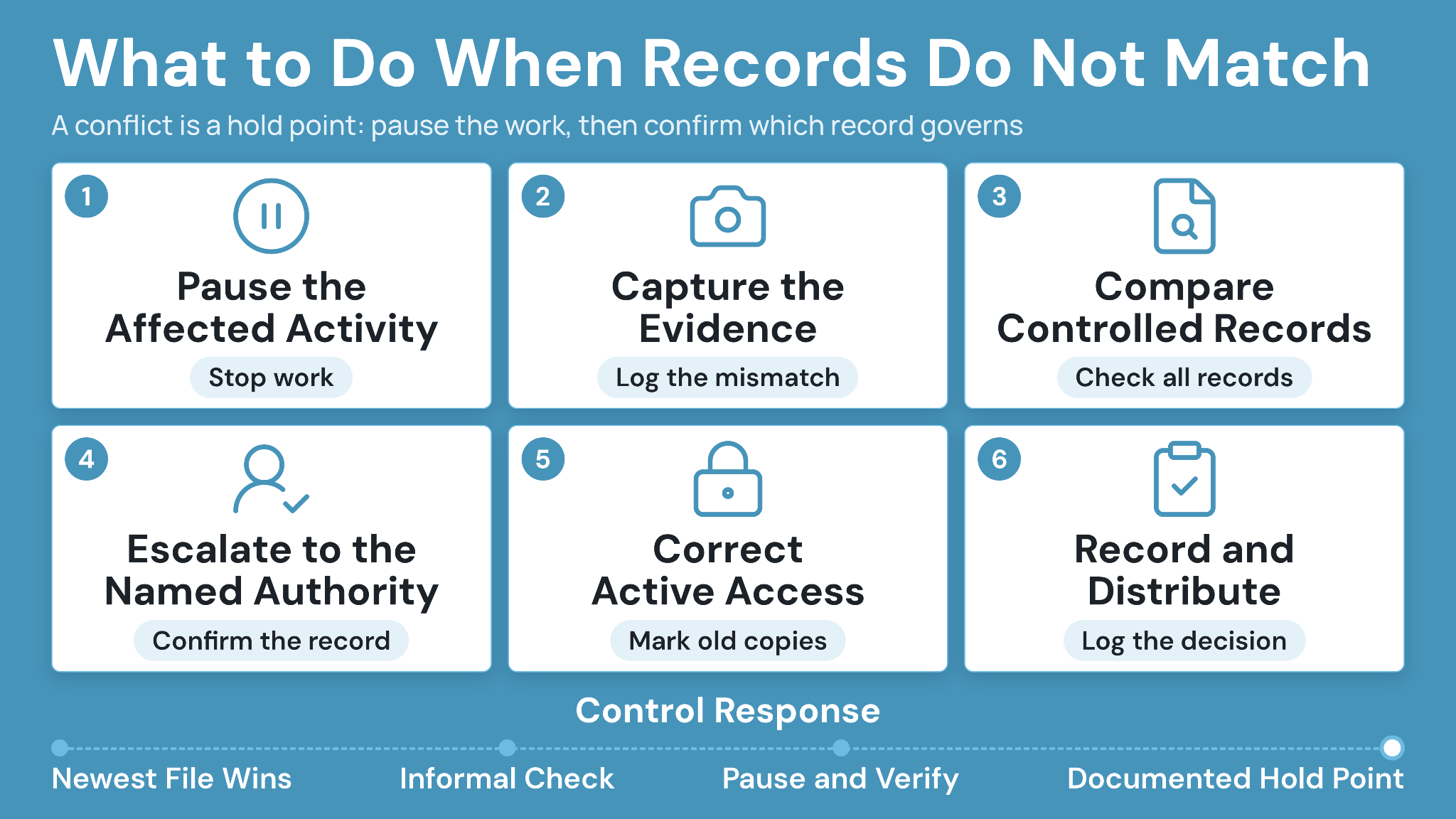
Treat a conflict as a hold point. Selecting the file that looks newest creates an undocumented judgment call at the exact moment the project needs control.
Pause the affected activity
Stop the review, coordination, fabrication, installation, or inspection that depends on the conflicting information.
Capture the evidence:
Record the file identifier, revision or version, status, source location, and the time you found the mismatch.
Compare the controlled records:
Check the register, title block or metadata, transmittal, publication record, issue history, and related change records.
Escalate to the named authority
The document controller, information manager, BIM/VDC lead, design manager, or another role identified in the project procedure should confirm which record governs.
Correct active access:
Replace, restrict, or clearly mark the superseded copy so another team member cannot repeat the error.
Record and distribute the resolution:
Log the decision, affected scope, revised distribution, and any required field briefing.
A common mismatch occurs when a drawing shows Rev 4, the transmittal lists Rev 3, and a model has a later publication date. The higher revision or later upload may indicate a pending issue, or a separate workflow. Confirm the designated record before the team uses it.
Revision, Version, Issue status, and As-built Documents are Different Things
These terms are often used interchangeably, which can lead teams to use the wrong information.
- Revision: A controlled change increment to a drawing or document. It answers, “Which formal change is this?”
- Version: A saved state or iteration of a digital file or model. It answers, “Which file iteration is this?”
- Issue status: The permitted use of the information, such as review, coordination, fabrication, construction, or superseded. It answers, “What may this information be used for?”
- As-built or record drawing: A post-construction record of what was built. It answers, “What was installed?” It does not automatically authorize active construction work.
A sheet can be the latest revision yet remain unsuitable for construction. A model can be the latest version but still be under coordination review. A drawing marked issued for construction can also be replaced by a later controlled issue. Always check the full controlled record.
Common Mistakes that Put Superseded Information in Circulation
The majority of version-control failures start in distribution and access. The drawing or model may be correct in the register while an older copy remains easier to find in the field:
- Email attachments become operating copies: A recipient saves a PDF and continues to use it after a later issue.
- Cached tablet files are mistaken for controlled records: The device displays a point-in-time copy after a new revision is released.
- Printed site sets miss a sheet replacement: An old sheet remains posted or sits in a trade binder.
- Uncontrolled uploads bypass the issue process: A subconsultant or trade uploads information without a formal release record.
- Filename logic replaces record checks: Users rely on “final,” a print date, or the highest-looking revision number instead of the register.
The remedy is a controlled distribution process that keeps the current record easy to access, and moves superseded copies out of active use.
Best Practices for Drawing and Model Version Control
Apply the same governance principles across drawings and models, then adapt the details to the project’s contract, information standard, and BIM Execution Plan:
- Set one designated controlled source: Keep drawing and model records where the project procedure says the current information lives.
- Maintain live registers: Record each sheet or model’s identifier, revision or version, status, issue date, and linked transmittal or publication event.
- Issue information formally: Use a traceable issue process that records the purpose, recipients, and date.
- Separate superseded records: Retain history where required, but remove older copies from active views and mark reference copies clearly.
- Define model publication workflows: Make the purpose, model type, and publication status visible so a newer upload is not mistaken for a release.
- Control field access: Direct teams to the controlled record and set a process for prints, downloads, offline files, and cached copies.
- Link related changes: Connect RFIs, addenda, bulletins, instructions, and approved changes to affected drawings or models.
- Carry the record through handover: Define how record drawings, model information, and supporting history are retained for closeout and operations.
How CUBE Helps You Check the Current Project Record
With CUBE’s Common Data Environment, you can keep drawings, BIM models, and supporting project records in one governed environment. Automatic version tracking and revision history help your team compare a file with its controlled record. Teams need not rely on local copies or filenames.
CUBE also connects controlled file access with reviews, transmittals, configurable statuses, permissions, and activity history. This gives document controllers, BIM/VDC teams, field leaders, and subcontractors a clearer path from a file update to its review and formal distribution.
Web and mobile access can help field teams open the controlled project record from the jobsite. Your document-control procedure should still specify how to manage printed sheets, downloads, screenshots, and offline copies after a revision.
Before issuing a drawing for site use, place a CUBE-generated QR code on the PDF from the viewer. A crew member scans it with the CUBE mobile app and sees whether that printed sheet is the latest version or has been superseded. The check the printed copy can't do for itself. Re-insert the code on each new version, since it records the version it was added to.
Read What Is a Common Data Environment, and Why Does It Matter? for more on centralized project information, revision control, permissions, and connected workflows.
Make the Current-Version Check Part of Daily Work
Run this check before a review, model export, fabrication release, field start, or other decision that depends on project information. If the identifier, revision or version, status, issue record, supersession history, and controlled source do not agree, the project does not yet have a dependable answer.
CUBE gives your team one environment for files, revision history, reviews, transmittals, permissions, and activity records. Your project procedure supplies the status definitions, owners, and escalation rules that turn those records into consistent action.
Ready to bring one active project record under control? SIGN UP.
Frequently Asked Questions (FAQs)
1. Does the highest revision number always mean the drawing is current?
No. A higher revision number can identify a later change, but it does not show whether the sheet was formally issued for the purpose you need or whether it matches the controlled register. Compare the drawing with the project’s designated record and issue history before use.
2. Is the file with the newest date always the current construction drawing?
No. A modified date can reflect a local save, download, markup, or metadata update. Check the identifier, revision, status, issue record, and supersession history against the controlled register.
3. Does “approved” mean a drawing can be used for construction?
Approval can apply to design acceptance, coordination, fabrication, or another stated purpose. Use a drawing for construction only when its status, revision, and issue record meet the project’s defined construction requirements.
4. How do I know whether a BIM model is the latest approved model?
Check the model identifier, version or revision, publication or release state, intended purpose, and model-register entry. For a federated model, also confirm the source-model versions and federation date. The newest upload may still be awaiting coordination or approval.
5. What should I do with a printed or downloaded drawing?
Treat it as a point-in-time copy. Compare it with the controlled register before use, replace it after a relevant revision notice, and mark or remove superseded copies. Your project procedure should define how printed, cached, and offline files are controlled.
.png)
.png)