




How to Give Field Teams Access to the Latest Drawings on Site
Give field teams access to the latest drawings on site: map roles to sheets and devices, plan for no signal, and verify paper sets.


Key Takeaways
- Field access to current drawings needs three things: the right sheets, a format that works where crews work, and a way to confirm currency.
- Map roles to sheets and devices before buying tablets, because most field users need view-only access to their own trade's sheets.
- Decide early whether your sites need offline viewing, and test it in basements and mechanical rooms before any tool reaches the crews.
- Paper sets stay on most sites, so give every print an owner, a same-day swap rule on reissue, and a quick way to verify currency.
- CUBE gives Guest-seat collaborators browser access to CDE files, and its mobile app scans QR codes on printed sheets to report whether they are current.
To give field teams mobile access to the latest drawings on site, start with an access model instead of an app. Decide who needs which sheets on which device, then give crews a fast way to confirm that the sheet in hand is current, even when it's on paper.
Field teams already rely on mobile tools. In the 2025 Associated General Contractors of America (AGC) and Sage Construction Hiring and Business Outlook, 69% of the 1,100+ US contractors surveyed used mobile software for daily field reports.n the same survey, 53% said they plan to use it to share project documents such as drawings and photos.
The remaining risk lies with the sheet that nobody updated, whether it's a texted PDF or a print pinned up in the trailer.
What Does Field Access to the Latest Drawings Actually Require?
Field access to the latest drawings requires three things, and a field app on its own usually covers only the first:
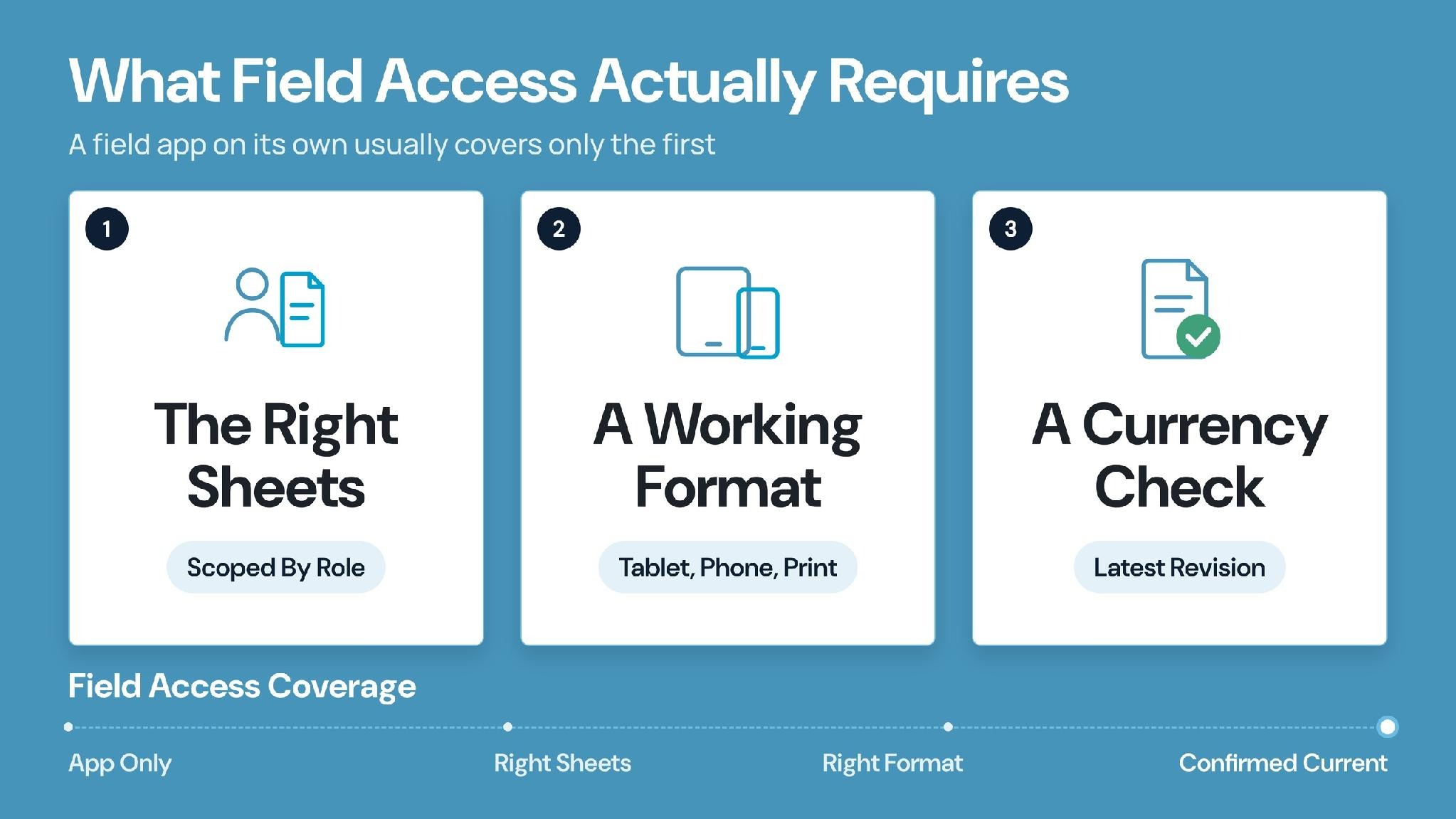
- The right sheets: each role sees the current sheets for its scope. The users donʼt have access to the whole set.
- A format that works where the crew works: a tablet, a phone, or a print, depending on the space and the signal.
- A way to confirm currency: crews can check on the spot that the sheet in hand is the latest revision.
Revision control in the office, including superseding old sheets and tracking acknowledgments, is covered in our field guide to stopping work from outdated construction drawings. This guide focuses on who gets what kind of access, on which device.
Why Field Teams End Up Working From Old Sheets
Old sheets reach the field through a handful of familiar routes:
- A foreman works from a PDF someone texted on Friday afternoon.
- A tablet holds last week's download because it never synced in the basement.
- The trailer plan rack still shows the previous revision after a reissue.
The underlying cause is that access and currency are managed separately. The office controls revisions, while devices and prints in the field follow their own update rhythm.
For how teams identify the current revision in the first place, see how to know which construction drawing or BIM model is the current version.
How to Give Field Teams Mobile Access to the Latest Drawings
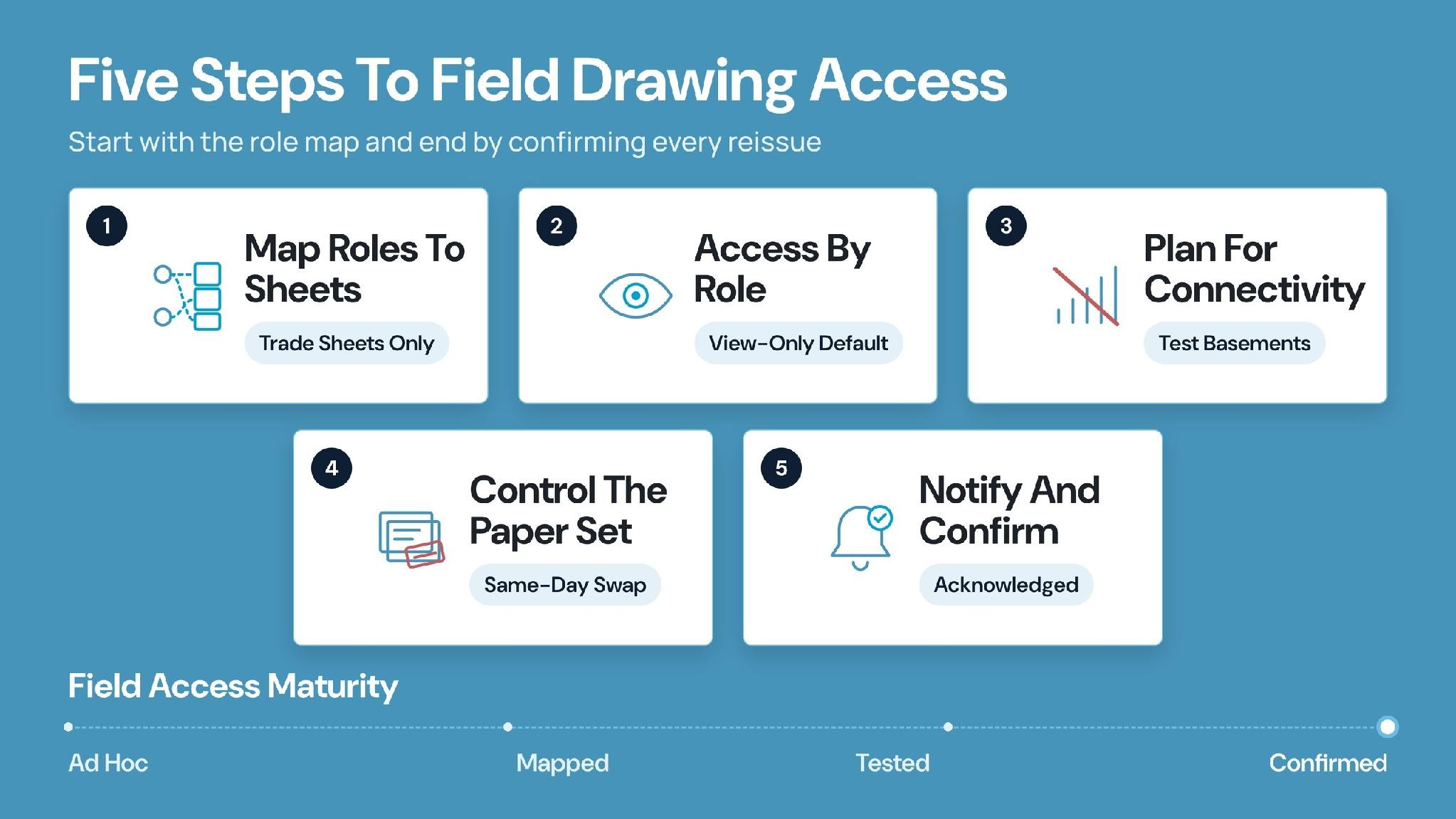
Set up field access in five steps, beginning with mapping roles and ending with confirming every reissue. Working in this order keeps device purchases and tool choices tied to what each role actually needs on site.
1. Map who needs which sheets
List each field role against the disciplines it works from and the device it carries. A specialty subcontractor's electrical foreman usually needs electrical sheets, plus the architectural backgrounds for the areas in progress. Giving that foreman the full set only adds noise.
2. Match access level to each role
Field users usually need view-only access. Decide deliberately who may download sheets, because downloaded copies are where stale drawings start. Superintendents and field engineers may need wider access than trade crews.
3. Plan for connectivity
Walk the site and note where signal drops, typically in basements and plant rooms. If crews work in those spaces, offline viewing becomes a requirement for any tablet-based approach. Test it with your largest sheet sets before rollout.
4. Control the paper set
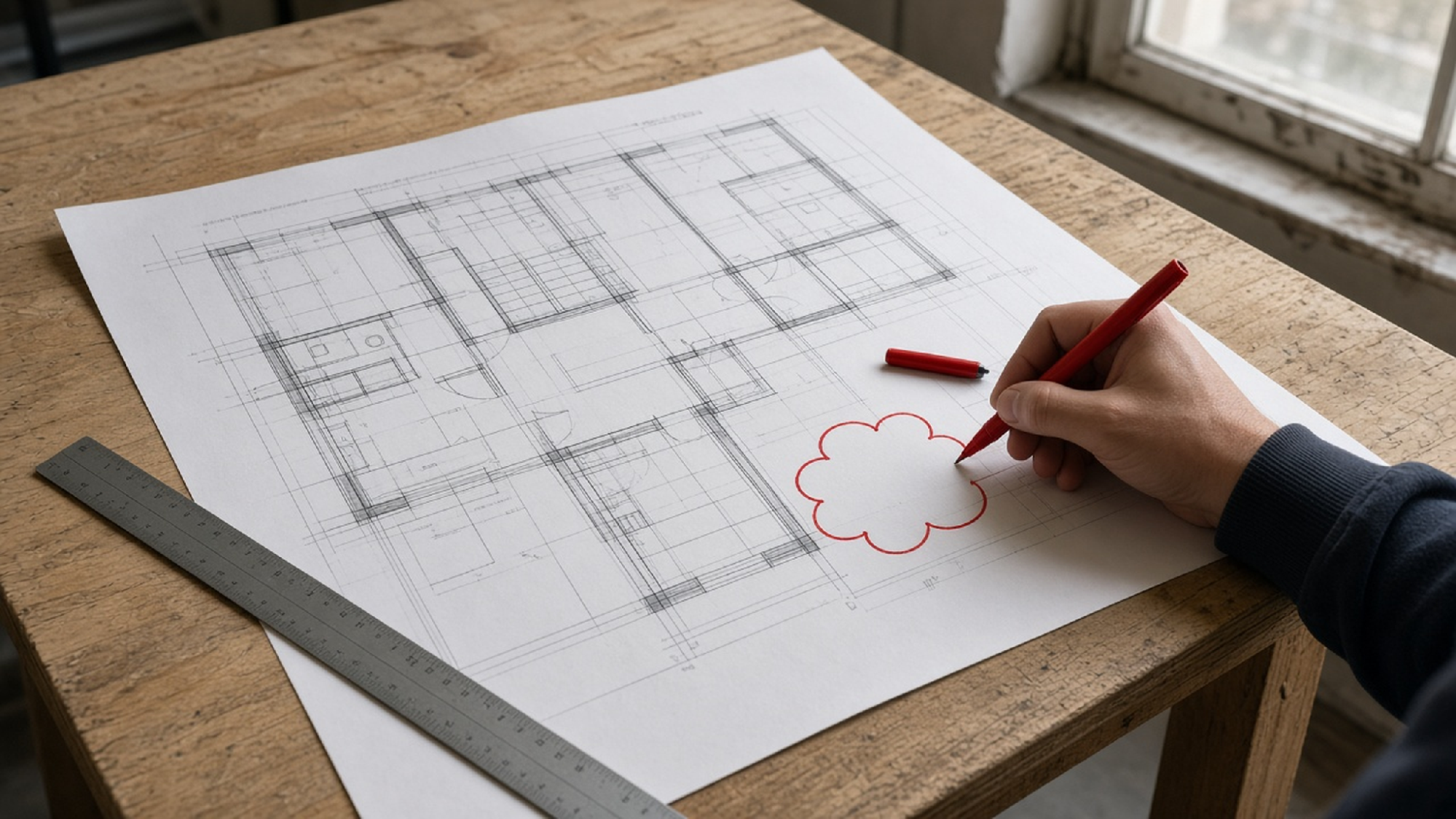
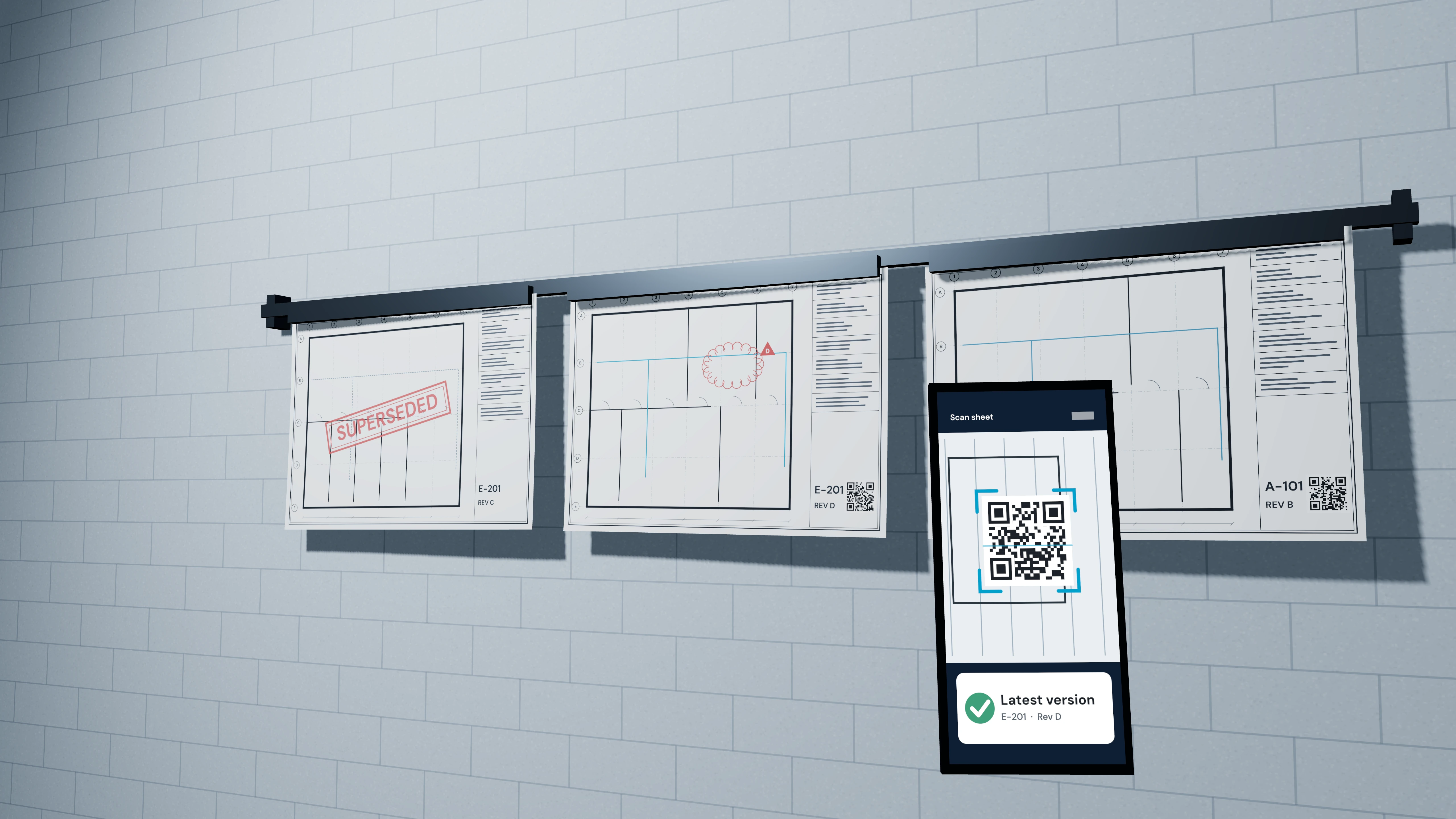
Give every plan rack and trailer set one named owner. Swap sheets the same day a revision is issued, and stamp removed prints as superseded. Crews also need a way to verify a print before they start work.
5. Notify and confirm on every reissue
Send each reissue to the roles that hold the affected sheets, and ask for an acknowledgment. A reissue counts as delivered only when the people holding the old sheet confirm they've replaced it.
Tablets, Phones, or Paper: Which Fits Each Role?
Match the format to the role and the space, and expect most sites to run a mix. Tablets suit roles that move around with signal, phones suit quick checks, and print suits layout work and no-signal areas.
Use the table as a starting point for your own site walk. A high-rise core and a single-story retail fit-out produce very different answers.
Once roles and formats are clear, evaluate tools against how your crews actually work. The checklist below keeps that evaluation grounded in field conditions.
What to Test in a Field Drawing Tool
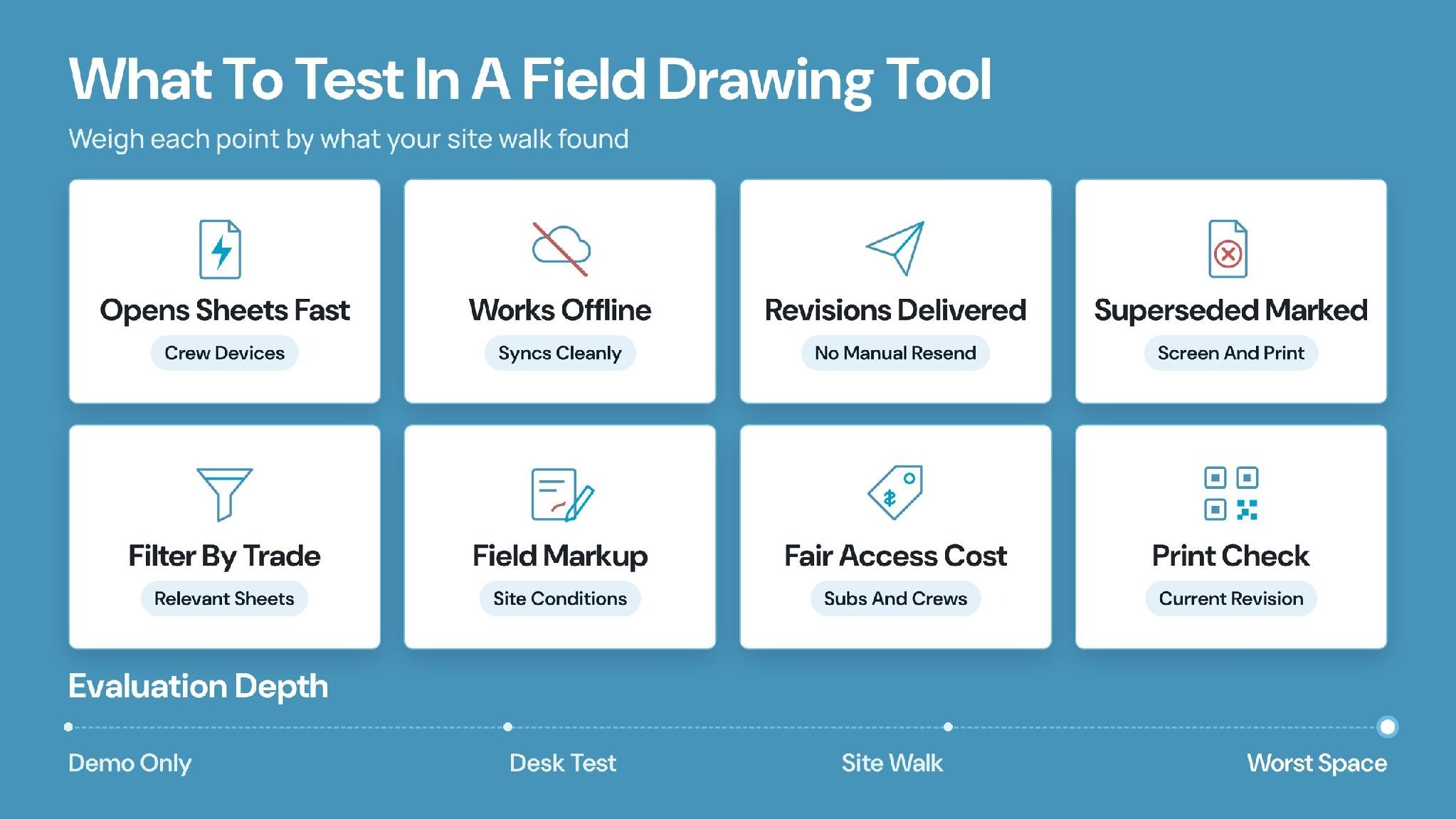
Check any field drawing tool against these points before rollout:
- It opens your largest sheets quickly on the devices your crews carry.
- It works offline if your site walk found no-signal areas, and syncs cleanly afterward.
- New revisions reach field users without manual redistribution.
- Superseded sheets are clearly marked, on screen and on prints.
- Sheets can be filtered by trade, so a foreman sees only relevant sheets.
- Crews can mark up sheets if they need to record field conditions.
- Access costs stay reasonable for subcontractors and crews.
- Crews can check a printed sheet against the current revision.
Weigh each point by your site walk. A tool that scores well on markup but fails offline will struggle on a job with three basement levels.
Tip: Test any tool in your worst space first, such as a below-grade electrical room. A tool that works there will work almost everywhere else on site.
How CUBE Supports Field Teams Today
CUBE supports field access in two ways: browser access to current files for collaborators, and a quick check for printed sheets. Drawings and models open in the browser, and the CUBE mobile app handles forms and QR checks while leaving drawing viewing to the browser.
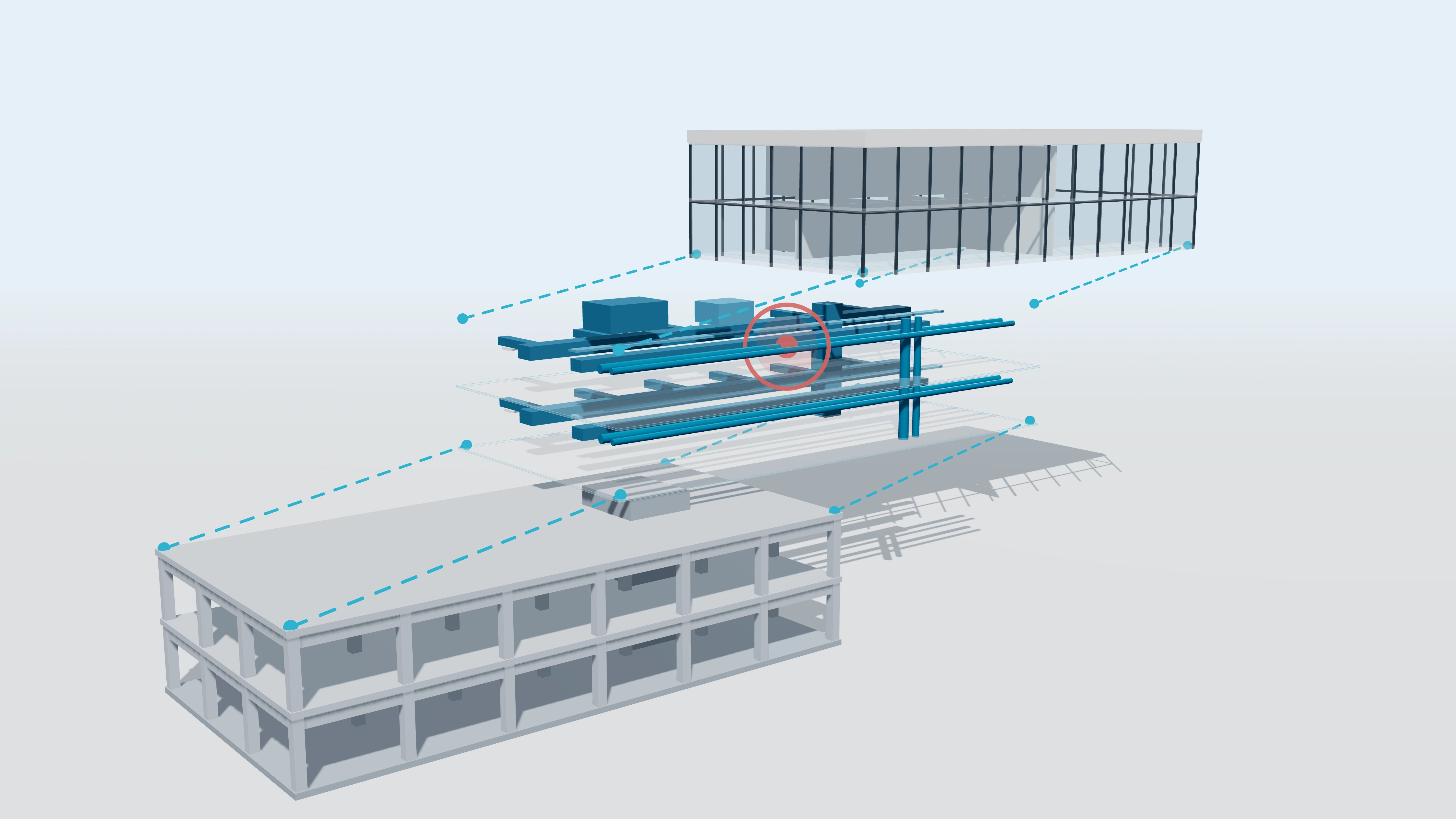
In CUBE's common data environment (CDE), drawings open in the browser Design Viewer at their current version. Earlier versions stay in the version history with who uploaded them and when. Access is set per user, so field roles can hold Can View access while the detailing team keeps upload rights.
Subcontractor collaborators can join on free Guest seats, which give access to CDE modules within one space and one project. Ten Guest seats come free for every ten paid full seats.
For printed sets, place a quick response (QR) code on a PDF from CUBE's viewer before issuing it for site use. A crew member scans the printed sheet with the CUBE mobile app and sees whether it is the latest version or has been superseded. The code records the version it was added to, so re-insert it on each new version.
The mobile app also runs form-based work such as inspections, with push notifications for events like form submissions. Field seats cover that mobile work. They include forms-related modules, custom modules, and the Contracts module. Field seats do not include drawing access.
CUBE fits sites with reliable signal or a controlled print process. Crews working in no-signal areas rely on verified prints, checked with the QR code before work starts.
Give Field Teams Mobile Access to the Latest Drawings With CUBE
Field access works when every role gets the right sheets in a format that suits its space, and every print can be checked on the spot. Start with the role map and the site walk, then choose tools that pass your worst-case-space test.
CUBE adds browser access to current files for collaborators and QR checks for printed sheets, inside the same CDE your office team uses for revisions.
To see how it fits your field process, sign up for CUBE.
Frequently Asked Questions
1. Is a phone screen big enough for construction drawings?
A phone works for quick checks of a detail, a revision number, or a room tag. Layout and coordination work needs a tablet or a full-size print, because reading dimensions across a whole sheet on a small screen invites mistakes.
2. How often should printed field sets be replaced?
Replace affected sheets the same day a revision is issued, and audit every plan rack weekly against the current drawing list. Remove superseded prints entirely, or stamp them clearly if the contract requires keeping them on site.
3. What does offline access mean in a drawing app?
Offline access means sheets are stored on the device so crews can open them without signal. Changes made offline sync when the device reconnects. Test how the app shows new revisions after reconnecting, since that is where stale sheets slip through.
4. How do crews check a printed sheet is current in CUBE?
Before issuing a drawing for site use, place a CUBE QR code on the PDF. A crew member scans the printed sheet with the CUBE mobile app and sees whether it is the latest version or has been superseded.
5. How do you give field teams mobile access to the latest drawings on site without paying for full seats?
Use limited or guest access for people who only view drawings. In CUBE, free Guest seats give CDE access in one space and one project, while free Field seats cover mobile forms work.