







How to Set Up Multi-Level Document Approval Workflows in Construction
Set up multi-level document approval workflows from your contract authority chain: levels, roles, due dates, and rejection paths.


● In construction, approval levels come from the contract's authority chain, so map who accepts, who comments, and who signs before configuring any tool.
● Use one approval template per document type, because a design deliverable and a closeout record rarely need the same route or approvers.
● Run levels in parallel only when disciplines don't depend on each other's comments; otherwise sequence them so later reviewers see earlier decisions.
● Every level needs a due date, a minimum number of approvers, and a defined rejection path, or documents stall or slip through without review.
● CUBE's Review Flows support up to 20 ordered levels, each with its own reviewers, due days, minimum reviewers, and rollback setting, plus custom project roles.
To set up a multi-level document approval workflow in construction, start from the contract's authority chain. Map who can accept a document, who can only comment, and who must sign.
Then encode that chain as a reusable template with ordered levels, due dates, and a rejection path.
Without that map, a mechanical layout can reach the field approved by the GC's project manager while the structural engineer of record never saw it. With it, the document advances only after every required approver acts. A rejection sends it back to the level that can fix it.
This guide covers the reviewer-versus-approver distinction, seven setup steps with an authority matrix template, and a sequential-versus-parallel decision table. It closes with a worked three-level route for a mechanical, electrical, and plumbing (MEP) layout, including a rejection.
What Is a Multi-Level Document Approval Workflow in Construction?
A multi-level document approval workflow routes a construction document through ordered stages, each with named reviewers or approvers, before it can be issued for use. Reviewers comment. Approvers accept the document for a stated purpose, such as construction or pricing, and their acceptance moves it to the next level.
Keeping reviewers and approvers separate prevents a costly error where a document is marked approved because someone with comment-only authority accepted it. The same engineer can hold both roles on one project, reviewing the architectural layout and approving the structural drawings.
Each level ends with a status, such as approved, approved as noted, or rejected. That status decides where the document goes next.
Why Does Document Approval Routing Break Down?
Approval routing tends to fail in visible ways first. Common symptoms include:
A drawing issued for construction without one discipline's sign-off.
A document sitting at one level for weeks because nobody knew it was waiting.
Rework after the field built from a revision that had been rejected.
Approvals nobody can trace to a person and a date months later.
Those symptoms usually trace back to four root causes:
No written authority matrix, so the route reflects whoever configured the software.
One template used for every document type.
No due dates or escalation, so stalled levels go unnoticed.
No defined rejection path, so rejected documents drift back into circulation.
How to Set Up a Multi-Level Approval Workflow
Seven Steps From the Contract
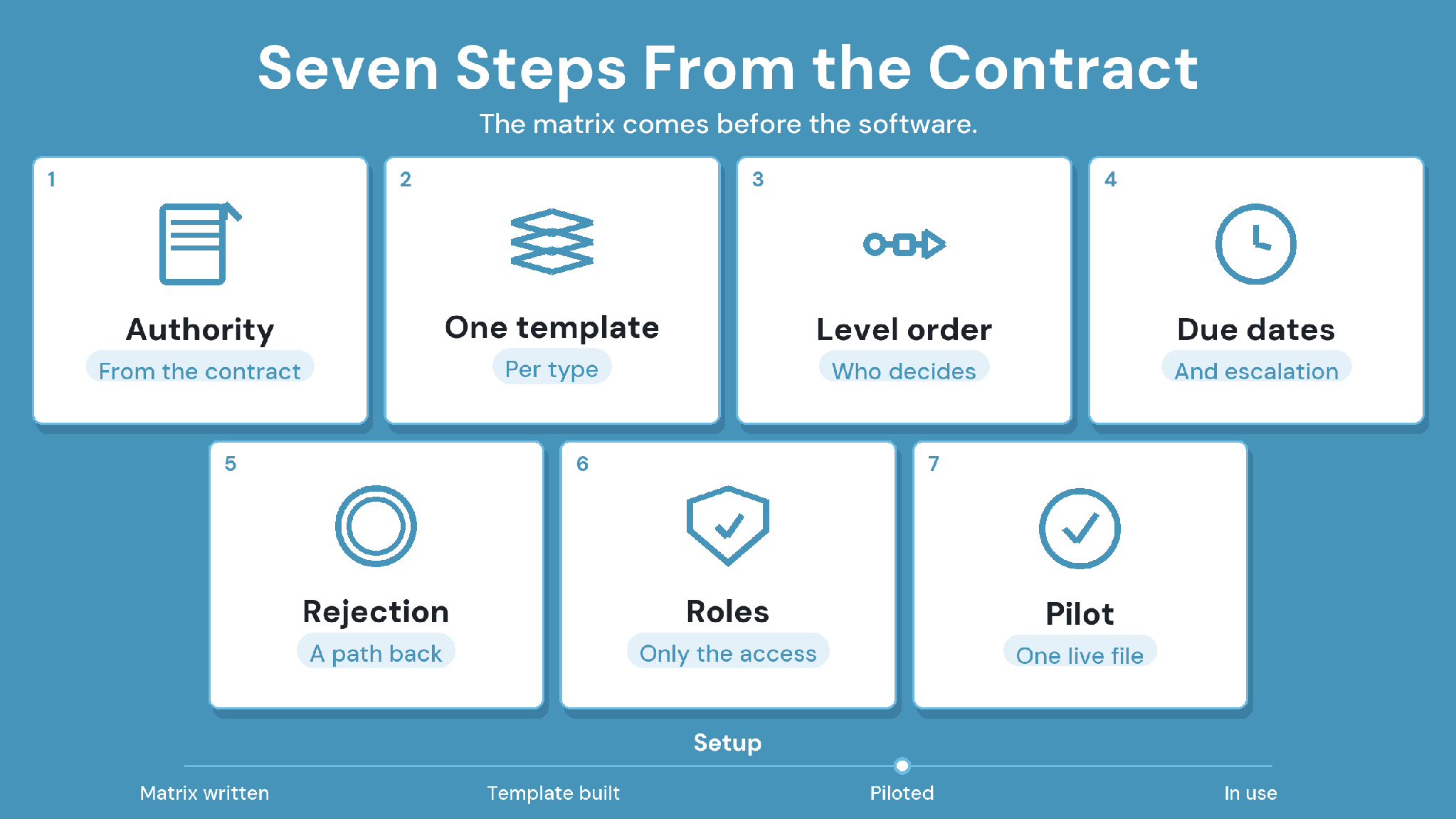
Set up the workflow in seven steps, starting with the contract's authority chain and ending with formal issue. In between, build a template per document type, order the levels, set due dates, define the rejection path, and configure roles. Pilot the result on one live document before rolling it out.
1. Map approval authority from the contract
Approval authority is contractual. Under the AIA A201-2017 General Conditions, the contractor reviews and approves submittals before passing them to the architect. The architect's review is limited to conformance with the information given and the design concept.
Project specifications often add review periods and stamp requirements of their own. Write the matrix before opening any software, i.e., document types down the side, project roles across the top, and one action in each cell.
2. Build one template per document type
Design deliverables, drawings issued for construction, and closeout records need different routes. A closeout record may need the owner's acceptance, while a coordination drawing rarely does.
Shop drawings and submittals usually follow their own contractual process. Our guide to shop drawing revisions and approvals covers that route for specialty subcontractors.
3. Define levels and their order
Each level is one decision point from the matrix, and a level with no distinct authority only adds waiting time. For each level, decide whether reviewers act one after another or at the same time, and how many must act before the document advances.
4. Set due dates and escalation
Give every level a number of days and an escalation path for when it stalls. Some tools can skip a level automatically after a deadline. If yours does, write that rule into the matrix, because a silently skipped level reads like an approval that never happened.
5. Define statuses and the rejection path
Agree on the statuses each level can return, typically approved, approved as noted, and rejected. Then decide whether a rejection goes back to the author or to the level whose reviewer raised it.
Allow rollback to an earlier level when a later reviewer finds a problem the earlier one missed.
Record the reason with the rollback, so the earlier reviewer sees what to check.
6. Configure roles and access
Translate the matrix columns into project roles, and create custom roles where the standard ones don't match the contract. Reviewers need access to the document under review and rarely need edit rights to the whole project. External approvers, such as an owner's rep, need a defined account and access scope.
7. Connect approval to issue, then pilot
The final approval should trigger the formal issue of the document, so the approved revision is the one that reaches the field. A formal transmittal records what was sent, to whom, and when.
Pilot the template on one live document and adjust it before applying it project-wide.
Should Approval Levels Run Sequentially or in Parallel?
Sequence or Run Together
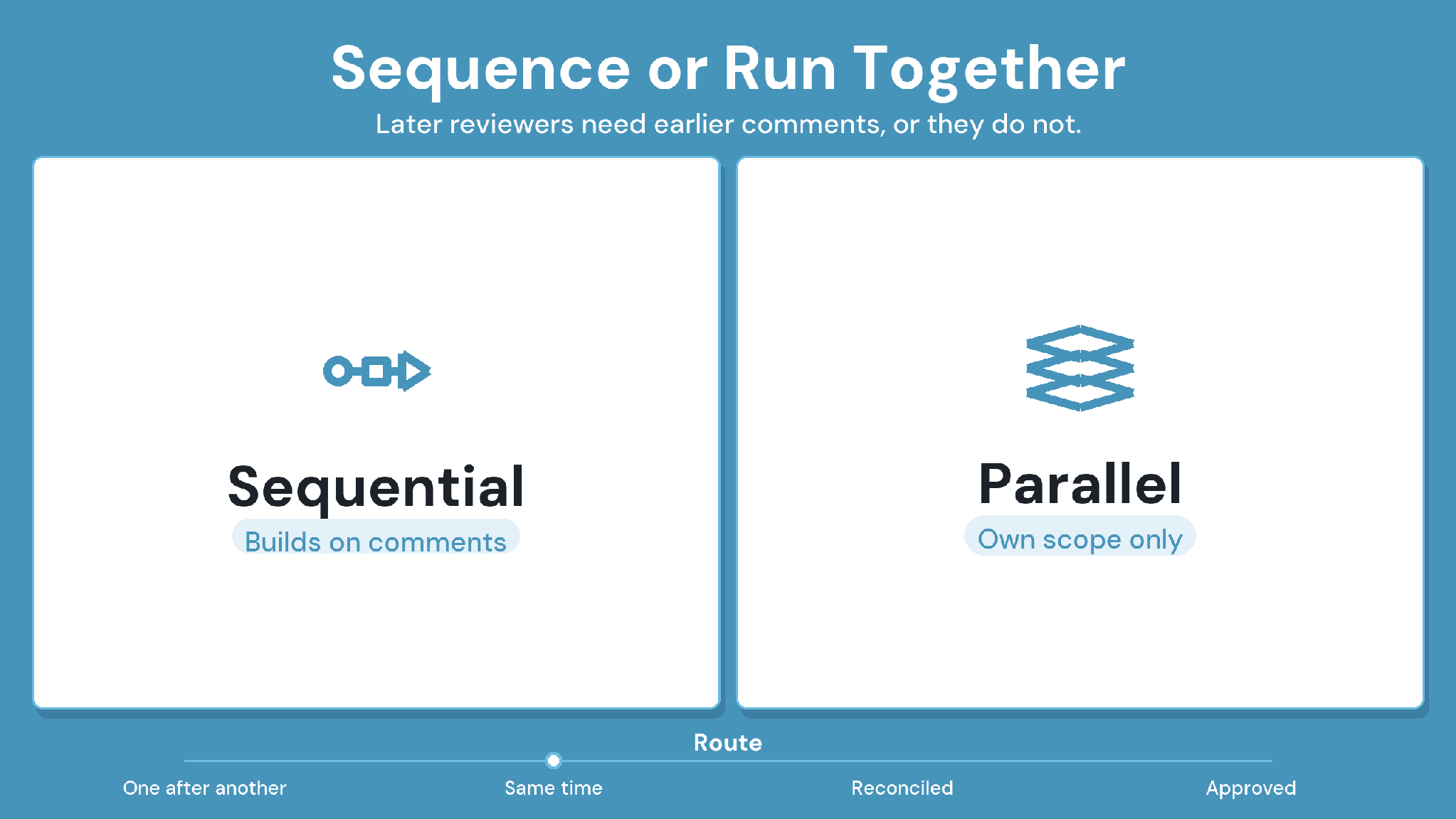
Run approval levels sequentially when a later reviewer needs earlier comments, such as a GC approving after the engineers have reviewed. Run them in parallel when disciplines review independently, schedule pressure is high, and plan a step to reconcile conflicting comments afterward.
Example: A Three-Level Route for an MEP Layout Drawing
A mechanical subcontractor submits a ductwork layout for a hospital floor. The route has three levels, with example durations:
1. Level 1, QA check: the document controller confirms the file name, revision, and title block. Due in 2 days.
2. Level 2, technical review (parallel): the structural engineer and the architect review at the same time, and both must act. Due in 5 days.
3. Level 3, approval: the GC project manager approves the layout for construction. Due in 2 days.
At level 2, the structural engineer rejects the layout because a main duct crosses a beam where no penetration is allowed. The document rolls back to the author with the structural comment attached, and the architect's comments stay on record.
The revised layout returns to level 2, where both reviewers approve it. Level 3 then approves it for construction, which triggers the transmittal to the field.
Common Setup Mistakes
Too many levels: each level without distinct authority adds days and no control.
Approvers who should be reviewers: commenting parties given accept rights can advance documents they shouldn't.
No due dates: levels stall with no signal until someone asks.
Editing templates mid-project without versioning them: documents already in flow follow rules nobody can reconstruct later.
How CUBE Handles Multi-Level Approvals
One Review Flow Template
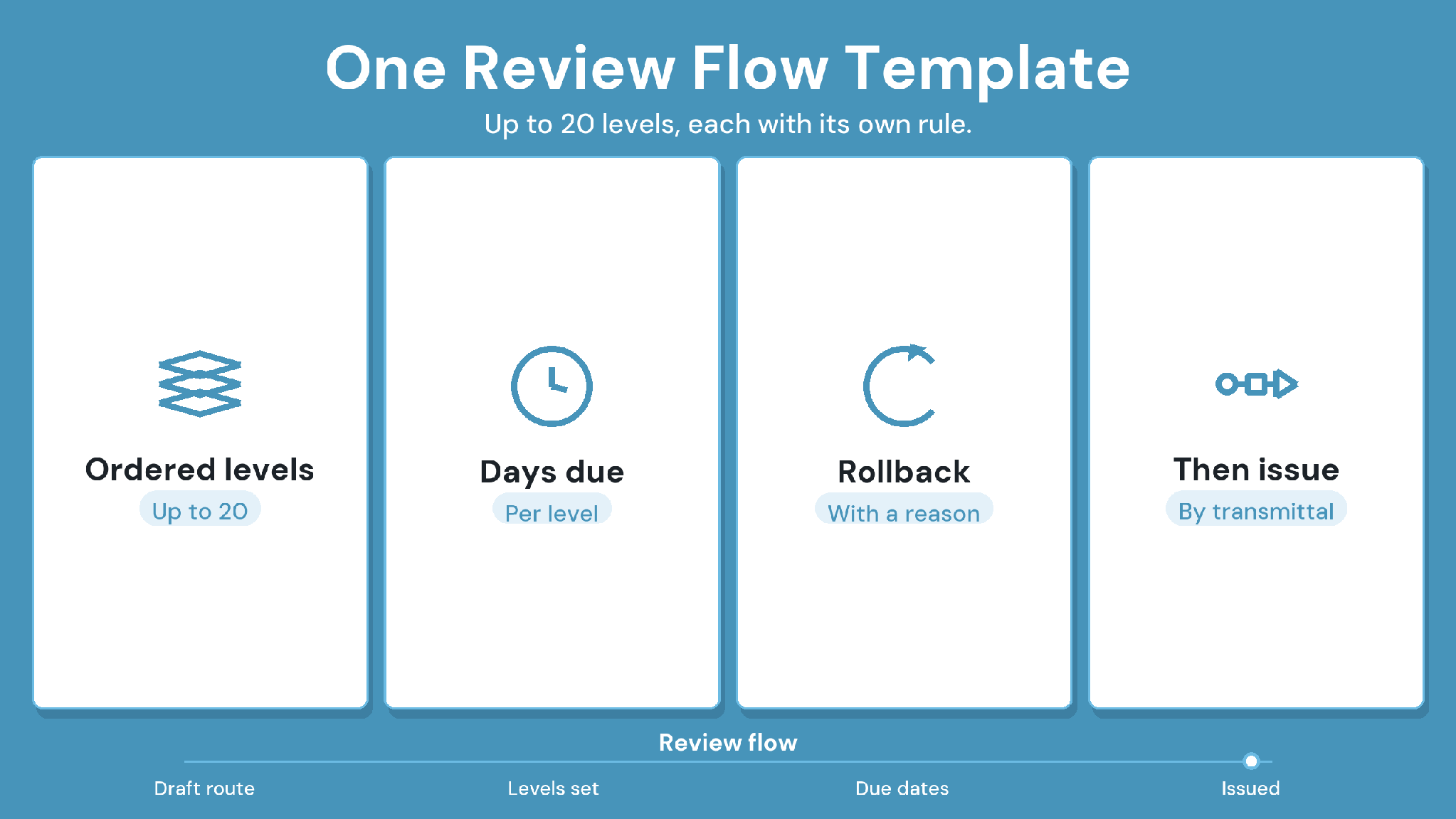
CUBE's Common Data Environment runs approvals as Review Flows. These are reusable templates of up to 20 ordered levels. Each setup step above maps to a documented capability.
Statuses are configurable, so contract wording such as approved as noted can be set up as
Custom Statuses.
Caption: How each approval setup step maps to CUBE Review Flow capabilities.
External approvers can join on Guest seats, which cover CDE modules in one Space in one project. Every 10 paid full CDE seats include 10 free Guest seats, counted in completed blocks of 10.
Case in point: Real estate developer, 15+ projects
A leading Indian real estate developer managing 15+ projects relied on fragmented local servers and manual document control. Its projects had no standardized file naming or structured approvals. CUBE's centralized CDE introduced consistent nomenclature and a three-level review and approval workflow across all projects. Read the full case study →
Map your authority chain to a Review Flow: Sign up for CUBE and build your first template.
Set Up Multi-Level Document Approval Workflows With CUBE
Start free and build your first Review Flow from your authority matrix. CUBE's Review Flows hold that structure: ordered levels, minimum approvers, due days, and rollback rules, connected to formal issues.
Frequently Asked Questions
1. How many levels should a construction document approval workflow have?
As many as the authority matrix has distinct decisions. A coordination drawing often needs three: a QA check, technical review, and final approval. Add a level only when it introduces new authority, such as an owner's acceptance.
2. How long should each approval level take?
Match each level's due date to the review period in the contract or specifications, where one exists. Otherwise agree durations at kickoff, keeping format-only checks short. In CUBE, days due are set per level and shown in the data grid.
3. Should the owner be a level in every approval workflow?
Only where the contract gives the owner acceptance authority, such as closeout records or milestone deliverables. Elsewhere, give the owner's rep view access or a notification, so routine documents keep moving.
4. Can a document be approved with comments?
Yes, if approved as noted is one of the statuses your route allows. Define it in the matrix, usually as approval to proceed with the noted corrections made in the next revision. Track those notes until they close.
5. How do you prove who approved a document months later?
Keep the approval record with the document: each level's actor, decision, date, and comments.
In CUBE, file activity shows how a file moved through Review statuses, and Reviews export to Excel for handover or a dispute