



Online IFC Viewer for Design & Construction Teams

Open an IFC model without BIM authoring software. Choose your .ifc and the model opens for you to view. No account is required.

Upload any .ifc
No account required
No BIM licence required
IFC
No file selected
Waiting for a file
↑

Drop an .ifc File Here

Drag and drop your file or click the button below to upload it.

Choose IFC File

.ifc only. Up to 50 MB opens without an account. The STEP physical file, not XML or ZIP.

60+
Formats CUBE can view in a project, with this page as the public .ifc route
50 MB
Largest file that opens without an account
0 licences
No BIM authoring licence and no CUBE account needed to open the model
48 hours
How long a file on this viewer is kept before automatic deletion

How to Use This Online IFC Viewer

Three steps from an .ifc in your inbox to a model you can turn around in your browser. No account needed to look.

Step 1 of 3

Choose an .ifc File

The browser checks the extension, the size, and that it really is a STEP .ifc before anything leaves your device. Up to 50 MB opens without an account.
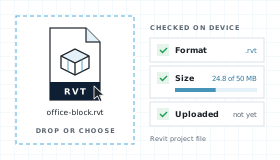
A .rvt file dropped into the viewer and checked in the browser for format and size
Step 2 of 3

Let CUBE Prepare It

The file uploads, is scanned for malware, and goes through the model translator used in CUBE projects. You see each step as it happens.
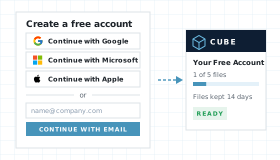
Sign-in options for Google, Microsoft, Apple and work email
Step 3 of 3

View It Right Here

Orbit, pan, and zoom on this page. Sign in for free to share a link, read element properties, mark up, open bigger files, or keep the model.
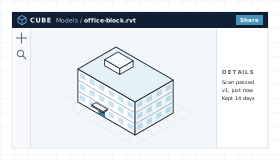
The CUBE viewer with a 3D model open for pan, zoom, and fit

What This IFC Viewer Shows in a Model

An IFC carries a building as open BIM data: elements, spaces, and properties, independent of the tool that authored it. The Online IFC Viewer opens that model for review without an authoring seat.

The Model, Not a Print

You see the translated 3D model itself, not a PDF of one view. Pan, zoom, and fit to get around it.

View Without a Licence

Open the model without a BIM authoring seat. Pan, zoom, and fit. Nothing you do here changes the .ifc.

Hand-off Into CDE

Your model is already stored in CUBE, not a throwaway preview. Upgrade and it becomes a controlled document with versions, reviews, and transmittals.

Measure, Share, and Issues

This page is the viewer. Upgrade to measure the model, share it, and raise tracked issues.

IFC Viewer Workflow, Step by Step

Upload and preview your files, directly in the browser.

From Dropzone to Viewer

Four steps between choosing a file and working on it in CUBE.

01

Choose

Extension lock to .ifc. Up to 50 MB opens without an account. Nothing is uploaded yet.

02

Upload and scan

The file uploads for this viewing session, visible only to you. Malware scan runs before translation and fails closed.

03

Translate and view

The model translator used in Spaces renders the building. Pan, zoom, fit, and orbit. Measuring, sharing, and issues need an upgrade.

04

Keep or expire

Files are deleted after 48 hours. Upgrading keeps them as controlled project documents.

What an IFC File Contains

IFC stands for Industry Foundation Classes. It is the open BIM standard maintained by buildingSMART® International and published as ISO 16739-1, so a model can move between authoring tools without staying locked to one of them. A team exports an IFC when someone who does not hold the authoring seat still needs to see the building.

The usual .ifc file is a STEP physical file, clear text defined by ISO 10303-21. The same schema can also be written as XML or packed in a ZIP, but those use other extensions. Schemas in current exchange include IFC2x3, IFC4, and IFC4.3. This Online IFC Viewer accepts a STEP .ifc. Up to 50 MB opens without an account.

IFC Model Map

An IFC is organised as connected entities. These are the parts a reviewer actually meets.

ELEMENTS

Building Elements

Walls, slabs, doors, windows, beams, ducts, and pipes, each with an IFC class such as IfcWall or IfcDuctSegment.

SPATIAL

Spatial Structure

Project, site, building, and storey. Elements sit inside that tree, so a reviewer can tell which floor an object belongs to.

PROPERTIES

Property Sets

Attributes grouped into property sets, including the standard Pset_ sets. What arrives depends on the export, not on this viewer.

GEOMETRY

Shape and Placement

The shape and position of each element. The viewer shows the translated 3D model. It does not edit the STEP file.

RELATIONS

Systems and Openings

How elements belong to systems, and how an opening relates to a wall. Those links are only as complete as the export.

STEP .ifc Files

The .ifc extension is the STEP physical file, and it is the encoding this page opens. One file is one exchange. Up to 50 MB opens without an account.
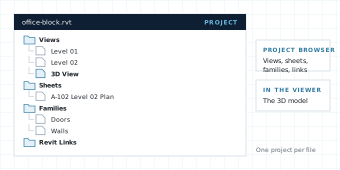
The project browser of a Revit project file, with views, sheets, families and links

Other IFC Encodings

.ifcXML and .ifcZIP carry the same schema in another encoding. A Revit® project is a different file entirely. This page opens the STEP .ifc only, and turns the others away before anything uploads.
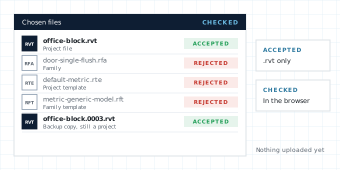
A list of chosen Revit files, with project files accepted and families and templates rejected

Common IFC classes the translator expects to render:

IfcProject
IfcSite
IfcBuilding
IfcBuildingStorey
IfcSpace
IfcWall
IfcSlab
IfcDoor
IfcWindow
IfcBeam
IfcColumn
IfcRoof
IfcStair
IfcDuctSegment
IfcPipeSegment
Pset_WallCommon

External documents and geometry the exporter left out cannot be recovered here. An unreadable schema or file shows a parse error instead of a blank canvas.

IFC Viewer Compared With Autodesk® Viewer and Other Tools

Compare with in-browser parsers that never leave the tab, and Autodesk® Viewer, the browser tool most people try first.

NeedCUBE IFC ViewerIn-browser parserAutodesk® Viewer
Open .ifc without a licenceYes. No BIM licence and no account.Varies. Support depends on the schema.Yes, in the browser. An Autodesk® account is required.
File leaves the deviceYes. Uploaded, scanned, and deleted after 48 hours.Usually no. The file is parsed in the tab.No. Opens from local disk.
Matches project CDE previewYes. Same production translator.No. A separate engine.Native, but not the project CDE.
Inspect the 3D modelYes. Pan, zoom, fit, and orbit.Varies by parser and schema.Yes. Geometry and properties.
Edit geometryNo. View only.No.No. It is a viewer.
Save into a controlled projectAlready stored in CUBE. Upgrade to keep and share.No CDE hand-off.Manual upload after the fact.

Who Uses an IFC Viewer on a Construction Project

An IFC is shared so people outside the authoring tool can look and check. Most recipients never edit the source model.

Before issue

Architects

Look over the exported model before it is issued, then send it back to whoever holds the authoring model.
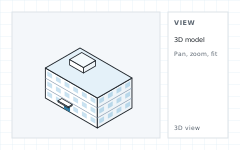
A 3D building model open in the viewer
Coordination

Engineers and BIM Leads

Check a design team's model against your own before the coordination meeting, including where services and structure meet.
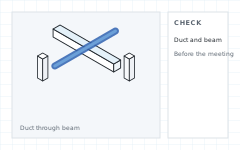
A duct running through a steel beam in the 3D model
On site

Contractors and VDC Teams

Open the model a designer sent on a site laptop, without a BIM seat for everyone who only needs to look.
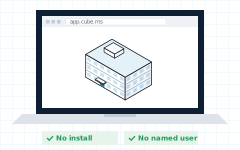
A site laptop showing the model
Sign-off

Owners and Consultants

Review the building without buying an authoring seat for every stakeholder. Upgrade when the model should become the project record.
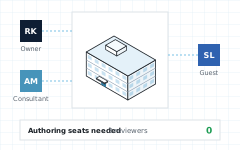

An owner, a consultant, and a guest reviewing one model with no authoring seats

IFC Viewer FAQ

Do I need BIM software to use this IFC viewer?

No. CUBE opens .ifc files in Chrome, Edge, Firefox, or Safari. You do not need Revit®, Archicad®, a plugin, or an authoring licence to look at the model.

Is the CUBE IFC viewer free?

Yes. Viewing is free in the viewer on this page. Up to 50 MB opens without an account. Measuring the model or any advanced actions needs an upgrade.

Does this IFC viewer upload my file?

The browser checks the file first, then uploads it. CUBE scans it and translates it.

What files does the IFC viewer accept?

.ifc only, the STEP physical file. Up to 50 MB opens without an account. .ifcXML and .ifcZIP are other encodings and are turned away. RVT, NWD, DWG, and other formats have their own viewer pages.

Will property sets and spaces appear?

This page opens the 3D model for review with pan, zoom, and fit. Property sets and the spatial tree are part of the file, and how much of them you can inspect beyond the model depends on the export. Authoring stays in the tool that made it.

Does the IFC viewer edit the model?

No. Moving walls, changing properties, or saving a new IFC is out of scope. Authoring stays in the tool that exported the file.

Which IFC schemas can the viewer read?

CUBE uses the same translator as the rest of CUBE. IFC2x3, IFC4, and IFC4.3 are the schemas teams exchange. If a schema or geometry type cannot be read, the Online IFC Viewer shows a parse error rather than a blank canvas.

Notes and Trademarks

Trademark notice. IFC and buildingSMART are trademarks of buildingSMART International. Autodesk® and Revit® are trademarks of Autodesk, Inc. Archicad® is a trademark of Graphisoft. IFC is the open BIM standard published as ISO 16739-1. Chrome, Edge, Firefox, and Safari are trademarks of their respective owners. All other product names, logos, and brands are the property of their respective owners and appear on this page only to identify file formats and compatible software. CUBE is not affiliated with, sponsored by, or endorsed by buildingSMART International, Autodesk, Inc., Graphisoft, or any other trademark owner named on this page.

Use of this tool. Use of the CUBE IFC Viewer does not require a CUBE account. It is subject to the CUBE Terms of Use and Privacy Policy. By uploading a file, you confirm that you own the file or are authorised to share it, and that it does not contain material you are not permitted to disclose. Files are used only to generate the preview and are handled as described above.

File retention. Uploaded files are deleted automatically 48 hours after upload. You can delete a file yourself at any time before then. Paid plans keep files as controlled project documents.

Preview only. Rendered models are provided for reference. Some geometry, materials, textures, or linked content may not display exactly as in the authoring application. Do not rely on the preview for construction, fabrication, setting out, or measurement without checking the original file. The tool is provided as is, without warranty of any kind.

Availability. This tool is not offered in countries or regions subject to comprehensive U.S. or other applicable trade sanctions, or to persons on restricted-party lists.