



Online DXF Viewer for Design & Construction Teams

Open a Drawing Exchange Format file without the authoring software. Choose your .dxf and the drawing opens for you to view.

Upload any .dxf up to 50 MB
No account required
No additional licenses required
DXF
No file selected
Waiting for a file
↑

Drop a .dxf File Here

Drag and drop your file or click the button below to upload it.

Choose DXF File

.dxf only, up to 50 MB. ASCII and binary DXF.

60+
Formats CUBE can view in a project, with the Online DXF Viewer as the public .dxf route
50 MB
Maximum .dxf size this page accepts
0 licences
No AutoCAD® seat needed. No account is required to open the drawing
14 days
How long a file on this viewer is kept before automatic deletion

How to Use This Online DXF Viewer

Two steps from a .dxf in your downloads folder to a drawing you can work with. The file is checked on your device, then it opens inside CUBE.

Step 1 of 2

Choose a .dxf File

The browser checks the extension and size before anything leaves your device. Maximum size is 50 MB. ASCII and binary DXF both qualify.
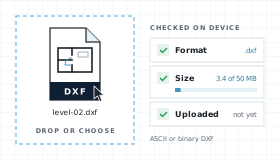
A .dxf file dropped into the viewer and checked in the browser for format and size, still on your device
Step 2 of 2

View It in CUBE

The drawing opens in the CUBE viewer. Pan, zoom, switch paper space, toggle layers, measure. Upgrade to share it, raise issues, and run reviews.
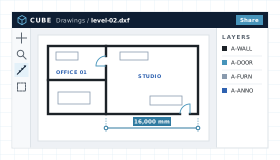
The file open in the CUBE viewer

What This DXF Viewer Shows in a Drawing

A DXF file carries the same drawing database Autodesk® documents for interchange: layers, blocks, text styles, and entities.

Layouts and Layers

Model space and paper spaces are listed when the drawing has more than one layout. Layer visibility matches the in-app 2D viewer, including frozen annotation layers.

View Without a Licence

The project team can look at the drawing. Authoring seats stay with the people who create CAD.

Hand-off Into CDE

Your drawing is already stored in CUBE, not a throwaway preview. Upgrade and it becomes a controlled document with versions, reviews, and transmittals.

Measure

Measure distances in drawing units. Sharing and issues come with an upgrade.

DXF Viewer Workflow, Step by Step

Upload and preview your files, directly in the browser.

From Dropzone to Viewer

Four steps between choosing a file and working on it in CUBE.

01

Choose

Extension lock to .dxf and size check at 50 MB, both in the browser. Nothing is uploaded yet.

02

Upload and scan

The file uploads for this viewing session, visible only to you. Malware scan runs before translation and fails closed.

03

Translate and view

The CAD translator used in Spaces renders the drawing. Layers, layouts, and measure load.

04

Keep or expire

Files are deleted after 14 days. Upgrading keeps them as controlled project documents.

What a DXF File Contains

DXF (Drawing Exchange Format) is the documented interchange format from Autodesk®, introduced in 1982 so drawings could move between AutoCAD® and other tools. Unlike DWG, the structure is published. That is why architects, fabricators, GIS teams, and CNC shops still send DXF when they need a file that more than one application can read. A browser DXF viewer is useful when a consultant only needs to confirm layers, layouts, and geometry, not edit the file in AutoCAD®.

A DXF file is a sequence of group codes and values. In ASCII DXF each code and each value sit on their own line. Binary DXF stores the same pairs in typed little-endian records after a 22-byte signature. Both encodings describe the same sections. This Online DXF Viewer accepts either encoding as long as the extension is .dxf and the file is under 50 MB.

DXF Section Map

The order documented by Autodesk® that a translator has to walk before geometry appears.

HEADER

Drawing Variables

$ACADVER, units, extents, and system variables that tell the translator which release wrote the file.

TABLES

Layers and Styles

LAYER, LTYPE, STYLE, DIMSTYLE, and VPORT records. This is the layer list in the viewer's Layers panel.

BLOCKS

Reusable Geometry

Block definitions and the entities inside them. INSERT entities in model space point back here.

ENTITIES

Drawable Content

LINE, CIRCLE, ARC, LWPOLYLINE, TEXT, HATCH, DIMENSION, SPLINE, and INSERT objects the canvas shows.

OBJECTS

Non-graphical Data

Dictionaries, groups, and plot settings. Layouts often resolve from this section.

ASCII DXF

Human-readable group codes. R12 ASCII DXF remains the most portable interchange version across CAD, CAM, and GIS tools.
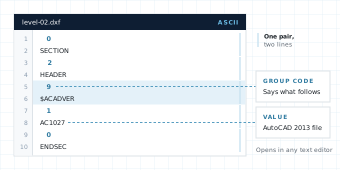
An ASCII DXF file open in a text editor. Each group code sits on its own line with its value on the next line, for example 9 then $ACADVER, and 1 then AC1027 for AutoCAD 2013

Binary DXF

Same sections, smaller on disk. CUBE treats binary DXF as a first-class upload, not a rejected encoding.
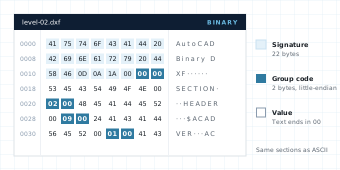
A binary DXF file in a hex view. The first 22 bytes are the AutoCAD Binary DXF signature, then each record is a two-byte group code followed by its value, for example SECTION and HEADER

Common entities the translator expects to tessellate:

LINE
CIRCLE
ARC
POLYLINE
LWPOLYLINE
SPLINE
ELLIPSE
TEXT
MTEXT
HATCH
DIMENSION
LEADER
INSERT
ATTRIB
3DFACE
SOLID

Proxy graphics from vendor-specific objects (Civil 3D®, Revit®, MEP) may not be interpreted. The rest of the drawing still loads.

DXF Viewer Compared With AutoCAD® and Other CAD Tools

Compare with in-browser parsers that never leave the tab, desktop viewers that need an install, and authoring seats.

NeedCUBE DXF ViewerIn-browser parserAutoCAD® or TrueView
Open .dxf without a licenceYes. No account and no CAD licence.Yes, if the parser supports the release.Licence or TrueView install required.
File leaves the deviceYes. Uploaded for viewing, scanned, and deleted after 14 days.Usually no. FileReader in the tab.Local disk, unless a cloud save is used.
Matches project CDE previewYes. Same production translator.No. A separate JavaScript engine.Native, but not the project CDE.
Layers, model space, paper spaceYes, when the job is ready.Varies by parser.Full layout stack.
Edit geometryNo. View only.No on most free DXF viewer pages.Yes in AutoCAD®.
Save into a controlled projectAlready stored in CUBE. Upgrade to keep and share.No CDE hand-off.Manual upload after the fact.

Who Uses a DXF Viewer on a Construction Project

A DXF viewer is for people who received a drawing, not people who own the authoring seat. On CUBE projects that usually means consultants, fabricators, and field staff who still have to confirm the current sheet.

Before issue

Architects and Engineers

Check a consultant DXF before it is issued. Confirm layers, block inserts, and paper-space title blocks without opening AutoCAD®.
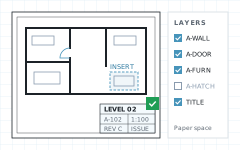
A consultant drawing in paper space with the title block checked, a block insert highlighted and the layer list
On site

Contractors and Site Teams

Open the file on a laptop in the trailer. The Online DXF Viewer does not require a CAD install or a named AutoCAD® user.
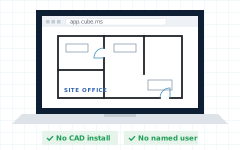
A laptop on site showing the drawing in a browser, with no CAD install and no named user
Before quoting

Fabricators and CNC

Preview a tool path exported as DXF before quoting. Toggle cut layers off and measure the parts that matter.
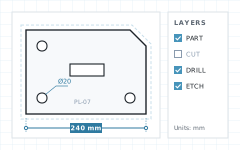
A steel plate part with the cut path layer turned off, a 240 mm dimension and a 20 mm hole callout
Sign-off

Owners and Consultants

Review without buying seats for every stakeholder. Upgrade when the drawing should become the project record.
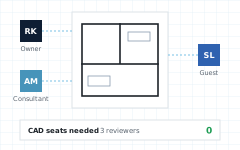

Three reviewers, an owner, a consultant and a guest, marking up one drawing with no CAD seats

DXF Viewer FAQ

Do I need AutoCAD® to use this DXF viewer?

No. CUBE opens .dxf files in Chrome, Edge, Firefox, or Safari. You do not need AutoCAD®, a plugin, or an authoring licence to inspect the drawing.

Is the CUBE DXF viewer free?

Yes. Viewing on this page is free. No account is required.

Does this DXF viewer upload my file?

The browser checks the file first, then uploads it so it can be scanned and translated by CUBE’s production CAD engine.

What files does the DXF viewer accept?

.dxf only, up to 50 MB, ASCII or binary. DWG, DWF, DGN, RVT, and IFC have their own viewer pages, so each page covers one extension.

Can this DXF viewer open model space and paper space?

Yes. When layouts exist, the Online DXF Viewer lists model space and paper space.

Does the DXF viewer edit geometry?

No. Moving walls, exploding blocks, or saving a new DXF is out of scope. Authoring stays in AutoCAD® or another CAD seat.

Which DXF releases can the DXF viewer read?

CUBE uses the same translator as the rest of CUBE. Practical interchange still often uses R12 ASCII DXF because more downstream CAM and GIS tools accept it. If a very new entity type fails, the Online DXF Viewer surfaces a parse error rather than a blank canvas.

Notes and Trademarks

Trademark notice. Autodesk®, AutoCAD®, Revit®, Civil 3D®, DWG™, DXF, DWF, and TrueView are registered trademarks or trademarks of Autodesk, Inc., and/or its subsidiaries and affiliates in the USA and other countries. MicroStation® and DGN are registered trademarks or trademarks of Bentley Systems, Incorporated. IFC is an open standard of buildingSMART International. Chrome, Edge, Firefox, and Safari are trademarks of their respective owners. All other product names, logos, and brands are the property of their respective owners and appear on this page only to identify file formats and compatible software. CUBE is not affiliated with, sponsored by, or endorsed by Autodesk, Inc., Bentley Systems, Incorporated, or any other trademark owner named on this page.

Use of this tool. Use of the CUBE DXF Viewer does not require a CUBE account. It is subject to the CUBE Terms of Use and Privacy Policy. By uploading a file, you confirm that you own the file or are authorised to share it, and that it does not contain material you are not permitted to disclose. Files are used only to generate the preview and are handled as described above.

File retention. Uploaded files are deleted automatically 14 days after upload. You can delete a file yourself at any time before then. Paid plans keep files as controlled project documents.

Preview only. Rendered drawings are provided for reference. Some entities, proxy objects, fonts, or custom objects may not display exactly as in the authoring application. Do not rely on the preview for construction, fabrication, setting out, or measurement without checking the original file. The tool is provided as is, without warranty of any kind.

Availability. This tool is not offered in countries or regions subject to comprehensive U.S. or other applicable trade sanctions, or to persons on restricted-party lists.