






How to Choose BIM Coordination Software: A Practical Guide for BIM Managers
How to choose BIM coordination software: set requirements, test vendors on real models, score them fairly, and price the full cost of ownership.


Key takeaways
Choosing coordination software starts with written goals and named users, since a tool built for specialists can shut field teams out of the model.
Test every vendor on your own federated models, because demo files hide the alignment and performance problems your projects will actually hit.
Score vendors against weighted criteria agreed before the first demo, so the decision rests on test evidence from your own models.
Total cost of ownership includes add-ons and partner seats, which can outweigh the headline per-user price once subcontractors and owners join.
CUBE publishes its per-user pricing and includes ten free Guest seats per ten paid, which makes partner costs easy to model during evaluation.
Two vendors demo the same Building Information Modeling (BIM) coordination workflow, and both look flawless on their own sample files. Six weeks after purchase, your mechanical, electrical, and plumbing (MEP) subcontractor still needs a full license to open the federated model.
Knowing how to choose BIM coordination software comes down to testing what your projects need, on your own data, before anyone signs. A demo shows how a product looks. But a test on your models shows how it performs.
This guide covers the feature tests and scoring template to use, the full cost of ownership, and a rollout plan for the tool you pick.
Choose BIM Coordination Software Around Your Goals and Users
Write down what coordination must achieve on your projects before you contact a vendor. That one page becomes the yardstick for every demo.
List the use cases your team runs each week:
Clash detection: on dense MEP zones before fabrication.
Issue tracking: between trades, with owners, and with due dates.
Model review: by owners and designers who never open Revit.
Field checks: that confirm crews are building from current information.
Then name the people who will use the tool. Include the virtual design and construction (VDC) lead and the trade modelers who fix issues. Add superintendents and owner's representatives. An information technology (IT) or security reviewer belongs in the group too, since each role tests a different part of the product.
Which BIM Coordination Features Should You Test Live?
Test the Work, Not the Brochure
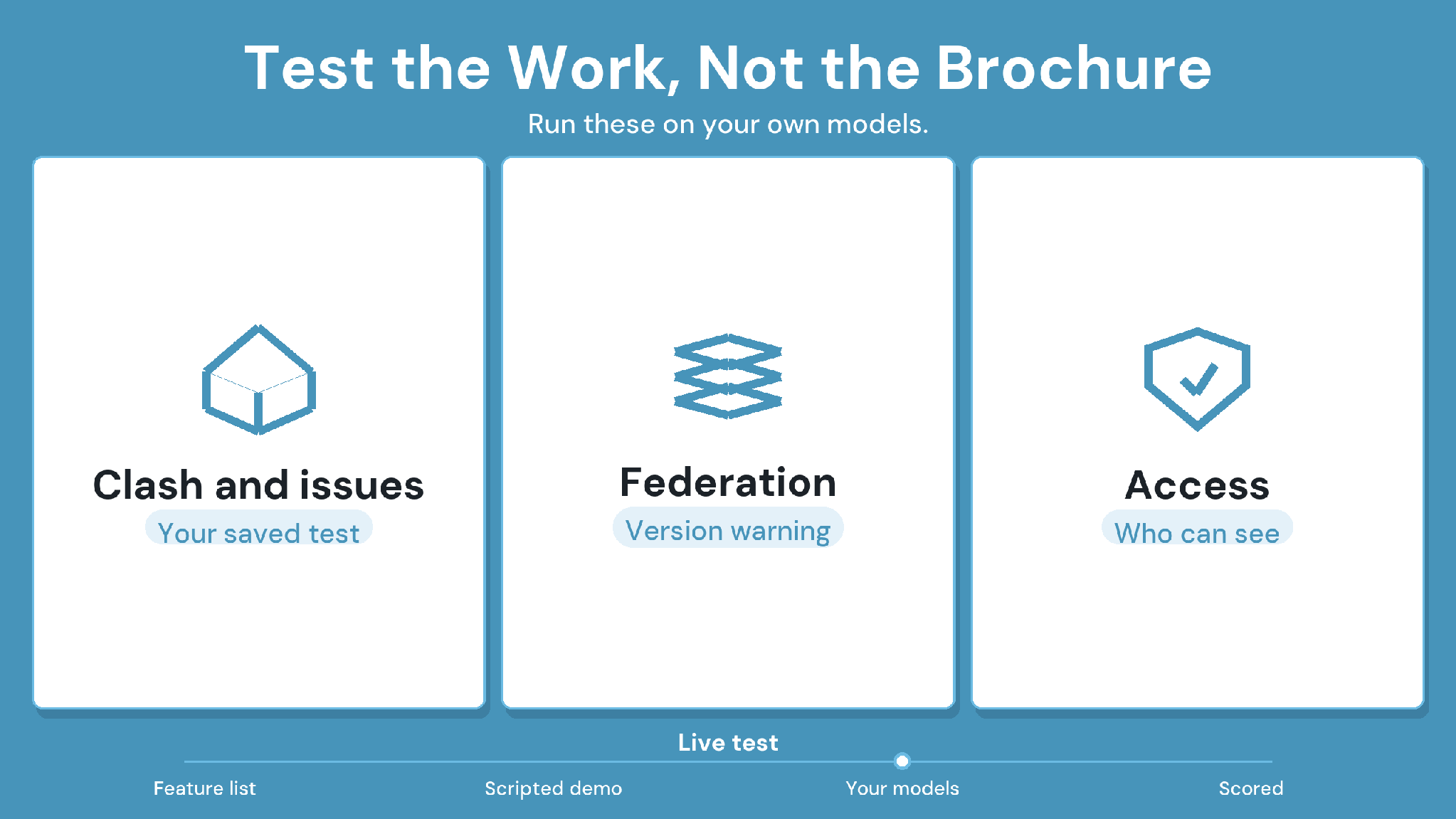
Feature lists look alike across vendors, so turn each capability into a test you run live in the demo. Test clash detection and issue handling first, then model federation and version control. Finish with access controls for people outside your company. These three areas carry most of the weight:
1. Clash detection and issue management
Run one of your saved clash tests on your own federated set, and ask for the exported clash report. Then assign an issue to someone outside your company and follow it to closure.
In CUBE, Clash Tests is a paid add-on. It runs hard or soft tests on merged models within a tolerance in millimeters. Any clash can become an Issue with an assignee and due date.
2. Model federation and version control
Federate two disciplines and upload a new version of one. Then watch what the tool does with the merged model. A good platform tells you the federation is now stale.
CUBE flags a Merged File when a constituent model gets a new version, and a user selects Update to create a new version entry. Every upload creates a version automatically, with the timestamp and uploader recorded. A revision is a marker you apply by hand to the version you actually issued.
3. Role-based access and activity history
Give a subcontractor view-only access to one folder, then check what they can see and download. Ask the vendor to show the record of who changed what.
CUBE sets access per user at six levels, from Full Access down to No Access. A file-level setting overrides its folder, and a folder-level setting overrides its Space. Portal activity logs record who took each action and when.
Will It Fit the Tools Your Trades Already Use?
A coordination tool earns its keep only if it fits the tools your trades already use. Map each vendor against your authoring tools and document platform first. Then test your native formats and IFC exports on a real model, checking that coordinates survive the round trip.
1. Map the vendor to your current toolchain
List the authoring tools on your projects and the platform that holds your documents. Ask each vendor how its product connects to both. If you plan custom integrations, ask for application programming interface (API) documentation and confirm which plans include access.
2. Test file formats and interoperability
Write down the native formats you must import and export, then test them on a real model. Run an Industry Foundation Classes (IFC) export from each authoring tool, and confirm the model keeps its coordinates and datum after import.
CUBE's BIM viewer opens Revit and IFC models in the browser, along with other supported formats. Issues export to BIM Collaboration Format (BCF), and the Revit plugin syncs CUBE Issues back to Revit with persistent element IDs.
Check How Each Tool Handles BIM Standards and ISO 19650
Standards decide whether a tool can enforce your BIM Execution Plan (BEP) or only store files under it. Ask vendors to prove three things.
1. Define the Level of Development per discipline and phase
Set the Level of Development (LOD) each discipline must reach at each phase, and record it in the BEP. Then check whether the tool can flag elements below that level, or whether that check sits with your team.
2. Ask how the tool supports ISO 19650 workflows
ISO 19650 information management relies on clear information states and approvals before sharing. Ask each vendor to show those states in a live project and to share certificates with their scope.
In CUBE, an admin configures custom statuses and maps them onto review levels, which is how ISO 19650 states are set up. CUBE holds the BSI Kitemark for BIM software, certified against ISO 19650, plus ISO 27001 and SOC 2 Type II for the IT review.
3. Check model quality and naming standards
Ask for sample models at your target LOD, and check naming conventions and parameter consistency across them. Rule-based model checking usually comes from a dedicated checker, so confirm whether each vendor offers it.
Naming is easier to hold when the platform enforces it. In CUBE, a Nomenclature template assigned to a folder sets the segments every new subfolder must follow, such as project code and discipline.
Case in point: How CUBE helped a real estate developer centralize its document control
The developer moved its project documents into one centralized common data environment (CDE) in CUBE, covering 15+ projects. The setup kept nomenclature consistent across them and ran a three-level review and approval workflow. Read the full case study →
Turn Your Test Results Into a Defensible Purchase
Four Steps to a Defensible Buy
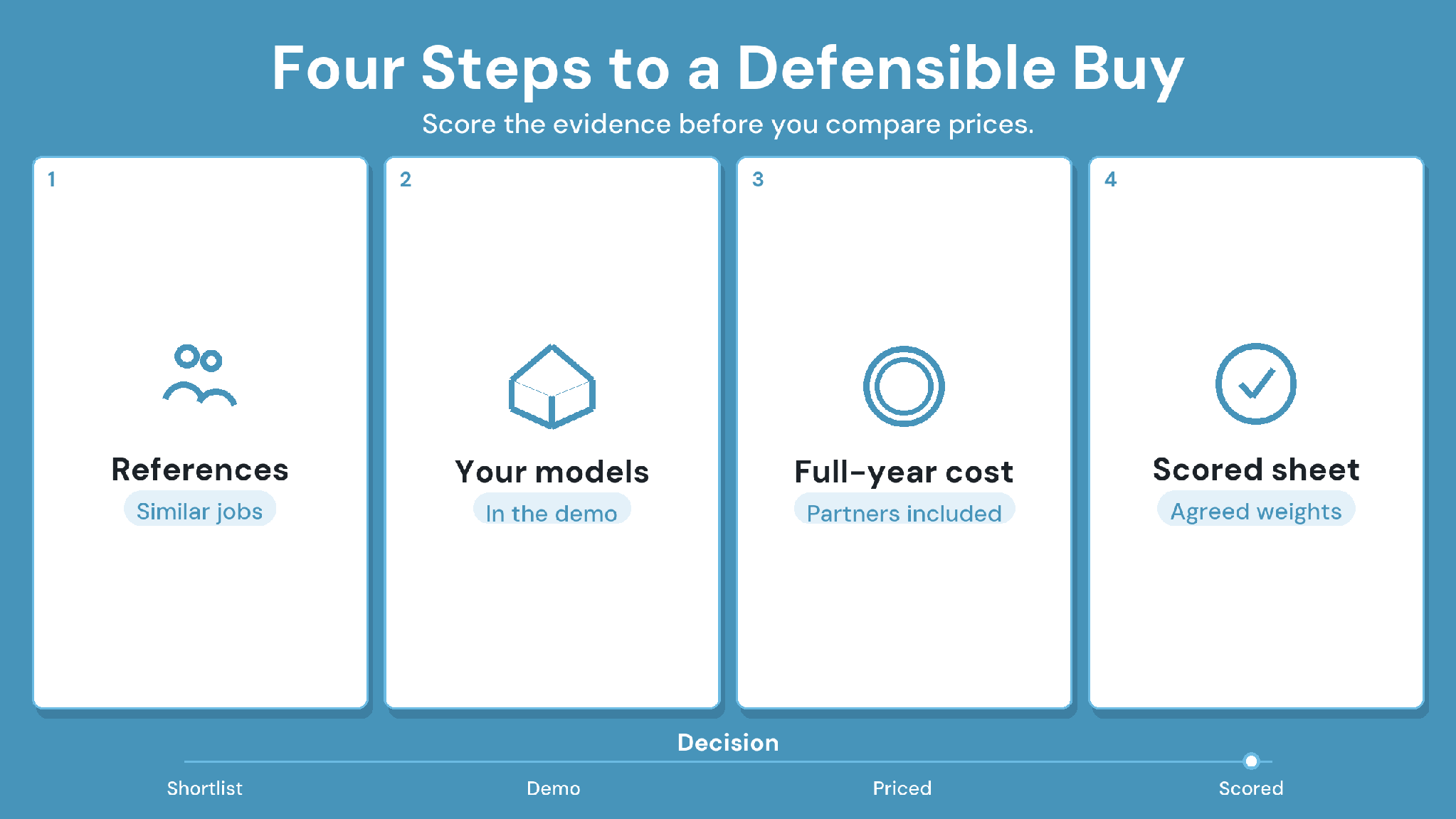
Procurement turns your test results into a defensible decision. Work through these four steps in order, and keep the evidence for each.
Step 1. Ask for references on similar projects
Request two references from firms with a similar project type and team size. Ask them what took the longest to set up, and what they would configure differently.
Step 2. Schedule each demo on your own project data
Send every vendor the same model set a week ahead, with two trades and a known clash. Demos on vendor sample files tell you how the product looks, and your files tell you how it performs.
Step 3. Calculate the total cost of ownership
Headline seat prices leave out most of what a coordination tool costs over a year. Add up these lines for each vendor:
Staff seats: paid seats for your own team, at the billing cycle you will actually use.
Partner seats: access for subcontractors and owners.
Add-ons: features such as clash detection, priced per user or per portal.
Running costs: setup and training, plus the admin time your team spends running it.
Step 4. Build a scored evaluation template
Agree the criteria and weights before the first demo. That way, the scoring stays anchored to evidence. The weights below are a starting point to adjust for your projects.
Table 1: Example scored evaluation template for BIM coordination software.
In-House or Outsourced: Who Should Run Your BIM Coordination?
Some firms buy software and run coordination in-house, while others hire a coordination service for peak periods. The right answer depends on how steady your coordination workload is. Steady, year-round coordination usually favors an in-house team, while short bursts of heavy MEP work suit an external service.
1. Compare in-house and external coordination
Weigh three factors before deciding:
Cost: compare salaries plus software and training against service fees for the same hours.
Peak capacity: external teams absorb peaks during heavy MEP coordination, which an in-house team may struggle to staff.
Knowledge transfer: an external service builds expertise outside your firm, so write handover obligations into the contract.
2. Manage an in-house BIM manager or team
An in-house team needs a clear remit. Define the BIM manager's responsibilities and two or three key performance indicators (KPIs), such as zones signed off on schedule.
Budget for software licenses and annual training together, since one without the other stalls adoption. Review your internal BIM standards at the end of each project, and update the BEP template before the next one starts.
Build the New Tool Into Your Coordination Process
A new tool succeeds when it becomes part of each process step. Plan adoption around three moves.
1. Map the software into each process step
Walk your coordination steps from model upload to zone sign-off, and write down which feature handles each one. Any step left off that map resurfaces as spreadsheets and email threads within a month.
2. Define handover and approval protocols
Decide how a coordinated zone moves from the model to fabrication drawings, and who approves it. In CUBE's Common Data Environment, that route runs through a Review Flow, a reusable template with up to 20 ordered levels.
A flow can run a Contractor Coordination Check level, then a Design Review level. Each level has its own reviewers, its own checklist, and a minimum number of reviewers who must act before it moves on.
3. Train office and field users separately
Office users need clash and issue workflows in depth. Field users need a short session on finding the current model and logging what they see on site.
How Should You Score a BIM Coordination Software Pilot?
Run a paid pilot with your top two vendors on the same representative model. A short, paid trial earns proper vendor support, which a free trial rarely gets. Score both tools on the same tasks, covering clash results and support turnaround, then usability and reporting clarity.
Score the pilot on four points:
Clash results: run the same test in both tools and compare which real clashes each one catches.
Turnaround: time how long each vendor takes to answer the same support question.
Usability: ask a field user and an office user to score the same tasks separately.
Reporting clarity: show each tool's clash report to a stakeholder who missed the meeting.
Roll Out the Winning Tool in Three Stages
Rollout works best in three stages, each with a clear exit point.
1. Pilot on one project before wider rollout
Pick a project with dense MEP zones and a team willing to give feedback. Run the full coordination cycle on it for at least a month.
2. Document workflows and update your BIM standards
Write down how the team actually used the tool during the pilot. Fold those steps into the BEP template and the company BIM standards.
3. Assign a product champion
Name one person who owns configuration and answers first-line questions. The champion also gathers feedback for the vendor and leads training on each new project.
How to Choose BIM Coordination Software With CUBE on the Shortlist
What to Put CUBE Against
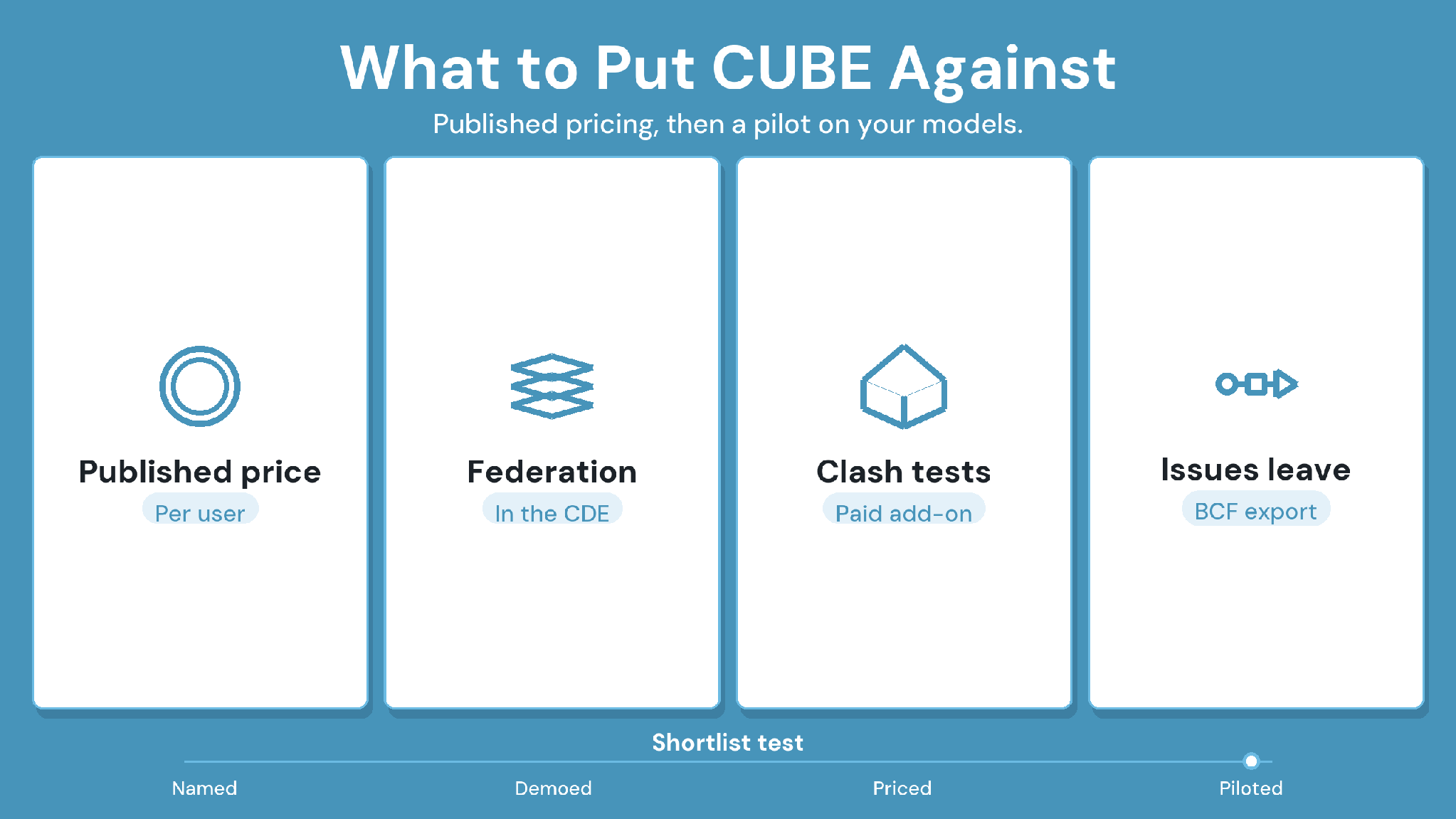
In the end, how to choose BIM coordination software comes down to evidence you collect yourself. Shortlist two or three vendors on core feature fit, then plan the decision in this order:
Agree goals and weighted criteria in week one, with every user group named.
Run demos on your own models, then a paid pilot with the top two.
Price a full year with partner seats and add-ons, then check references.
Pilot the winner on one project before company-wide rollout.
If coordination and document control in one platform fit your projects, include CUBE in that pilot. Its per-user pricing is published, so the cost model takes minutes to build.
Ready to run your checklist against a real platform? Sign up for CUBE or request a virtual demo to test federation, clash results, and access controls with your own models.
Frequently Asked Questions
1. How long should a BIM coordination software evaluation take?
Plan for roughly six to eight weeks. Agree requirements in the first week, then spend two or three weeks on demos and a pilot with real models. Use the remaining time for scoring and contract terms.
2. Does one tool need to handle both clash detection and model checking?
Not always. Clash detection and rule-based model checking often come from different tools. CUBE runs federation and clash tests inside its CDE, with Clash Tests as a paid add-on, while dedicated checkers handle rule-based quality checks.
3. How do we avoid lock-in when choosing coordination software?
Ask each vendor how models and issues leave the platform before you sign. CUBE exports issues to BCF for other coordination tools, and every file version stays downloadable, so project records can leave with you.
4. Is a browser-based model viewer worth prioritizing?
Yes, if your partners work in mixed authoring tools. A browser viewer lets owners and superintendents review models without authoring licenses. On a typical project, that often widens participation more than a deeper clash engine would.
5. Who should sit on the evaluation team?
Include the BIM manager and a VDC lead who runs coordination daily. Add a field superintendent and a security reviewer from IT, and bring in the budget owner well before the final scoring round begins.