




What Is Clash Detection? Guide to BIM Coordination and Clash Resolution
What is clash detection? Learn the clash types, how to prepare models and set rules, and how to run, report, and resolve clashes each cycle.


Key takeaways
Clash detection is the automated check that finds where elements from different discipline models conflict, so teams fix them in the model before site work.
Hard clashes are physical intersections and soft clashes break clearance zones, while workflow clashes come from sequencing and need their own test.
Clean, aligned models and well-scoped rules decide whether a clash report holds 40 real problems or 4,000 duplicates nobody has time to review.
A clash counts as resolved only after the model is updated and the next test run confirms the fix, which keeps backlogs honest across iterations.
CUBE's Clash Tests runs hard or soft tests on merged models and turns any clash into an issue with an owner.
A plumbing riser runs straight through a steel beam in the coordination model. Catching that in week four costs a modeler an afternoon. Catching it on site means cut steel and a redesign meeting.
Building Information Modeling (BIM) coordination teams use clash detection to find those conflicts while they are still cheap to fix. The method is simple to describe and harder to run well. Results stay useful only when the models and rules hold steady from cycle to cycle.
This guide answers what is clash detection first, then shows how coordinators prepare models, set rules, and close clashes without drowning in duplicates.
What Is Clash Detection?
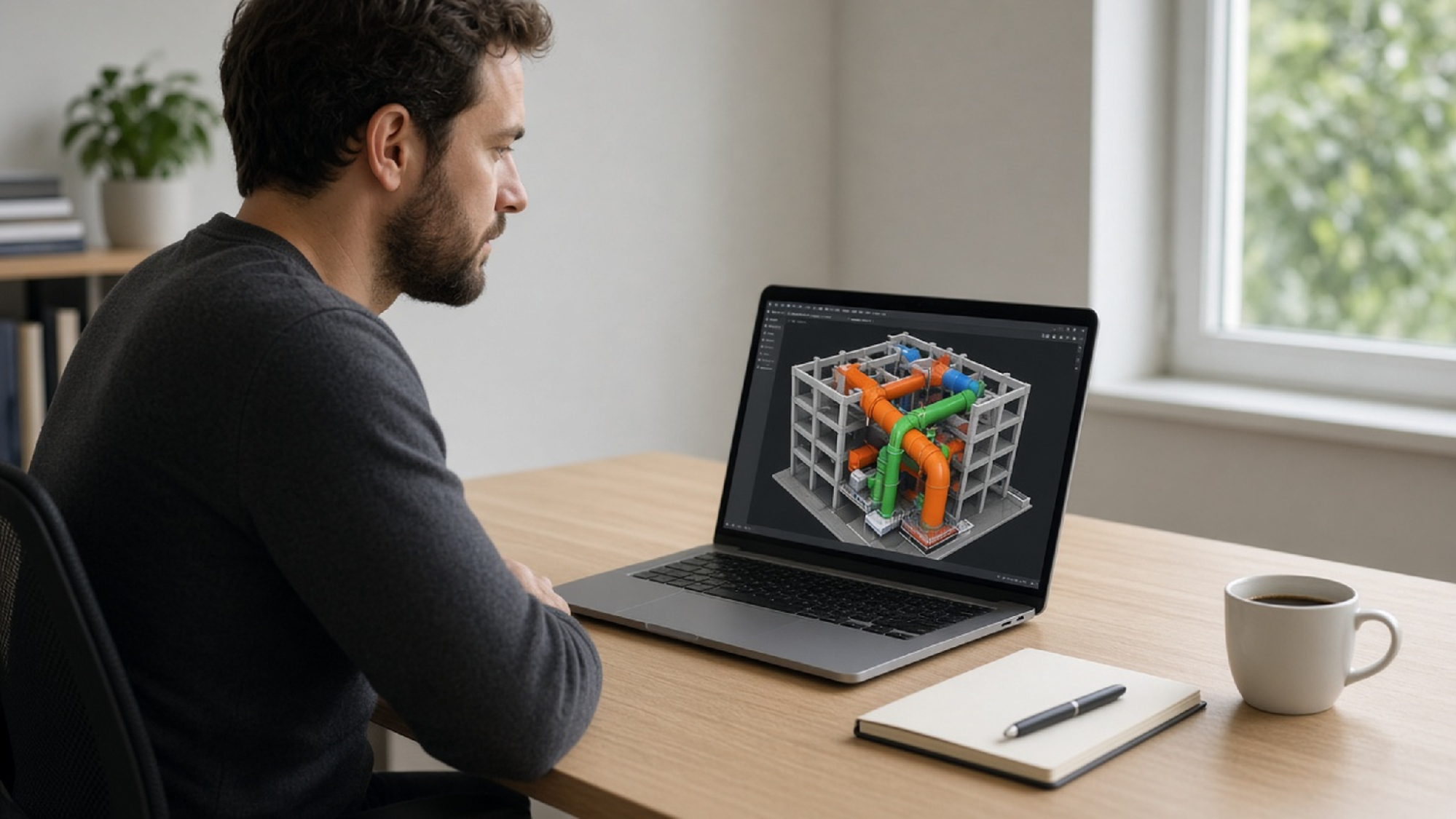
Clash detection is the automated check that finds where elements from different discipline models occupy the same space or break a required clearance. Coordinators run it on a federated model, then assign each real conflict to the trade that fixes it before construction.
Mechanical, electrical, and plumbing (MEP) systems produce the bulk of clashes, since they compete for ceiling and riser space. A clash fixed in the model costs a model edit. The same clash found during installation means removed work and a likely change order.
Within BIM coordination, clash detection is one step. Coordination is the wider loop that assigns those clashes to owners and signs off each zone as ready for fabrication.
Which Types of Clashes Does BIM Clash Detection Find?
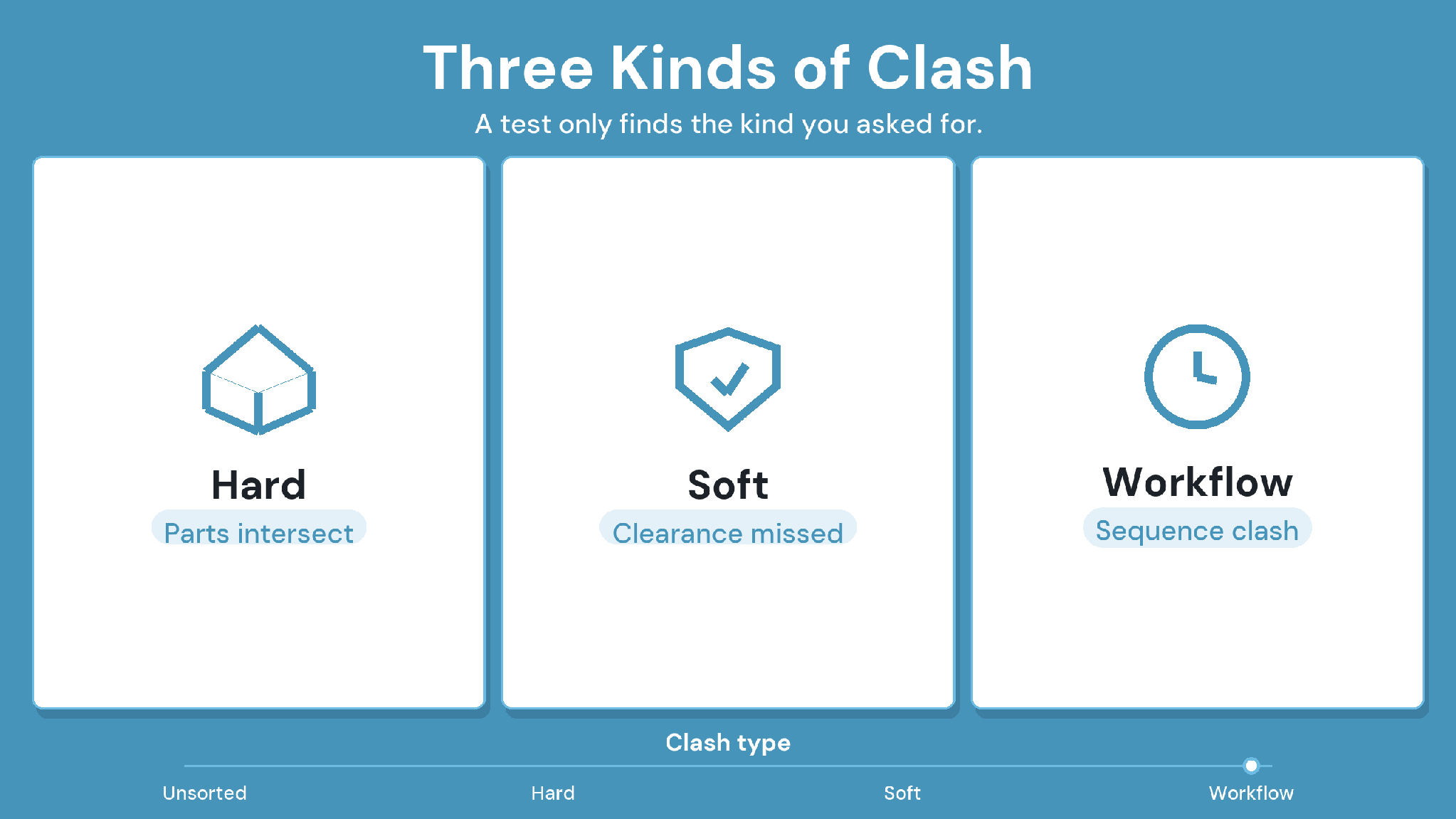
Three Kinds of Clash
BIM clash detection finds three types of clashes, each covered below. Hard clashes are physical intersections, and soft clashes break clearance zones, while workflow clashes come from sequencing. Each type needs its own test, since mixing them buries the urgent ones.
1. Hard clashes
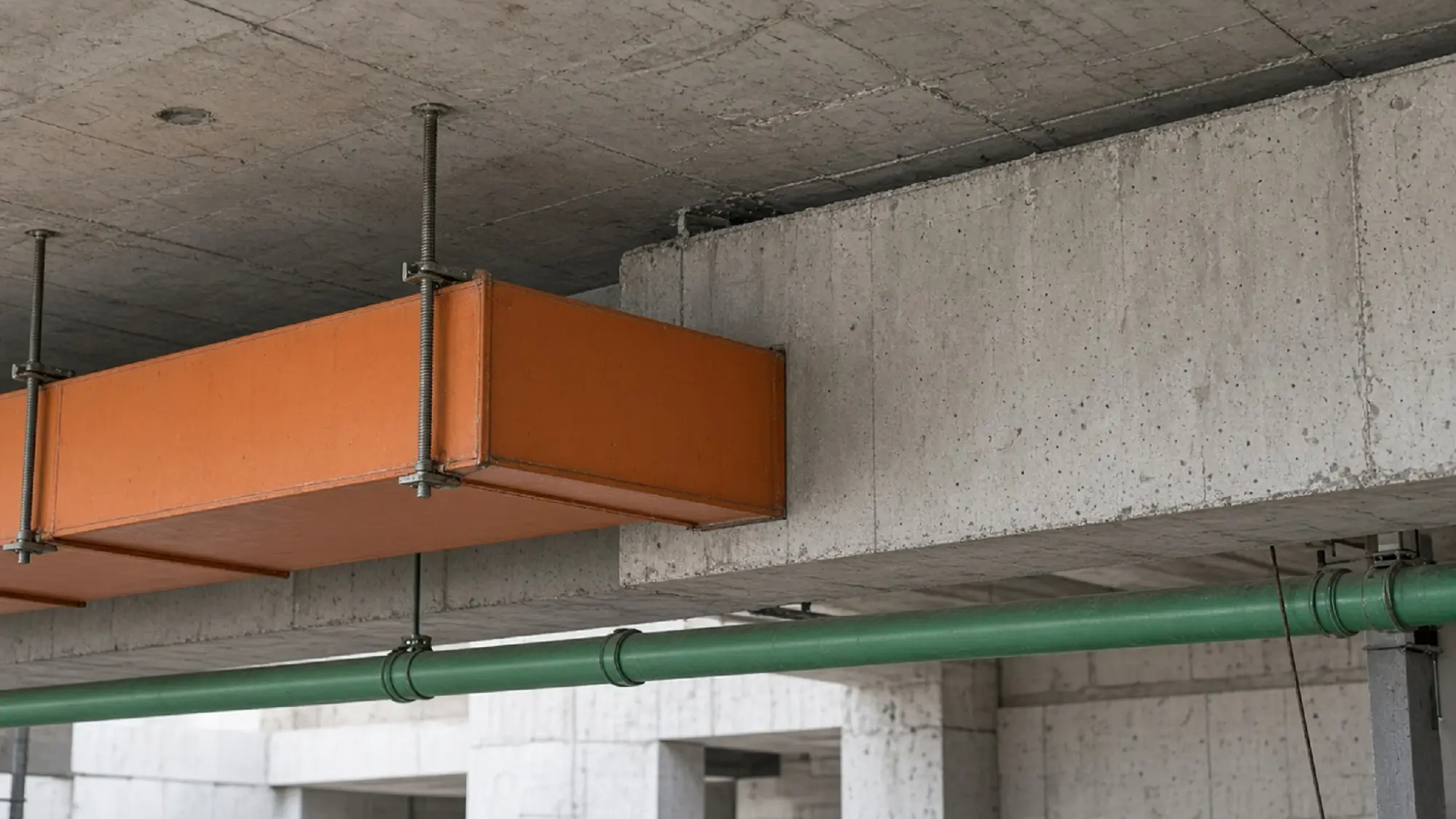
A hard clash is a physical intersection where two elements occupy the same space. Ducts passing through beams are the classic case. Pipes crossing a wall with no sleeve or opening are another.
2. Soft clashes
A soft clash happens when an element enters a clearance zone it should stay out of. Examples include insulation that eats into a corridor ceiling void, and equipment placed inside a maintenance access zone. Soft tests use a tolerance distance instead of touching geometry.
3. Workflow clashes
A workflow clash comes from sequencing, when the schedule installs an element before the structure that supports it. Temporary works such as scaffolding and crane paths cause them too. Catching them needs a model linked to the schedule, often called 4D review.
Prepare Your Models Before Clash Detection Runs
Clean, consistent inputs cut false positives before the first test runs. Work through these four checks each time a model arrives.
1. Standardize file naming and versioning
Agree on one naming convention and keep it for every upload. Upload each change as a new version of the same file, so the federation picks it up. In CUBE, every upload creates a version automatically, with the timestamp and uploader recorded.
2. Align units and project coordinates
Confirm every discipline model uses the same units and shared coordinates. A few-foot offset in one model can create hundreds of false clashes at once.
3. Strip detail that adds noise
Remove or hide elements that never need coordination, such as furniture and annotation. Linked reference files often duplicate geometry that already sits in another model.
4. Split models into discipline and zone sets
Group elements by discipline and by zone before testing. Smaller sets run faster, and the results map straight to the trade and area that own them.
What Should Your Clash Rules Check and Exclude?
Rules decide whether a clash report holds real problems or thousands of duplicates. Check hard intersections by discipline pair and clearances with task-sized tolerances. Exclude fixings and temporary works that nobody intends to fix, then reuse the saved rules every cycle.
1. Define hard tests for geometry intersections
Set up hard tests by discipline pair, such as structure against MEP and plumbing against ductwork. Pairs keep results readable and send each group straight to the two trades involved.
2. Set clearance tolerances per task
Use soft tests with a tolerance sized for the task. A maintenance access zone needs a larger tolerance than a check for insulation thickness.
3. Exclude fixings and temporary elements
Hangers and bolts generate clashes nobody intends to fix, and temporary works add more. Exclude them from tests, or move them into a separate set you check once at the end.
4. Build selection sets by zone and discipline
Save selection sets for each zone and discipline, then build tests from them. Updating a set updates every test that uses it.
CUBE's Clash Tests, a paid add-on, pick colliders and collidees from saved Selections or Queries. Each test sets a hard or soft type with a tolerance in millimeters, plus options to cut noise:
Ignore clashes within the same element.
Ignore clashes within the same model.
Ignore duplicates.
Run the Same Five-Step Clash Cycle Each Iteration
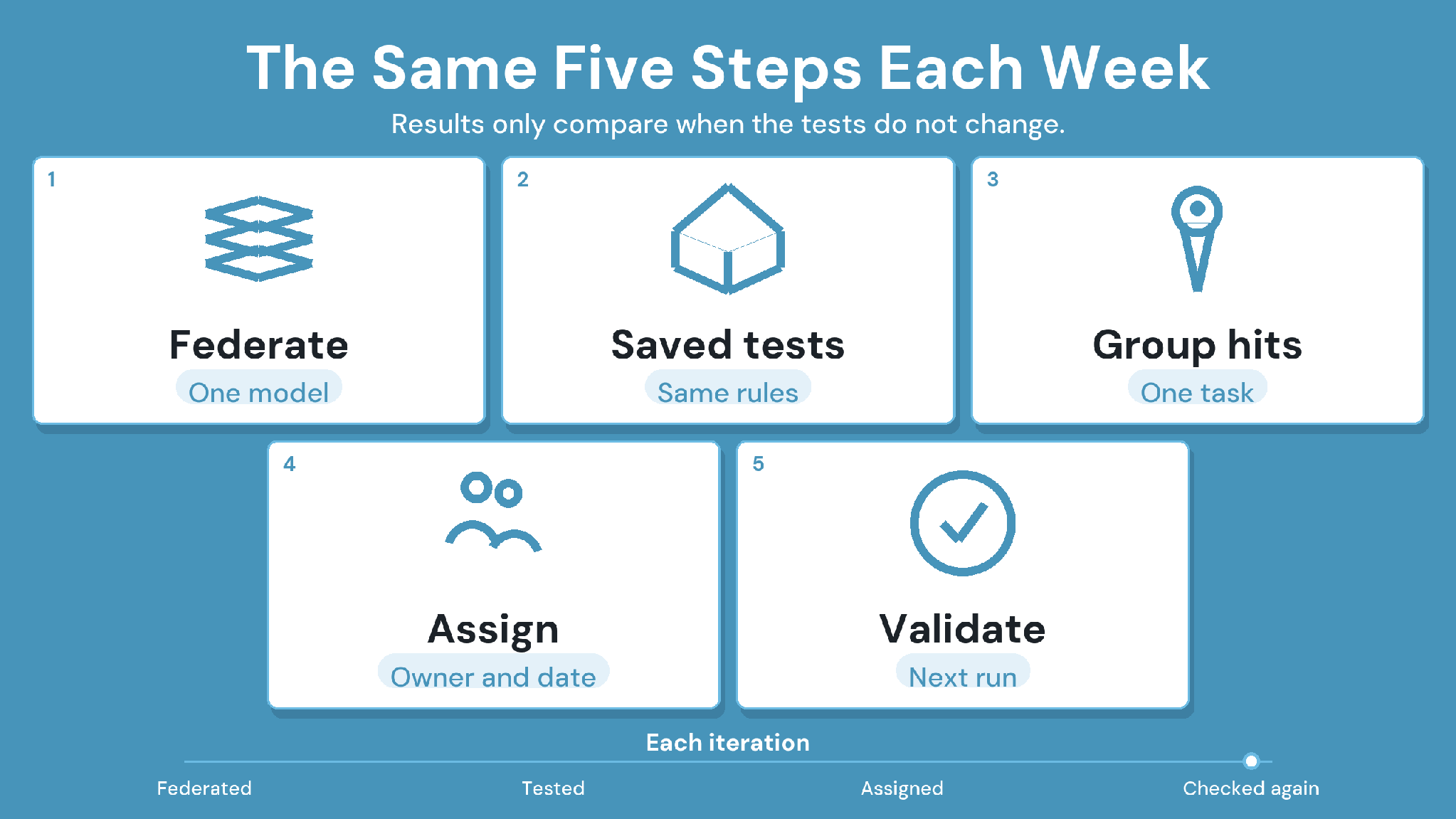
The Same Five Steps Each Week
The clash detection cycle repeats the same five steps every iteration, so results stay comparable from one week to the next:
1. Federate discipline models into one coordination model.
2. Run the same saved tests each iteration.
3. Review results and group identical hits.
4. Assign an owner and a deadline to each group.
5. Validate fixes in the next iteration.
Step one is where cycles quietly go wrong, when the federation lags behind its sources. In CUBE, a Merged File combines discipline models, and CUBE flags the merge when a constituent model gets a new version.
A user then selects Update to create a new version entry of the merged model. Re-run the clash test after that update, so results reflect the latest models.
Turn Test Results Into Clash Reports Your Trades Can Use
A clash report should tell each trade what to fix and by when, with nothing else to decode. Reports become usable through four habits.
1. Configure and save repeatable tests
Save every test with its rules and tolerance, then run that saved version each cycle. Ad hoc tests produce counts nobody can compare week to week.
2. Capture a viewpoint for each issue
Save a viewpoint that frames the clash with enough surrounding context to locate it. A screenshot without context sends the modeler searching the whole floor.
3. Export reports in formats the team uses
Trades on other tools need BIM Collaboration Format (BCF) files, while meeting packs usually travel as PDF. In CUBE, clash results export to Excel with an optional snapshot, and issues raised from clashes export to BCF for other coordination tools.
4. Summarize priorities and actions on page one
Open each report with the critical groups and the owner assigned to each. Detail for every clash can follow on later pages.
Which Clashes Should Your Team Fix First?
Fix the clashes that block a fabrication date or force a reroute across trades first. Group repeated clashes into single tasks, and give each task one accountable owner. Accepted workarounds get recorded separately, so the backlog shows what was actually fixed.
1. Define priority levels and criteria
Rank by consequence, starting with clashes that block a fabrication date or force a reroute across trades. Write the criteria into the BIM Execution Plan (BEP) so ranking stays consistent.
2. Group repeated clashes into one task
One misplaced duct run can produce 30 clashes, one per hanger it crosses. Treat that as a single task with one fix, and close all 30 together once the model updates.
3. Give each task one accountable owner
Shared ownership stalls fixes. In CUBE, any clash can become an Issue with an assignee and due date, carrying the IDs of the model elements involved.
4. Record workarounds separately from geometric fixes
Some clashes get accepted instead of fixed, such as a flexible duct that bends around a beam on site. Give accepted clashes their own closed status, so the record shows which were fixed and which were agreed.
Comparing Tools for BIM Clash Detection, From Navisworks to CUBE
These four tools come up often in BIM clash detection, each with a different center of gravity. Whichever you pick, train coordinators on test setup and designers on reading the issues they receive.
1. Autodesk Navisworks
Navisworks Manage aggregates models from many authoring tools and runs rule-based tests in its Clash Detective. As Windows desktop software, it centers sessions on whoever holds the license.
2. Solibri
Solibri checks Industry Foundation Classes (IFC) models against rulesets that go beyond geometry, covering clearance and information completeness. Clash checks sit inside that wider model quality review.
3. Autodesk Construction Cloud
Autodesk's cloud coordination, first offered in BIM 360, now runs in Autodesk Construction Cloud (ACC). Its Model Coordination tool runs automatic clash detection on models uploaded to the project.
4. CUBE
CUBE runs clash detection inside its Common Data Environment (CDE), next to the drawings and approvals each fix affects. Clash Tests is available a paid add-on.
Each re-run on a merged model shows how many clashes are new and how many have been resolved since the last run. Any clash can become an issue directly from the results, with the clash details carried across.
Case in point: a G+43 mixed-use development in the United Arab Emirates
The project set out to digitize its workflows. CUBE brought BIM access and document management into one cloud platform, with issue tracking and clash tests on federated models. Read the full case study →
Track These Clash Metrics Every Cycle
Counts per iteration show whether coordination is converging or just generating work. Track the same measures every cycle:
New: clashes found for the first time this run.
Active: clashes still open from earlier runs.
Resolved: clashes the latest test confirms are fixed.
Accepted or rejected: clashes closed without a geometric fix, with the reason recorded.
Break the active backlog down by discipline and by zone. A zone whose backlog grows for two cycles needs attention at the next meeting, whatever the project-wide total says.
Report progress in one line per zone, showing the backlog trend and the target sign-off date. Stakeholders outside the meeting read that line and skip the detail.
Two Worked Examples of Clash Detection in Practice
The two scenarios below are illustrative composites, created for this guide. They show how the steps above combine on real problem types.
1. MEP against structure: a duct reroute
A hard test flags a main supply duct passing through four beams on Level 3. The clashes group into one task, owned by the mechanical modeler.
The fix lowers the duct below the beams, which then triggers soft clashes with the ceiling grid. Those go to the architect, who raises the ceiling locally. The next run shows the original group resolved and no new clashes in that bay.
2. A high-density data center hall
A data hall packs cable tray and chilled water pipework into a narrow ceiling void, with fire suppression threaded between them. Early runs return hundreds of clashes, most of them tray hangers touching pipe insulation.
The coordinator excludes hangers from the main test and splits the hall into zones. Results drop to a few dozen real conflicts per zone, and each zone signs off on its own schedule.
Habits and a Checklist for Every Clash Detection Run
A few habits separate teams whose backlogs shrink from teams whose backlogs grow:
Clear roles: name one owner for running tests and one for each trade's fixes.
Regular meetings: hold triage on the same day each cycle, right after the test run.
Documented decisions: log every resolution and accepted clash with its reason.
1. Quick checklist for a clash detection run
Work through these items before each meeting:
Record the federated model snapshot and the version of each discipline model.
Load discipline models and confirm alignment.
Run the predefined clash tests.
Group similar results into single tasks.
Assign owners and export the clash report.
Run Cleaner Clash Detection Cycles With CUBE
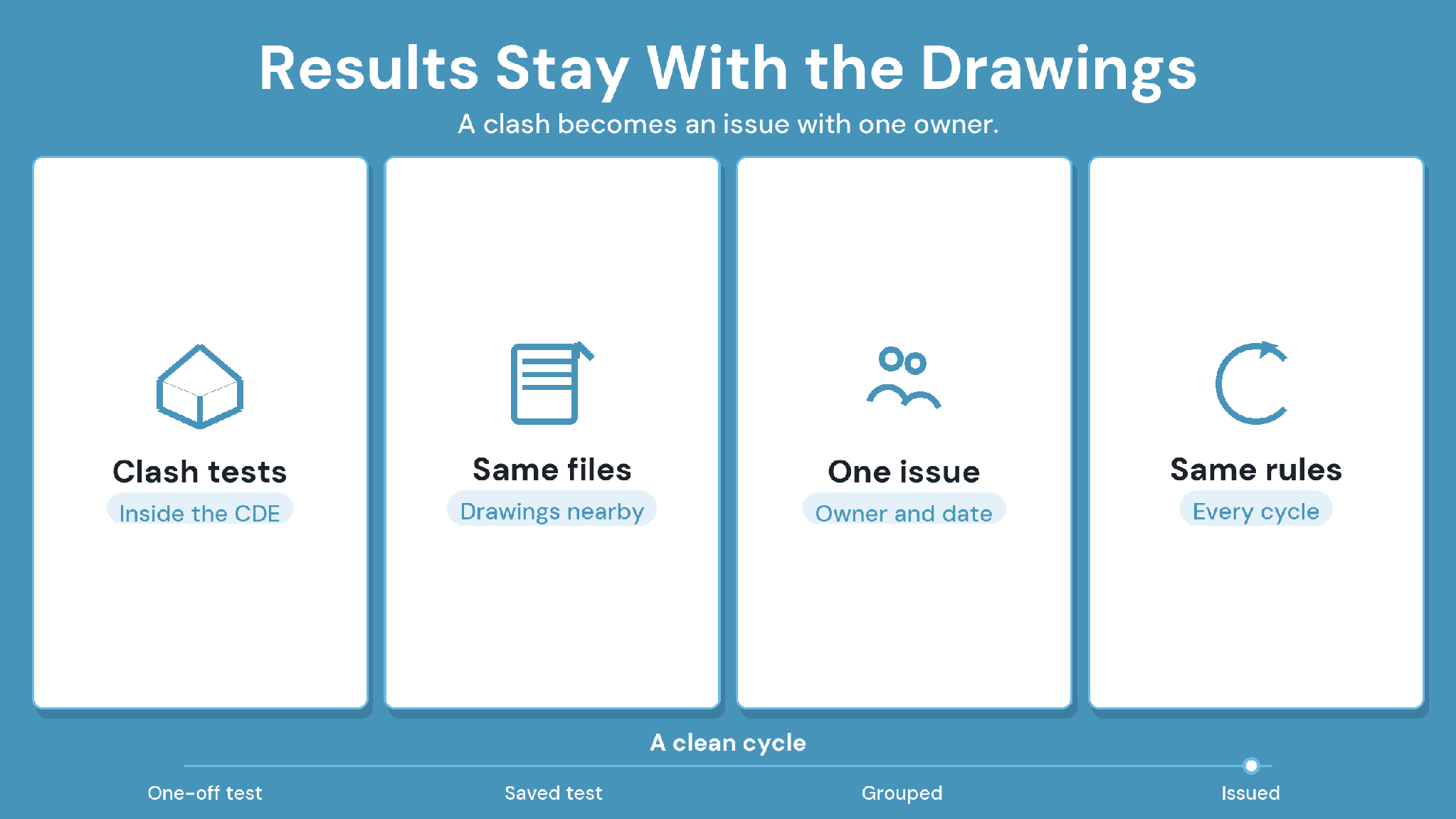
Results Stay With the Drawings
Clash detection is a simple automated check for conflicts between models. The value comes from running it the same way every cycle, with scoped rules and one owner per task.
CUBE keeps clash results next to the drawings and approvals they affect. Its Clash Tests runs inside the CDE. Any clash can move straight into an issue with an owner and a due date.
Ready to see clash detection inside a controlled project environment? Sign up for CUBE or request a virtual demo to run clash tests and track issues on your own models.
Frequently Asked Questions
1. Can clash detection run on 2D drawings?
Clash detection compares 3D geometry, so it needs models. Teams working from 2D drawings can still overlay sheets for visual checks. Automated tests need each discipline modeled in 3D before the first coordination cycle starts.
2. Does CUBE include clash detection?
Yes. CUBE's Clash Tests runs on merged models inside CUBE. It is separate from CDE seats, so teams can add it only where projects need it.
3. How often should clash detection be re-run?
Re-run on the same cycle as your coordination meetings, which is usually weekly during heavy MEP coordination. Also re-run after any major model update, so the team never works from results that predate the latest changes.
4. Can you run clash detection across different authoring tools?
Yes. CUBE merges native Revit, Navisworks and IFC files into one federated model, so trades using different authoring tools can be tested together without everyone exporting IFC first.
5. Who should own clash detection on a project?
The general contractor's virtual design and construction (VDC) lead runs the tests and chairs triage. Each trade owns fixes in its own model, and the design team approves any agreed fix that changes design intent or room layouts.