







What Is an RVT File? A Plain Guide to Revit Project Files
What is an RVT file? Learn what a Revit project file contains, how it differs from RFA, RTE, and RFT files, and how to open one without Revit.


TL;DR
- An RVT file is Autodesk Revit's native project file, holding a building's full 3D model and the drawings generated from it in one file.
- Revit also saves RFA files for single families and two template formats, RTE and RFT, so only an RVT file holds a complete project.
- Revit opens RVT files for editing, while free browser viewers such as Autodesk Viewer let you quickly view the model.
- Files saved in a newer Revit release generally cannot be opened in an older release, so teams agree on one version per project.
- CUBE opens RVT files in the browser for the whole project team and keeps every version, so nobody works from an outdated model.
What Is an RVT File?
An RVT file is the project file format of Autodesk Revit. It stores a complete BIM project in one binary file, from the 3D model to the drawings and schedules generated from it. Only Revit can edit it, and viewer tools can open it to review.
Autodesk owns the format, and its structure is proprietary. Each element in the file is an object with data attached, which is what separates an RVT from a 2D drawing file.
What's Inside an RVT File?
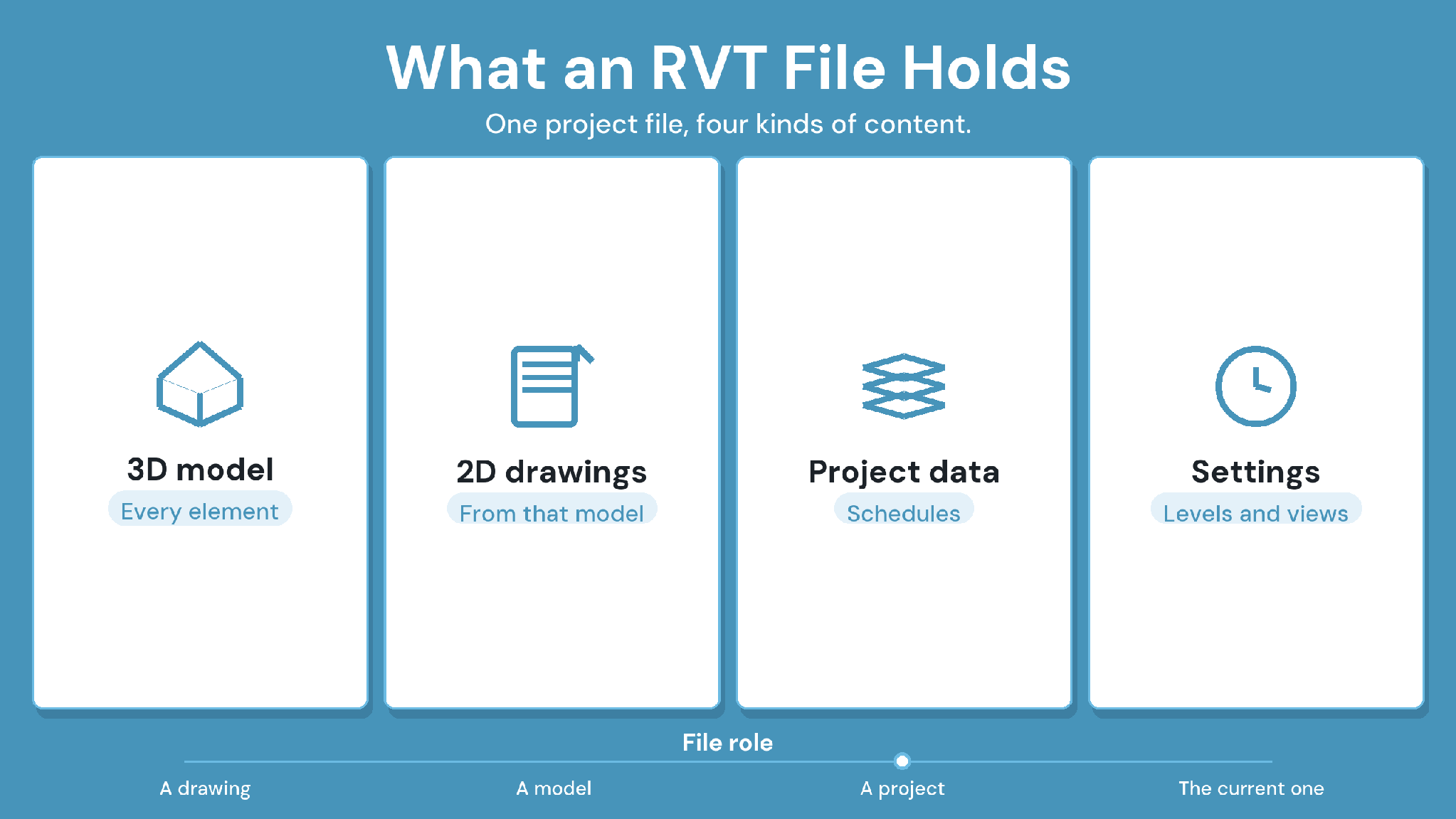
An RVT file holds everything Revit needs to rebuild the project on screen. The contents fall into four groups:
3D model: every modeled element, from walls to ducts, each with its own properties.
2D drawings: plans and sections, plus the sheets generated from the model.
Project data: materials and schedules, plus custom parameters attached to elements.
Settings: levels and view templates, plus the project's shared coordinates.
Because drawings come from the model, changing a wall in one view updates it everywhere in the file.
RVT vs RFA, RTE, and RFT: Which Revit File Do You Have?
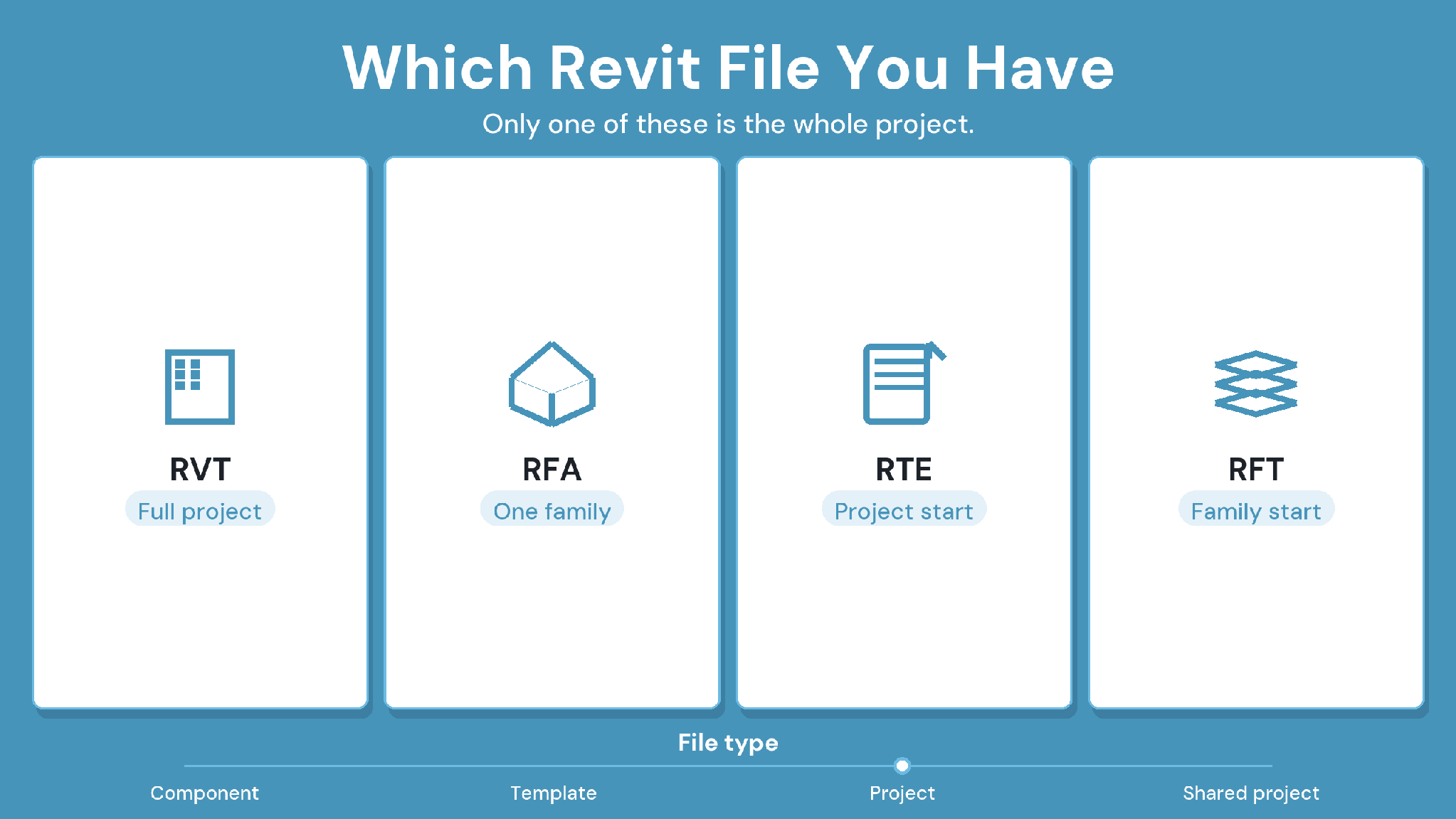
Revit uses four main file types, and only one of them is a full project. The table below shows how they differ, based on Autodesk's Revit file-type documentation.
If a colleague sends you a single fixture or door, it is almost certainly an RFA. A full building arrives as an RVT.
How Do You Open an RVT File?
You open an RVT file in Autodesk Revit if you need to edit it. For viewing only, free browser tools such as Autodesk Viewer open RVT files without a license, which suits a quick one-off look. Project teams that review models regularly use a shared browser-based BIM viewer.
Three routes cover most needs:
Autodesk Revit: full editing, available through a subscription or a free trial.
Autodesk Viewer: a free browser viewer for checking a file once.
A browser-based BIM viewer in your project platform: ongoing access for people who never author models.
Coordinators combining RVT files with other trades' models often use Autodesk Navisworks®, which aggregates models for clash checks.
Version matters too. A file saved in a newer Revit release generally cannot open in an older one. Agree on one Revit version per project before work starts.
How Should a Project Team Share RVT Files?
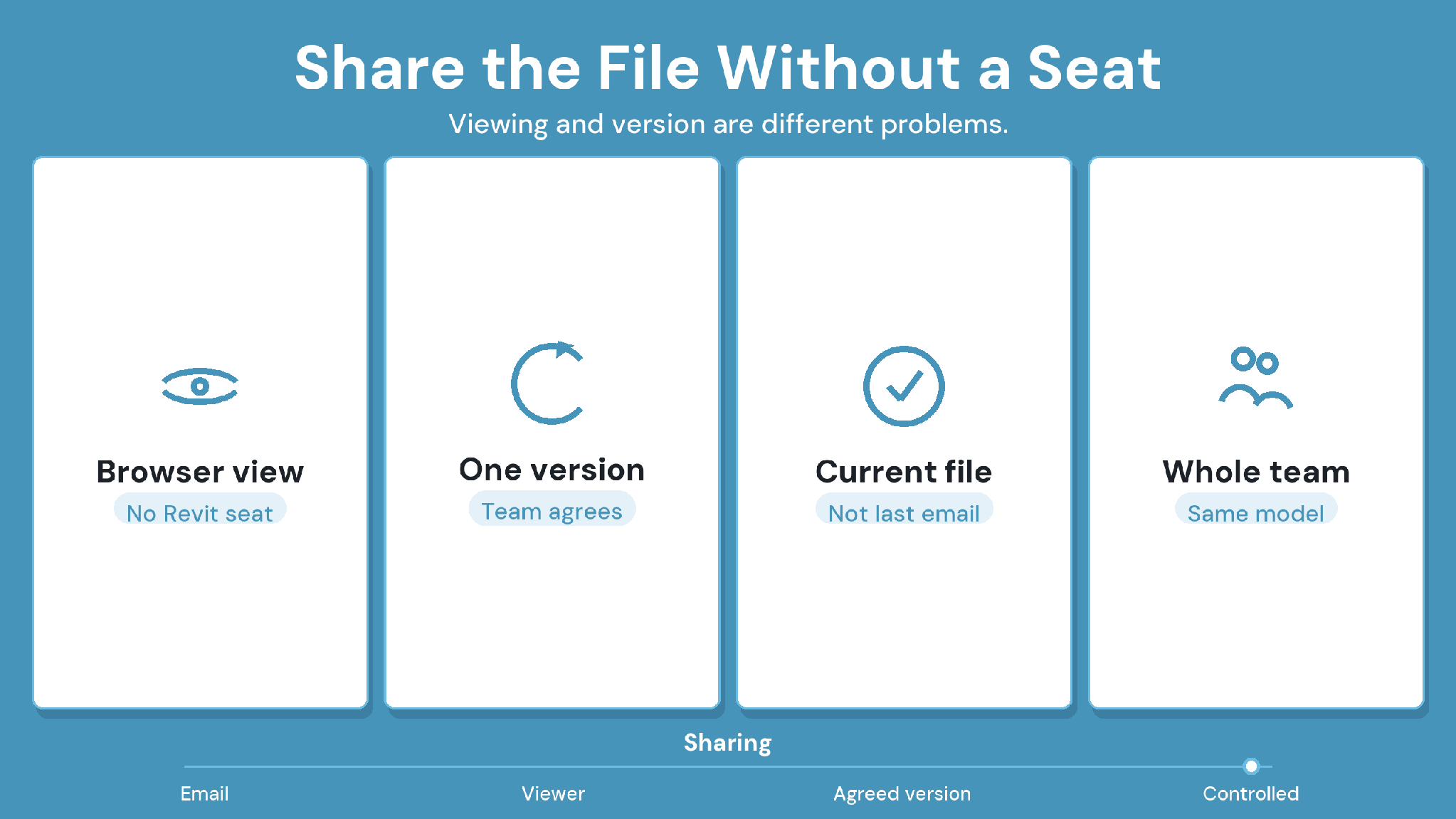
A project team should keep RVT files in one controlled location, with every upload saved as a new version and access set per person. That way, people who only need to view the model can open it in a browser, and everyone knows which file is current.
Emailing RVT files around creates the opposite. Copies pile up, and someone eventually coordinates against last month's model.
CUBE's Common Data Environment handles this directly. Its BIM viewer opens RVT and RFA files in the browser, along with other supported formats. Every upload creates a version automatically, with the timestamp and uploader recorded. You can then compare any two versions of a model side by side.
Case in point: a G+43 mixed-use development in the United Arab Emirates
The project set out to digitize its workflows. CUBE brought BIM access and document management into one cloud platform, with issue tracking and clash tests on federated models. Read the full case study →
Keep Every RVT File Current With CUBE
Knowing what is an RVT file answers half the question. The other half is making sure everyone on the project opens the same, current one.
CUBE gives teams browser access to RVT models with every version kept in one place. For the open-format side of the story, read CUBE's guide to IFC files.
Ready to give your whole team access to the current model? Sign up for CUBE.
Frequently Asked Questions
1. What is the difference between RVT and IFC?
RVT is Revit's proprietary project format, readable mainly by Autodesk tools. Industry Foundation Classes (IFC) is an open international standard that most BIM
tools can read. That makes it the usual format for sharing models across different software.
2. Can a Revit file be converted to IFC?
Yes. Revit exports models to IFC directly. Check the export settings before sharing, since custom parameters can drop out during conversion. Map each one to the correct IFC field, then test the exported file in a viewer.
3. Is RVT a universal BIM format?
No. RVT is specific to Autodesk Revit, so other authoring tools usually cannot open it natively. Teams working across several tools exchange IFC files for that reason, and keep the RVT as the authoring source.
4. Can CUBE compare two versions of an RVT model?
Yes. CUBE's BIM viewer compares any two versions of a model, as a list of changes or a visual comparison. Reviewers can see what changed between uploads without opening Revit or exporting any files of their own first.
5. Can teams comment on RVT models in CUBE?
Yes. Team members can raise Issues with redline markups directly on a model in CUBE, then assign each one an owner and due date. The Issue records the model elements involved, so the modeler finds the exact object to fix.