




How Do You Track Design and Site Issues on Drawings and Models in One Place?
Track design and site issues on drawings and BIM models in one register. Learn how to standardize issue fields, assign owners, and manage resolution.


Key Takeaways
- Design and site issues split because each list is organized by the tool that found the problem, instead of the location or system it affects.
- One register needs one schema covering type, location, discipline, severity, owner, due date, status, and source, applied to every issue regardless of origin.
- Pin every issue to a drawing sheet, model element, or named area, so the whole register can be filtered by place during weekly triage.
- An issue register carries problems from design through construction, while a punch list verifies finished work at closeout, so keep the two separate.
- CUBE keeps issues raised on PDF, CAD, and BIM files and standalone issues together in one Issues module, with export to Excel, PDF, or BCF.
To track design and site issues on drawings and models in one register, give every issue the same fields and pin it to a location. Then run one weekly triage across the whole list. That way, a clash found in the model and a defect found on site show up side by side when you filter by area.
On a typical mid-size project, clashes live in the coordination tool and drawing comments live in PDFs. Site problems sit in a spreadsheet, and there are chances a field defect can trace back to a design issue someone closed in a different system.
The steps below set up one register with a shared schema and a closure standard that works for office and field teams alike.
What Is a Construction Issue Register?
A construction issue register is a single log of every open and closed problem on a project, each with a location, an owner, a status, and a history. It covers design and coordination problems alongside site quality issues, from design development through handover.
Three similar terms cause confusion, especially on teams with UK or international partners:
Use "issue register" or "issue log" for problems. Keep a record of drawings issued to site in your transmittals, where each issue of a drawing has its own recipients and date.
Why Design and Site Issues End Up in Separate Lists
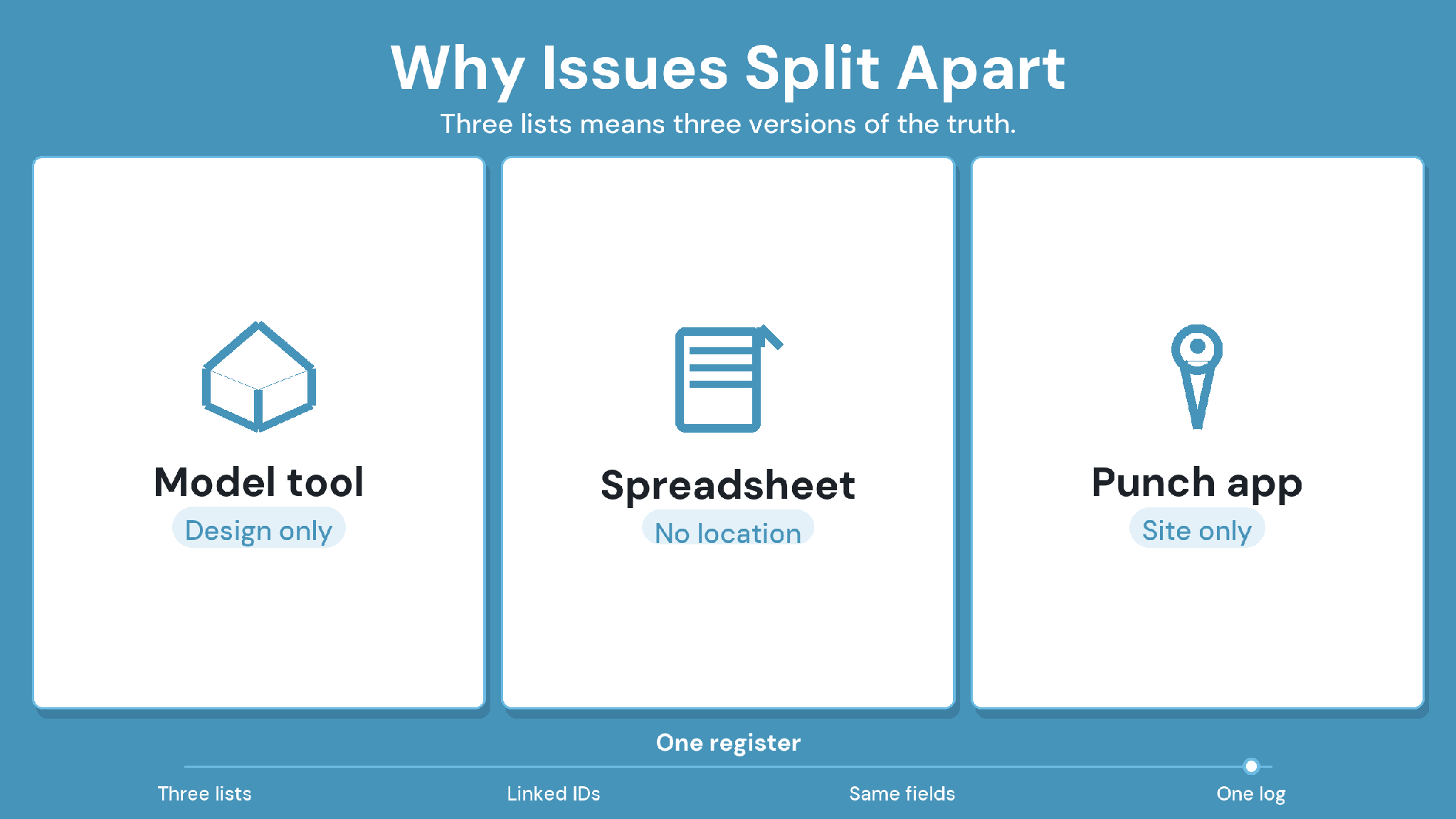
Split lists show up as everyday friction long before anyone calls them a process problem:
The same problem appears twice, once as a model clash and once as a site observation.
An issue closed in one tool stays open in another.
Nobody can answer "what's open on Level 3?" without opening three systems.
The root cause is structural. Each tool keeps its own fields and statuses, and none shares a location key with the others. A clash references model element IDs, while a site observation references a room number someone typed from memory. For how superseded sheets reach site in the first place, see keeping outdated drawings off site.
How to Track Design and Site Issues in One Register
Set up one register in six steps, then keep it alive with a weekly triage. The aim is that any issue, found in a model or on a site walk, can be filtered by location and traced to one owner.
Step 1: Define issue types and what stays out
Agree on a short list of issue types. Design and coordination types cover problems found in the office, and site quality covers field defects. Add safety
observations only if your safety program allows it. Punch items stay on the punch list until closeout, and requests for information (RFIs) stay in the RFI process.
Step 2: Use one schema for every issue
Every issue gets the same fields, whatever its source. The sample schema in the next section is a working starting point; trim it for smaller projects.
Step 3: Locate every issue
Pin each issue to a sheet location, a model element, or a named area such as a zone or grid line. Location is the shared key that lets a design issue and a site issue meet in one filtered view.
Step 4: Set capture rules for office and field
Office teams raise issues directly on drawings and models. Field teams raise issues with a photo and a location from whatever device the project supports. Decide who raises issues and who has authority to close them.
Step 5: Define statuses and closure evidence
Keep statuses short,i.e., open, in review, and closed. Design issues close against a new drawing or model version. Close site issues with evidence from the site, such as a photo or inspection record.
Step 6: Triage weekly and report by location
Filter the register by area and by overdue items every week, merge duplicates, and confirm owners. Report open issues by floor or zone, so superintendents and design leads read the same picture.
A Sample Issue Schema
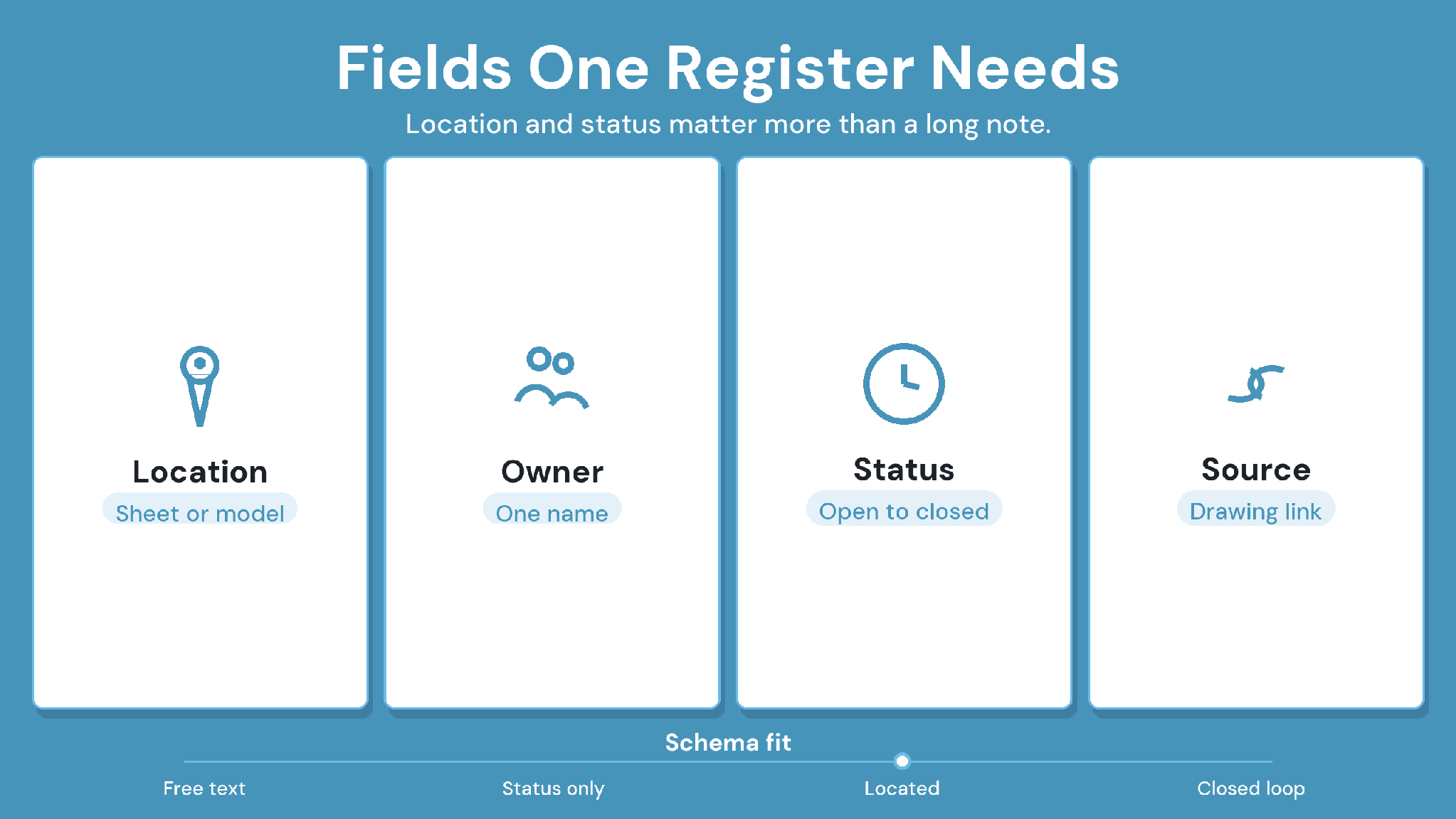
Use this schema as the template for every issue, whether it starts in the office or during a site walk.
Example: One Issue From Model to Site and Back
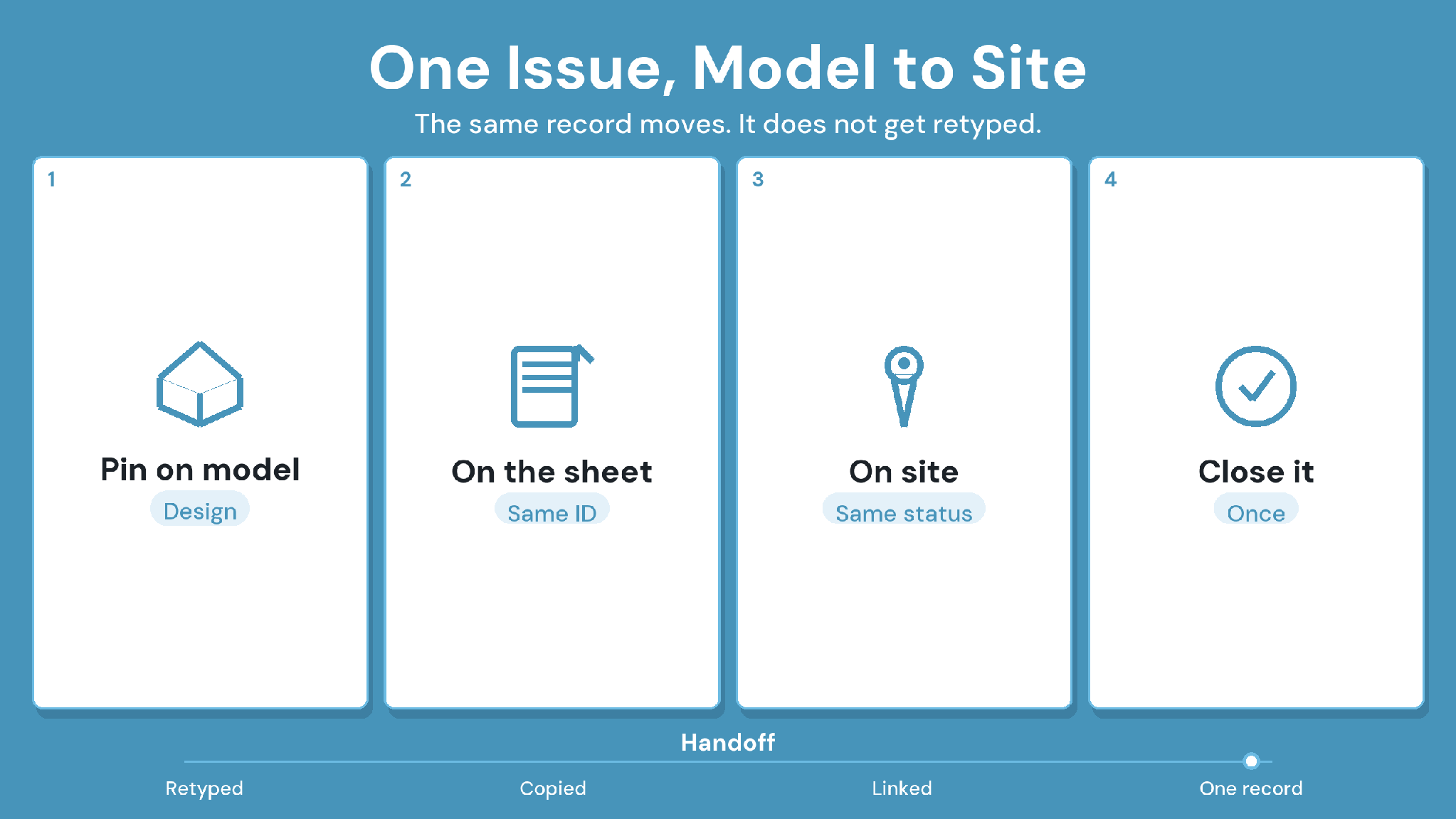
A single record should carry an issue from detection to verified fix. Here is how one coordination issue moves through the register on a six-story medical office project:
1. A weekly clash test flags a duct crossing a beam at grid C/4. The coordinator
raises an issue linked to both model elements and assigns it to the mechanical modeler, due in seven days.
2. The modeler reroutes the duct in the authoring tool and uploads model version
5. The issue moves to In Review.
3. The updated drawing reaches site. The superintendent checks the installed
duct and adds a photo to the same issue.
4. The coordinator closes the issue, recording model version 5 and the site photo
as closure evidence.
The design team and the site team never had to compare lists. Each saw the same record at the stage that concerned them.
That single record also helps later. If the duct is questioned at handover, the issue shows who decided, which model version carried the fix, and what the installed work looked like.
Watch out: Close site issues on evidence from the site. A model update proves the design changed, and only a photo or inspection proves the installed work matches it.
Issue Register or Punch List?
Use an issue register for problems that need a decision or a design change at any stage, and a punch list for finishing items found near completion. A punch item can begin life as an issue, but the punch list itself verifies completion at closeout. Running both from the same register blurs that boundary and buries open design questions under finishing work.
How CUBE Tracks Design Issues on Drawings and Models
In CUBE's common data environment (CDE), the Issues module holds issues raised on files and standalone issues in one project list. You mark the spot in the PDF, computer-aided design (CAD), or building information modeling (BIM) viewer and raise an issue from it. CUBE captures a snapshot, and the issue keeps a link back to the file.
On PDFs, issues carry annotations drawn with shapes and text. On CAD files, an issue holds a pin, a severity, a due date, and an assignee, plus attachments and tags. On BIM files, you draw redlines and link the issue to selected model elements by ID. Dependencies add explicit file-to-file links, so a reviewer can trace a changed sheet to the drawing it relies on.
The schema in this guide maps onto CUBE through Custom Fields for Issues, set in Project Settings, alongside tags, severity, and multiple assignees. The project's Issues list supports filters, grouping, and saved personal or shared views, which
covers the weekly triage by location. From the list, you can open any issue in the Design Viewer at its exact spot.
Assignees see open issues in the Notifications panel, with an Overdue filter for anything past due. Issues export to Excel or PDF for reports, and to BIM Collaboration Format (BCF) for authoring tools. Teams using clash tests can create an issue straight from a clash result.
Field teams use CUBE's mobile app for form-based work such as inspections. Those inspection records sit in their own module, separate from the Issues register.
Track Design and Site Issues in One Register With CUBE
One register works when every issue shares a schema and a location key, and when site issues close on site evidence. Split lists stop being a problem once both teams triage the same filtered view each week.
CUBE brings issues on drawings and models into one project list, with snapshots, element links, and exports for reporting and authoring tools. To see how it fits your project's issue workflow, sign up for CUBE.
Frequently Asked Questions
1. What's the difference between an issue and an RFI?
An issue records a problem the team must resolve, whatever its source. A request for information asks the design team a formal contractual question and follows its own response timeline. A single issue can prompt an RFI, but each keeps its own record.
2. How do you migrate an existing Excel issue log?
Map your spreadsheet columns to the new schema first, and drop fields nobody uses. Import open issues only, with their location and owner filled in. Archive closed issues as a read-only file instead of migrating years of history.
3. Can issues from Navisworks or Revit come into the same register?
Yes, if your platform reads BCF, the open format for model-based issues. CUBE imports BCF files and exports issues as BCF, and issues created in CUBE sync back to the Revit plugin with persistent element IDs.
4. How do you track design and site issues on drawings and models in one register with subcontractors involved?
Give subcontractors access scoped to their own work. In CUBE, Guest seats give access to CDE modules within one space and one project. Ten Guest seats come free for every ten paid full seats, rounding down.
5. Who should own the construction issue register?
The general contractor's project engineer or virtual design and construction (VDC) lead usually owns the register and runs weekly triage. Each issue still has its own assignee, and the owner's job is keeping the register complete, deduplicated, and current.