







How to Mark Up BIM Models Without Changing the Source File
Mark up 3D models in coordination meetings without touching the source file. Separate model, view, and issue layers, then use BCF.


TL;DR
- You can mark up 3D BIM models without changing the source file by keeping all markups separate from the authored model.
- BIM model reviews have three layers: the authored model, temporary view changes, and persistent issues.
- Use section planes, hide, isolate, and other viewer tools to discuss changes, then reset the views after the meeting.
- Record every decision as an issue with a markup, saved viewpoint, affected elements, owner, and due date.
- BCF lets teams send issues and their visual context back to authoring tools, while CUBE supports browser-based markups and issue tracking without touching the source model.
BIM Collaboration Format carries issues, viewpoints, and snapshots back to any authoring tool without sending the model file between project teams.
CUBE lets teams raise issues with redline markup directly on BIM files, link them to selected elements, and export them back to authoring tools.
You can mark up 3D models in coordination meetings without changing the source
file by keeping every markup in a viewer or issue layer that sits apart from the
authored model. The model author then makes agreed changes in Revit or another authoring tool and uploads a new version.
Trouble starts when a meeting treats the shared model as a whiteboard. Someone moves a duct to show a reroute, saves, and the design-of-record model now holds a sketch.
A three-layer rule prevents that. It takes about five minutes to agree before the first coordination meeting, and it saves hours of untangling later.
Can You Mark Up a BIM Model Without Changing It?
A building information modeling (BIM) model stays untouched when markup lives in a viewer or issue layer instead of inside the authoring file. Viewers open the model for navigation, sections, and comments, and they store markups separately.
Only the model author, working in the authoring tool, changes geometry.
That split also lets people without Revit or other authoring licenses take part. Viewing and commenting need a viewer seat, and editing stays with the few people who own each discipline model.
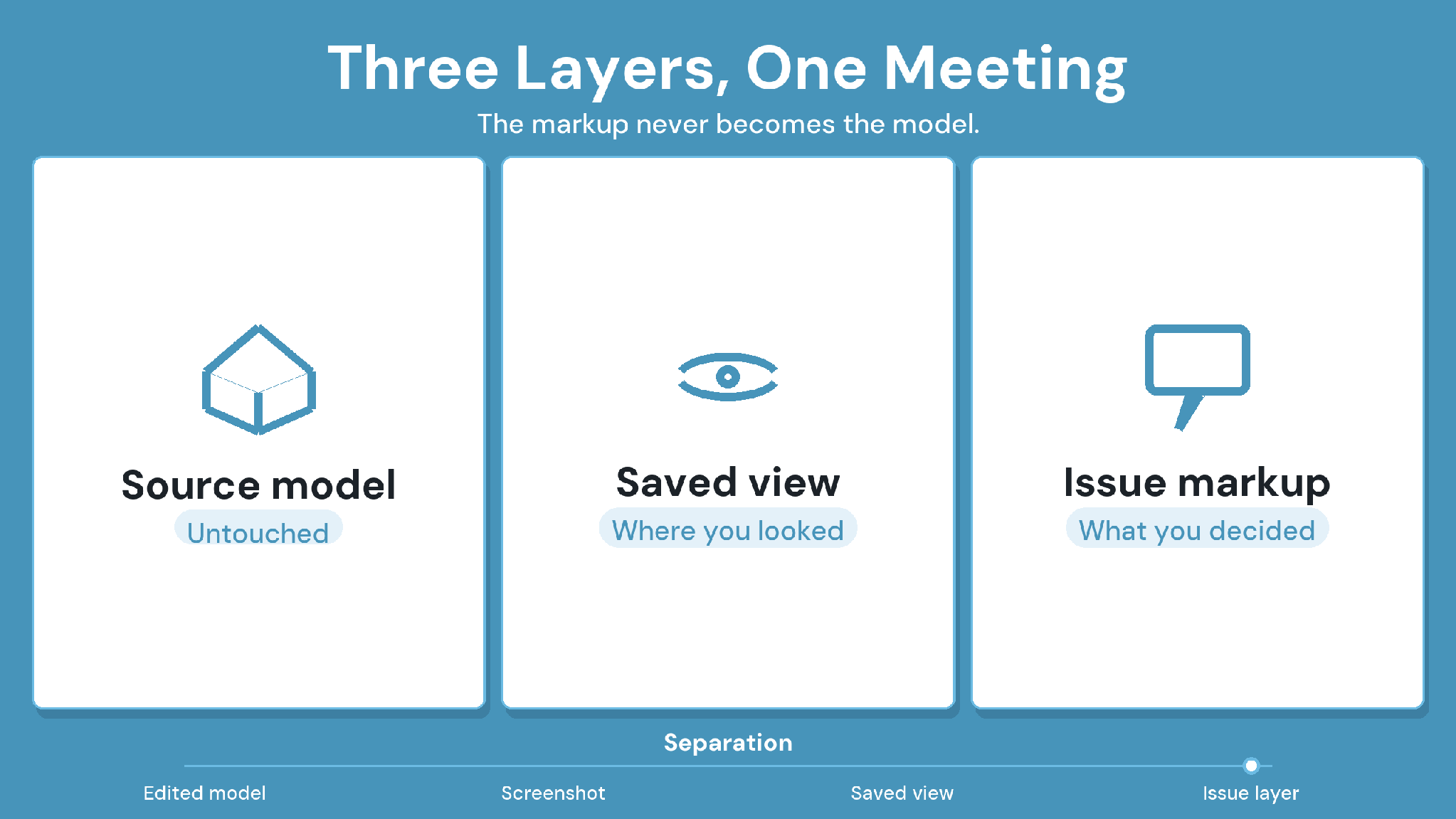
The Three Layers of a BIM Model Review
Every model review touches three layers, and each one has a different owner and lifespan. Mixing them up is how a discussion sketch ends up in the design of record.
Accidents happen when the first two layers blur. A move made to show a reroute is a view change, and it belongs nowhere near the authored geometry. The decision that follows the move belongs in the third layer, as an issue.
How to Mark Up 3D Models in a Coordination Meeting Without Editing the Source
Give every participant view-only access, then record each decision as an issue the model author can open later. The five steps below turn that into a routine the
coordinator can run every week.
Step 1: Open the model with view rights only
Meeting participants need view access, and edit rights stay with model authors in their authoring tools. In a document platform, set access per user so a trade foreman can open the model but can't upload a new version.
Step 2: Use temporary view tools to discuss
Section planes, isolate, and explode help the room see a conflict clearly. Moving or rotating an element to show an option works too, provided the change resets afterward and stays out of the stored model. The coordinator resets shared views
at the end.
Step 3: Capture each decision as an issue
Draw a redline on the model, save the viewpoint, and select the affected elements. A good issue lets someone who missed the meeting open the exact spot and
understand the problem in under a minute.
Step 4: Assign an owner and a due date before moving on
Give each issue one owner. Agreeing on the owner in the room avoids a week of each discipline assuming another one picked it up.
Step 5: Send the issue back to the model author
Export the issue to the authoring tool, either as a file or through a plugin. The author changes the geometry, uploads a new version, and closes the issue against that version.
Meeting Rules That Protect the Source Model
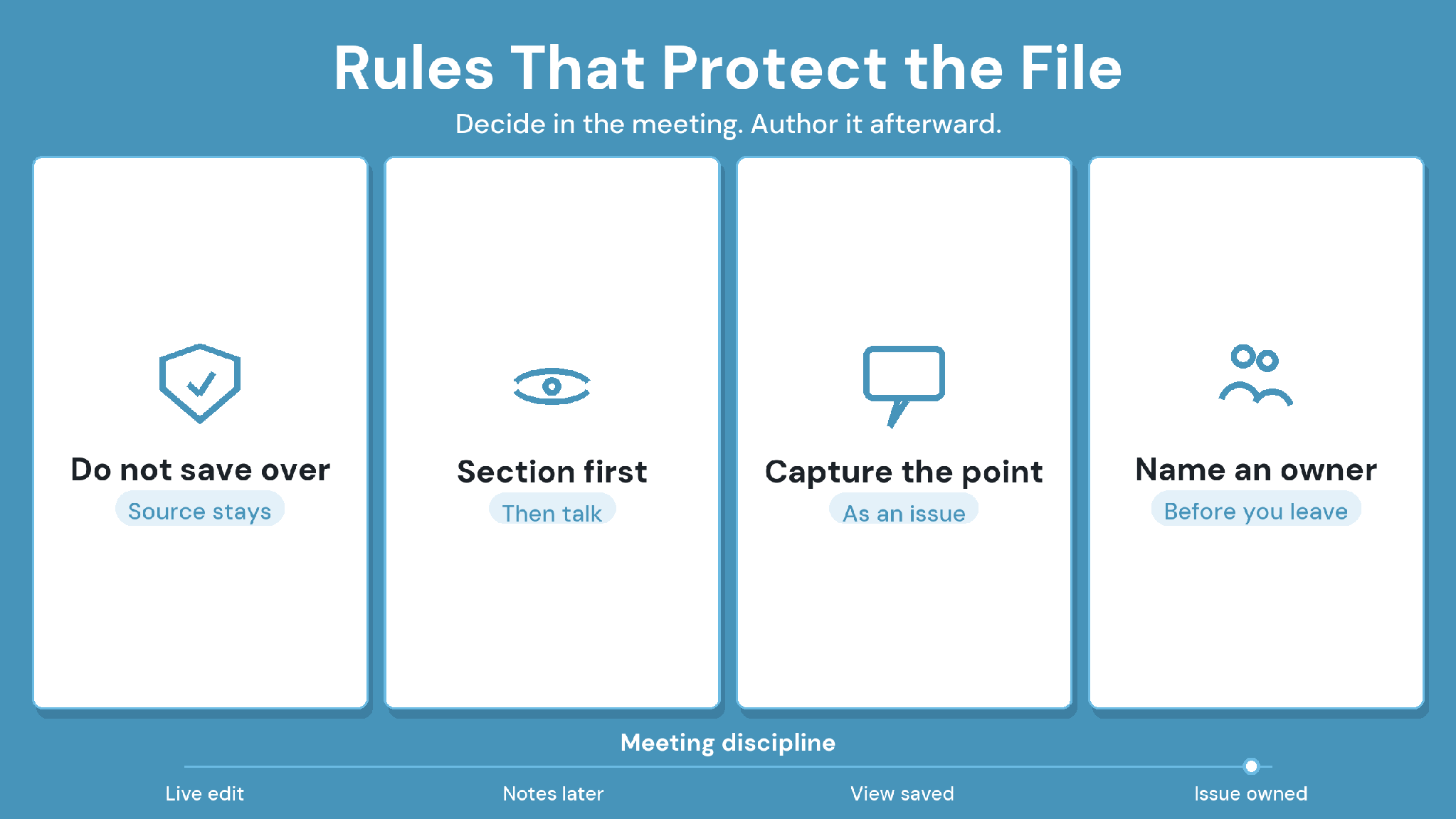
Write these rules into the BIM Execution Plan (BEP), so every new participant inherits them:
Edit rights: only discipline authors upload new model versions through the agreed upload process.
Local copies: nobody saves a downloaded model and re-uploads it after the meeting.
View resets: the coordinator resets shared views and layouts at the end of each session.
Decision log: every decision exists as an issue, and minutes link to issue IDs.
Screenshots: a screenshot in an email is a reference. It should never be considered an instruction to change the model.
The rules work best when the coordinator models them on screen. New trade participants pick up the habit fastest by watching views reset and decisions turn into issues in real time.
Tip: Agree on the three-layer rule at the project kickoff and repeat it during the first two coordination meetings. After that, it becomes part of how the team talks about the model.
How Does BCF Carry Markup Back to Authoring Tools?
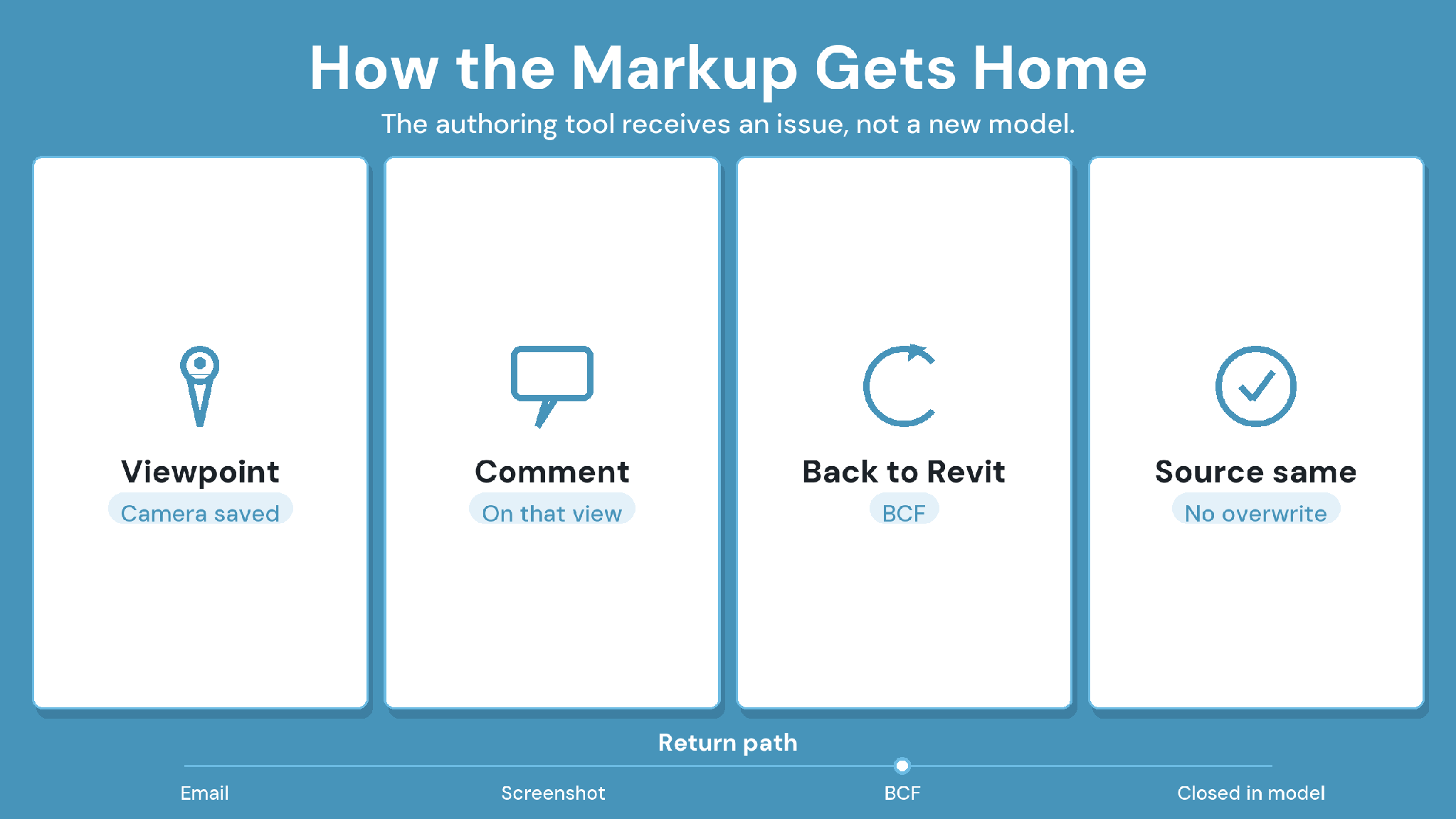
BIM Collaboration Format (BCF) is a buildingSMART openBIM standard that packages an issue and its visual context into a small file kept separate from the model. Authoring tools that read BCF open the issue at the right spot, so the modeler sees exactly what the meeting saw.
A BCF topic typically carries:
Issue details such as status and assignee
A saved camera viewpoint and snapshot
References to the affected model elements by ID
Comments from each round of discussion
Because a BCF file holds no model geometry, teams on different authoring tools can exchange issues without exchanging heavy model files. That keeps the authored model where it belongs, with its author. For the open model format BCF pairs with, see our guide to IFC files.
How CUBE Handles Model Markup Without Touching the Source
In CUBE's common data environment (CDE), BIM files such as RVT and IFC open in the browser Design Viewer, and markup happens in the issue layer.
Raise issues directly on a BIM file using redline tools, including clouds and freehand marks. Each issue carries a status, severity, due date, assignees, and comments with images.
Select elements in the model and associate them with the issue, and CUBE records their element IDs. Raising an issue from a marked spot captures a snapshot, and the issue keeps a link back to the file. Authors then work from the issue, while the stored model stays as they uploaded it.
For discussion, the viewer offers section planes and a section box, along with hide, isolate, and explode. Personal and shared layouts let the coordinator save a meeting view per zone. CUBE's Model Repositioning adjusts a model's position, rotation, and scale in the viewer, with a reset to default.
Access is set per user, so meeting participants can hold Can View access while authors keep upload rights. Issues export as BCF for any authoring tool that reads it, and issues created in CUBE sync back to the Revit plugin with persistent element IDs.
Mark Up 3D Models Without Changing the Source File in CUBE
Non-destructive markup comes down to discipline about layers. Authored models change only in authoring tools, temporary views reset, and decisions live as issues with an owner.
CUBE gives coordination teams that structure in the browser, with issues pinned to model elements and a route back to the author through BCF or the Revit plugin. To see it on your own models, sign up for CUBE.
Frequently Asked Questions
1. Is redlining a 3D model the same as redlining a PDF?
The intent is the same, but a 3D redline also needs a saved camera viewpoint and element references. Without them, the next person can see the mark yet lose the angle and objects it referred to, which slows the fix.
2. Who should be allowed to edit the model during a coordination meeting?
Nobody should edit the federated or shared model during the meeting. Discipline authors make agreed changes afterward in their own authoring tools, then upload a new version through the normal process so the change is traceable.
3. Can you mark up an IFC model?
Yes. Viewers that open IFC files let you section, comment, and raise issues against IFC elements. In CUBE, IFC files open in the browser Design Viewer, and issues raised there keep a link back to the file.
4. How do you mark up 3D models in coordination meetings without changing the source file when attendees lack Revit?
Give attendees view access in a browser-based viewer and raise issues there. In CUBE, participants mark up BIM files in the Design Viewer, while authors receive the issues through BCF or the Revit plugin.
5. How often should teams clean up old model issues?
Review open issues at every coordination meeting, and close or merge stale ones monthly. Issues older than two model versions often describe geometry that has already changed, so confirm each one against the current model first.